Onboarding
Onboarding is the initial setup process in ZeuZ Test Studio that guides users through configuring the application before they begin their testing activities. It helps users set up a workspace, connect a project or local repository, and configure external tools to provide the necessary project context for AI-assisted testing.
Why it matters/ Use Cases:
- Initial Application Setup: Guides users through the essential configuration steps after installing ZeuZ Test Studio.
- Workspace Configuration: Helps users select or create a workspace for organizing their testing activities and resources.
- Project Integration: Allows users to connect a local repository and provide project or codebase context for AI-assisted testing.
- External Tool Integration: Enables users to connect services such as GitHub, Jira, Notion, and Google Drive to provide additional project information and resources.
- AI-Assisted Testing Preparation: Provides the project context and configurations required for Test Studio to support AI-assisted test creation and development.
- Consistent Setup: Provides a structured setup process so users can configure the required components before starting their testing activities.
Prerequisites
- ZeuZ Account: Users must have a valid ZeuZ account with access to Test Studio.
- Workspace Access: Users should have access to an existing workspace or permission to create one.
- Project Repository (Optional): A local Git repository should be available if project or codebase context needs to be provided to Test Studio.
Features
- First, install ZeuZ Test Studio on your desktop.
- After installing the app, users are first directed to the onboarding progress.
- The onboarding progress at the top shows three steps:
- Workspace,
- Projects,
- Connectors.
Workspace
-
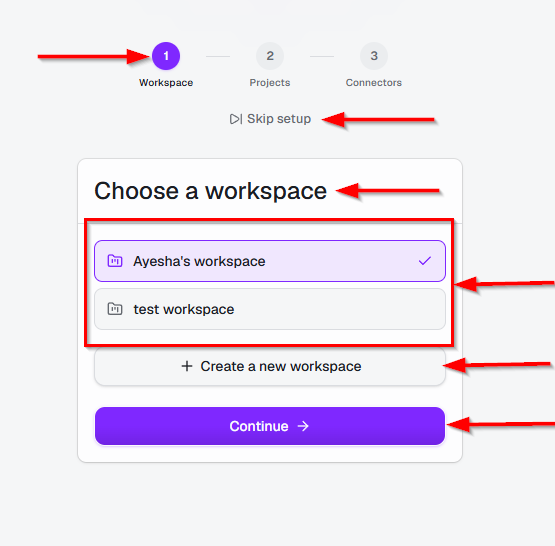
This is the first step of the Test Studio onboarding process. It allows users to select the workspace they want to use for their Test Studio activities. It provides the following options:
- Select an existing workspace: Users can choose from the available workspaces, such as Ayesha's workspace or test workspace.
- Create a new workspace: Users can create a new workspace if an appropriate workspace does not already exist.
- Continue: After selecting a workspace, click Continue to proceed to the next onboarding step.
- Skip setup: Users can skip the onboarding setup if they do not want to configure the workspace at this time.
Projects
-
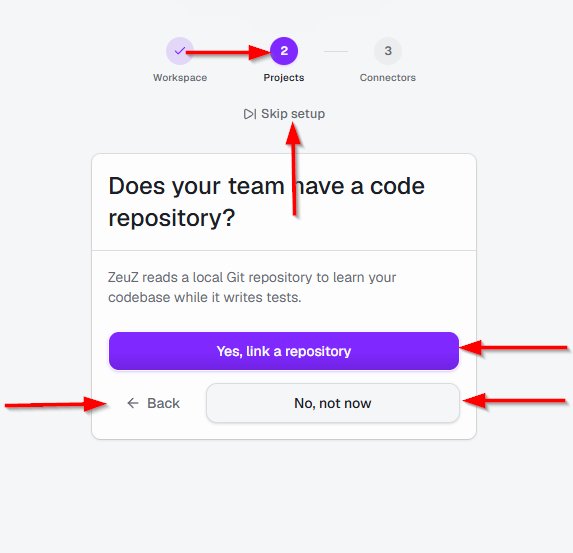
This is the second step of the Test Studio onboarding process. It asks whether the team has a code repository that can be linked to Test Studio. Here, users have the following options:
- Yes, link a repository: Link an existing local Git repository to the selected workspace.
- No, not now: Skip repository setup and continue without linking a repository.
- Back: Return to the previous Workspace step.
- Skip setup: Skip the onboarding setup entirely.
Connectors
-
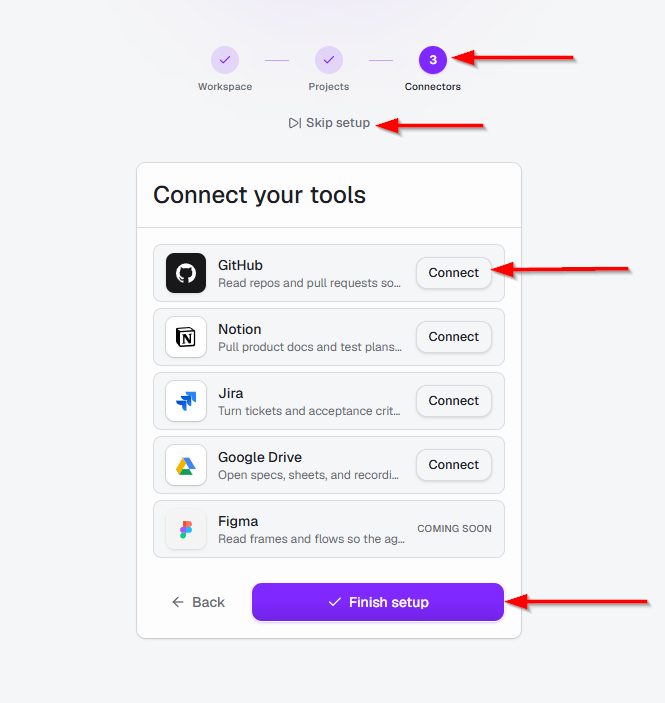
This is the third and final step of the Test Studio onboarding process. It allows users to connect external tools that Test Studio can use to access relevant project information, documentation, requirements, and design resources. The available connectors are:
- GitHub: Connect GitHub to access repositories and pull request information.
- Notion: Connect Notion to access project documentation and test plans.
- Jira: Connect Jira to access tickets and acceptance criteria.
- Google Drive: Connect Google Drive to access documents, spreadsheets, and recordings.
- Figma: Provides access to design frames and user flows.
-
Users can select Connect beside the required tool and complete its connection process. After configuring the required connectors, click Finish setup to complete onboarding.
-
The Back option returns to the previous Projects step, while Skip setup allows users to skip the onboarding configuration.
FAQs / Troubleshooting
What is Onboarding?
Onboarding is the initial setup process in ZeuZ Test Studio that guides users through configuring a workspace, connecting a project or local repository, and setting up external tools to provide the necessary context for AI-assisted testing.
Why can't I proceed with AI-assisted testing?
Ensure that a workspace is selected and the required Codex Authentication is configured. If a project repository is required for context, make sure it is also linked.
Why is the Analyze Knowledge Sources option unavailable?
The Analyze Knowledge Sources option becomes available after a local repository is linked to the workspace.
Can I use Test Studio without linking a project repository?
Yes. Linking a repository is optional during setup. However, connecting a repository can provide additional project or codebase context for AI-assisted testing.
Can I connect external tools during onboarding?
Yes. The Connectors step allows users to connect supported external services, such as GitHub, Jira, Notion, and Google Drive.
What should I do if an external connector cannot be connected?
Verify that the required account access and authentication details are available, then try connecting the service again.
Changelog
- A dedicated workspace for creating, refining, comparing, and versioning AI-generated UI mockups [202605]