Import from GitHub
The Import from GitHub feature allows users to import GitHub issues directly into ZeuZ and convert them into Requirements, Tasks, Bugs, or Dots. It provides a guided import process that includes connecting to GitHub, selecting the issues to import, configuring import rules, mapping GitHub fields to ZeuZ fields, and completing the import.
Why it matters / Use Cases:
- Simplifies issue migration by importing GitHub issues directly into ZeuZ, eliminating the need to recreate them manually.
- Saves time and reduces manual effort by allowing multiple GitHub issues to be imported in a single process.
- Centralizes project management by converting GitHub issues into Requirements, Tasks, or Bugs within ZeuZ.
- Supports customizable imports through configurable import rules and field mapping, ensuring that GitHub data aligns with the corresponding fields in ZeuZ.
- Provides a structured import workflow that guides users through connecting to GitHub, selecting issues, configuring mappings, and completing the import process.
Prerequisites
- Access to ZeuZ Server with permissions for Project → Manage → Import from GitHub.
- The GitHub repository must contain the issues that will be imported into ZeuZ.
- Users should determine how GitHub issues will be mapped to Requirements, Tasks, or Bugs before starting the import process.
- Any required field mappings and import rules should be configured to ensure the imported data is transferred correctly.
Features
- The Import from GitHub option is available under the Projects menu. To use this feature, users only need to provide a valid GitHub personal access token.
Token Access Process on GitHub
- First, generate a GitHub Personal Access Token. To do this, sign in to GitHub and navigate to the GitHub home page.
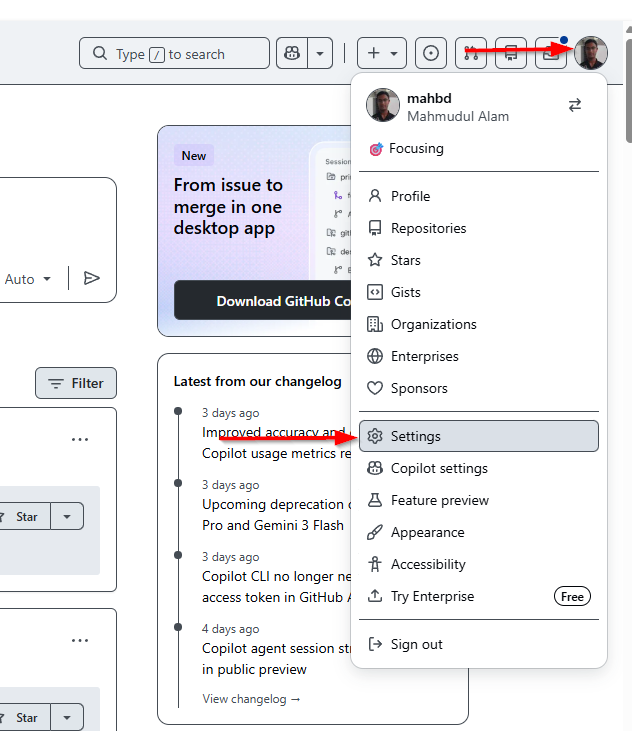
- Click the Profile icon in the top-right corner and select Settings.
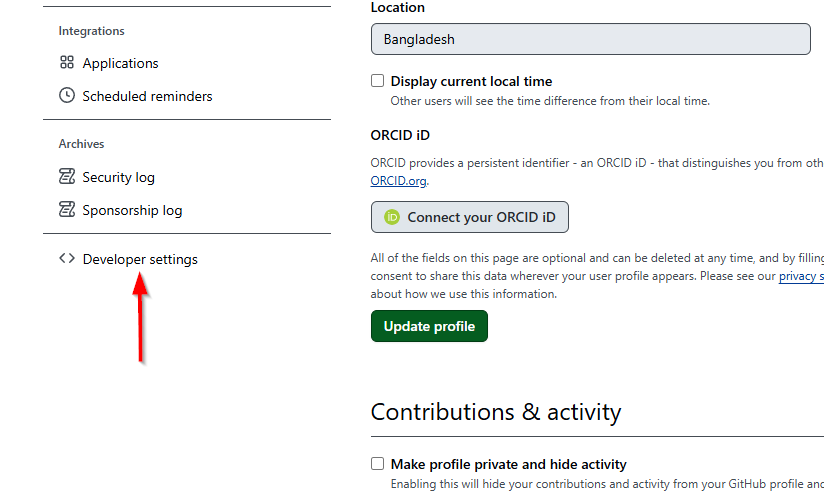
- On the Settings page, scroll down and click the Developer settings button.
- Next, select Personal access tokens and two options will be displayed:
- Fine-grained tokens
- Tokens (classic).
- Select the Tokens (classic) option, and then click the Generate new token drop-down menu to create a new personal access token.

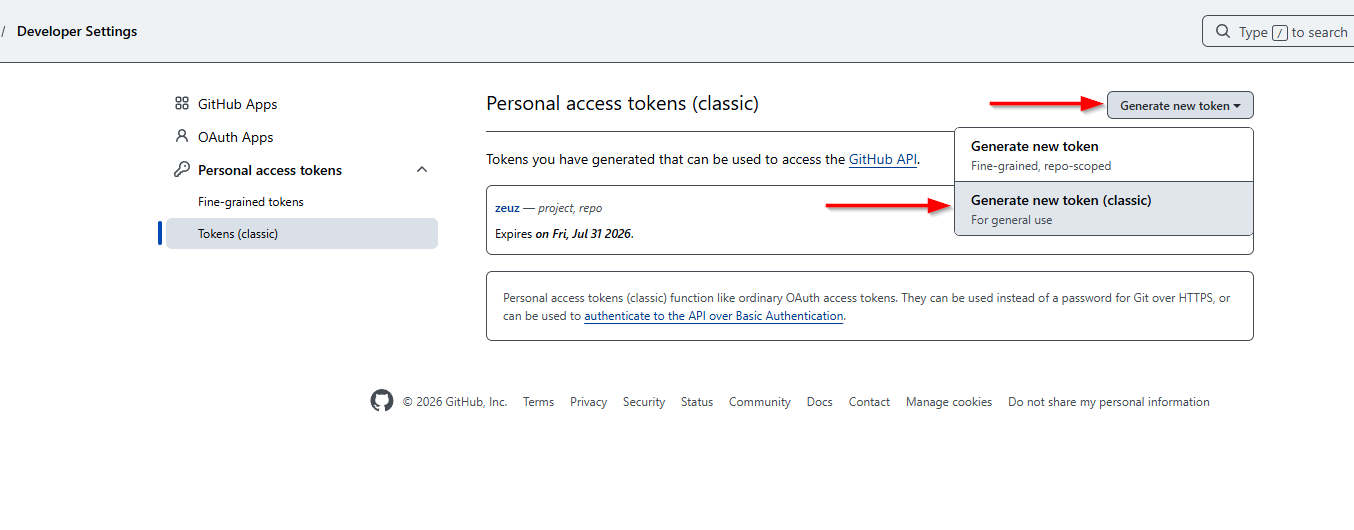
- Next, click Generate new token (classic). On the token creation page, enter a Note to identify the token. Then, select the repo:status and the admin:org permission. These two permissions are required to use the feature.
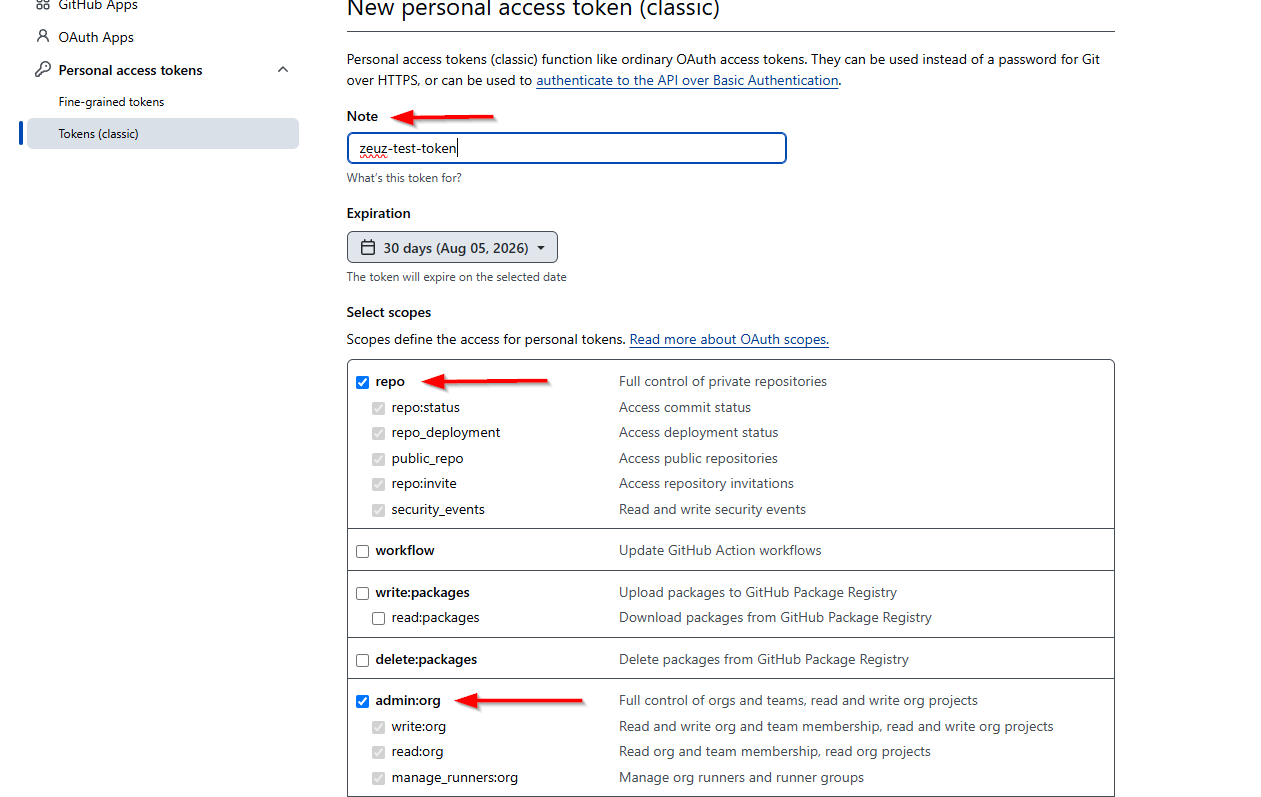
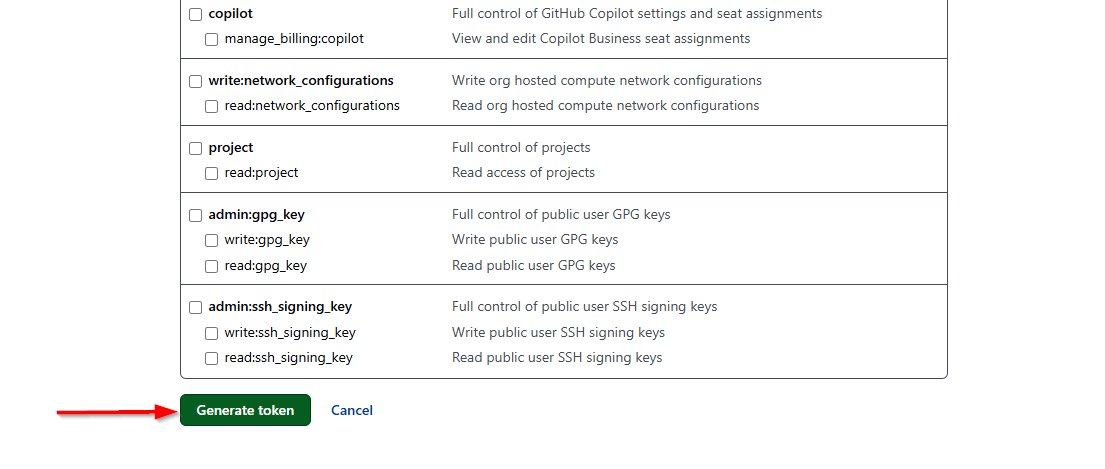
- After selecting the required permissions, click Generate token. GitHub will generate a new personal access token that will be used to connect to the repository. Make sure to copy and save the token immediately, as GitHub will only display it once and it cannot be viewed again later.
- After generating the token, paste it into the GitHub Token field and click Validate & Connect. Once the connection is successful, the Select Repository field will be displayed.
- Choose the desired GitHub repository and click Fetch Issues.
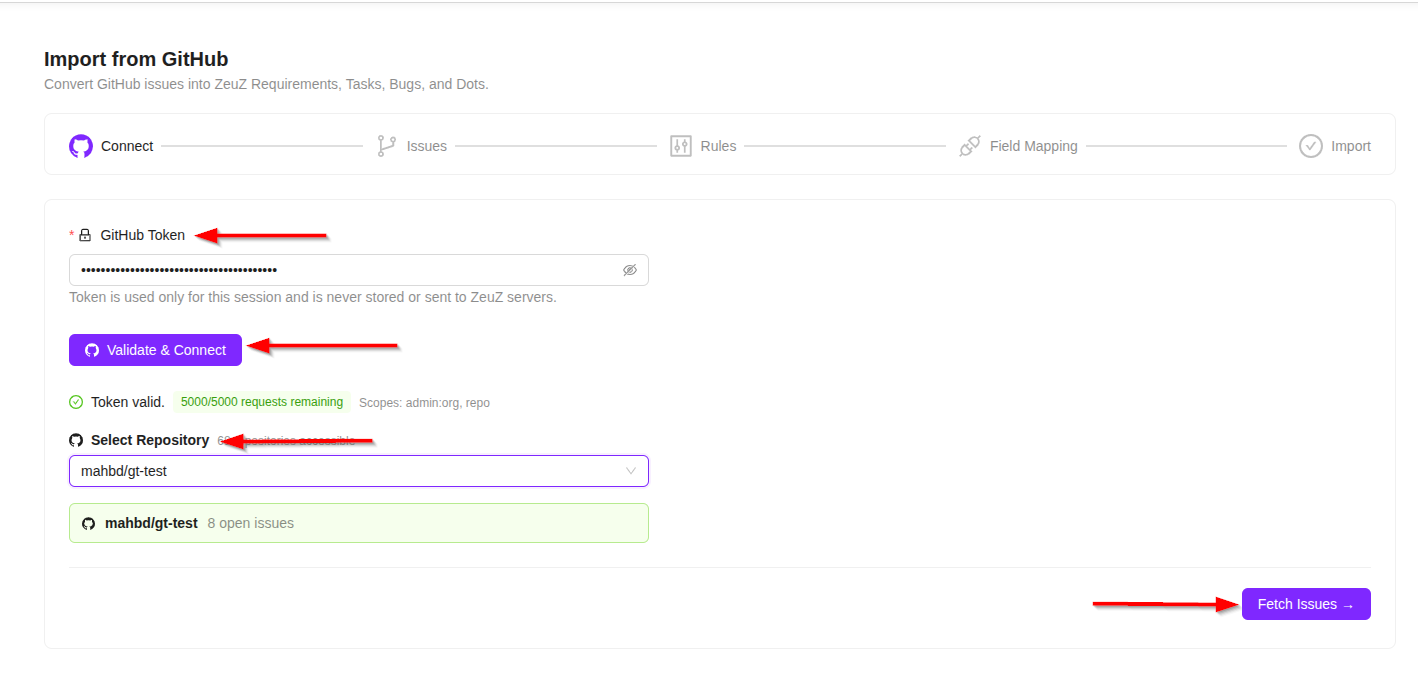
- ZeuZ will retrieve all the issues available in the selected repository. Users can then choose which issues to import into the project and leave any unwanted issues unselected.
- Additionally, import rules can be configured by clicking Configure Rules before proceeding with the import.
Configure Rules
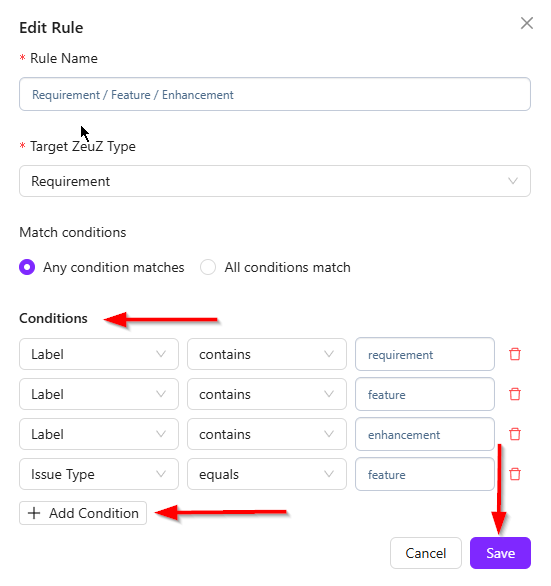
- In this step, users can define rules to determine under which conditions a GitHub issue should be imported as a Bug, Task, Requirement, or Documentation item.
- For example, when configuring a rule for Requirements, if an issue has the Requirement label, it will be imported as a Requirement. Similarly, if an issue has the Feature label or its Issue Type is set to Feature, it will also be imported as a Requirement.
- Additional conditions can be added by clicking the Add Condition button. Rules can be created based on various GitHub fields, such as Labels, Issue Type, Milestone, Title, Project Fields, and other supported attributes. For example, users can define a rule that imports an issue as a Requirement when its Issue Type is Feature, or when the issue body contains a specific value, such as Type = Feature.
- Since GitHub primarily stores issues, while ZeuZ organizes work into Requirements, Tasks, Bugs, and Documentation, these rules are required to determine how each GitHub issue should be converted during the import process.
GitHub Issue Import Process
- Click the Settings option.
- Next, click the All Repositories option. The Repositories page will open.
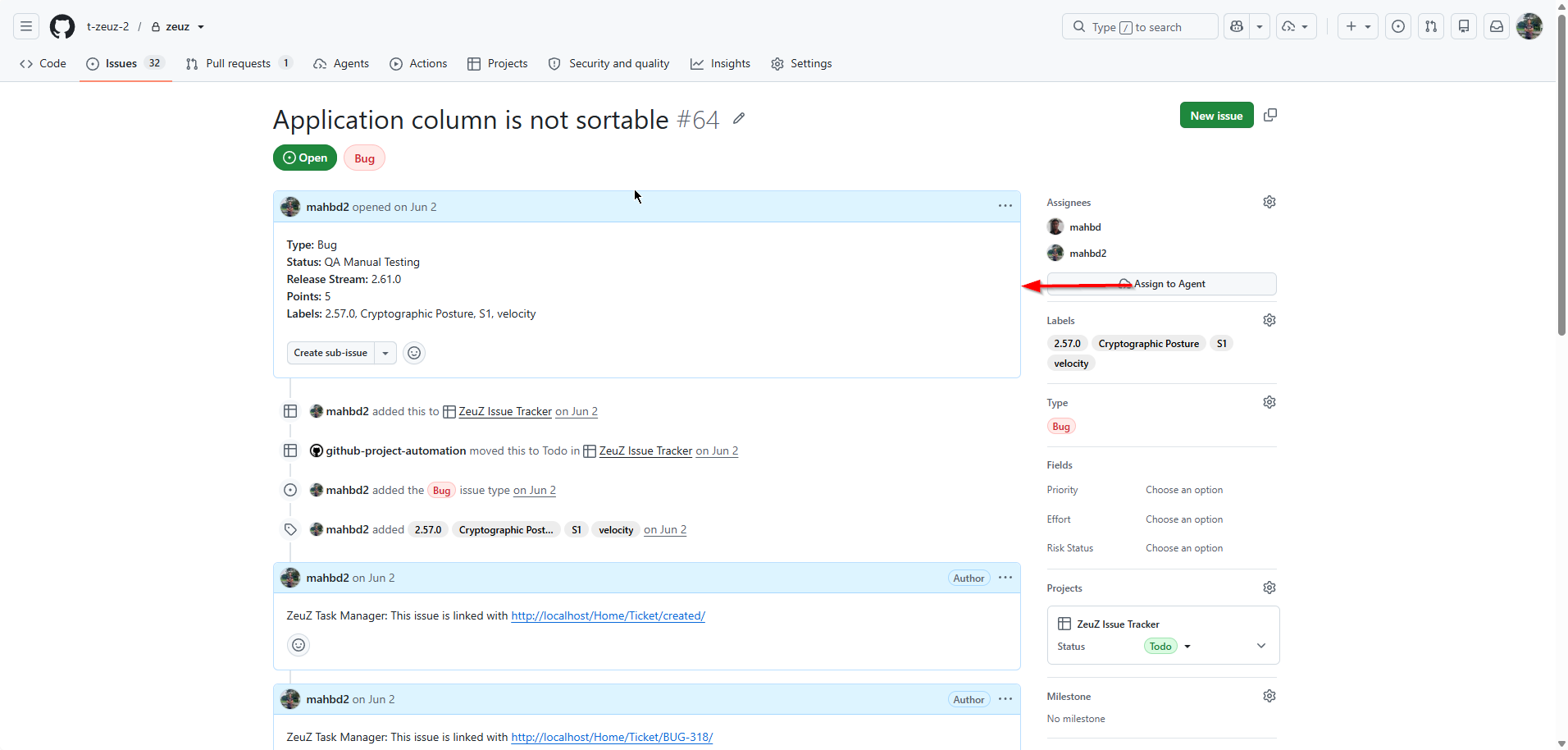
- Click the specific repository under the My Contributions page. Then, click the Issues tab and select an issue from the list, for example, "Application column is not sortable." After opening the issue, the right-hand panel displays several fields, such as Assignee, Label, and Type, along with additional fields. Some of these fields do not have corresponding fields in ZeuZ and therefore require field mapping during the import process.
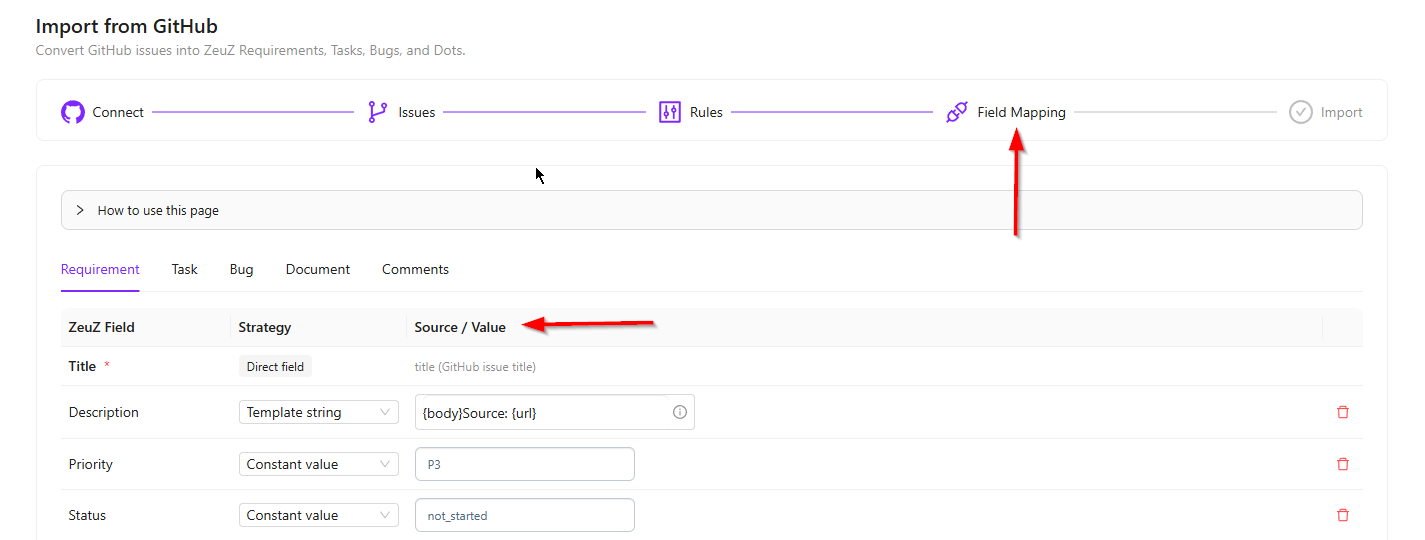
- If users want to map a GitHub field to a corresponding field in ZeuZ, they can do so on the page by clicking the option Field Mappings. For example, the Body field of a GitHub issue can be mapped to the Description field of a ZeuZ Requirement. The GitHub field will appear under the Source / Value column, allowing users to define how its value should be transferred.
- Some fields, such as Priority and Status, can be assigned constant values. For example, a default priority can be configured, and the status can be set to not_started by default. Similarly, users can configure mappings for other fields, such as Risk Status, Followers, Links, and Worklogs, based on their project requirements.
- After importing the conversion rules, click the Field Mappings option to configure how GitHub fields are mapped to their corresponding fields in ZeuZ. For example, a GitHub Label can be mapped to the Priority field in ZeuZ.
- Each field mapping supports multiple mapping strategies. By clicking the Strategy drop-down menu, users can choose from the following options:
- Direct Field
- Constant Value
- Template String
- Field or Default
- JavaScript Expression
- These strategies provide flexibility when converting GitHub issue data into ZeuZ fields, allowing users to customize the import process according to their requirements.
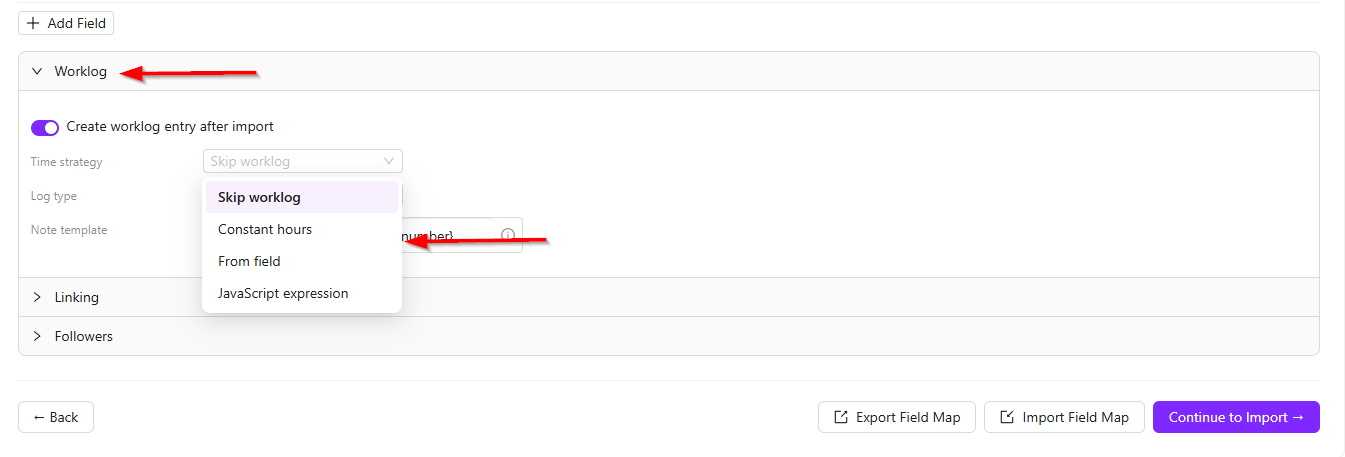
- Worklog mappings can also be configured in the same way. For example, selecting Skip Worklog prevents any worklog entries from being imported. Alternatively, users can select Constant Hours to specify a fixed number of hours for every imported issue. They can also choose the GitHub field from which the worklog value should be retrieved or use a JavaScript Expression for more advanced calculations.
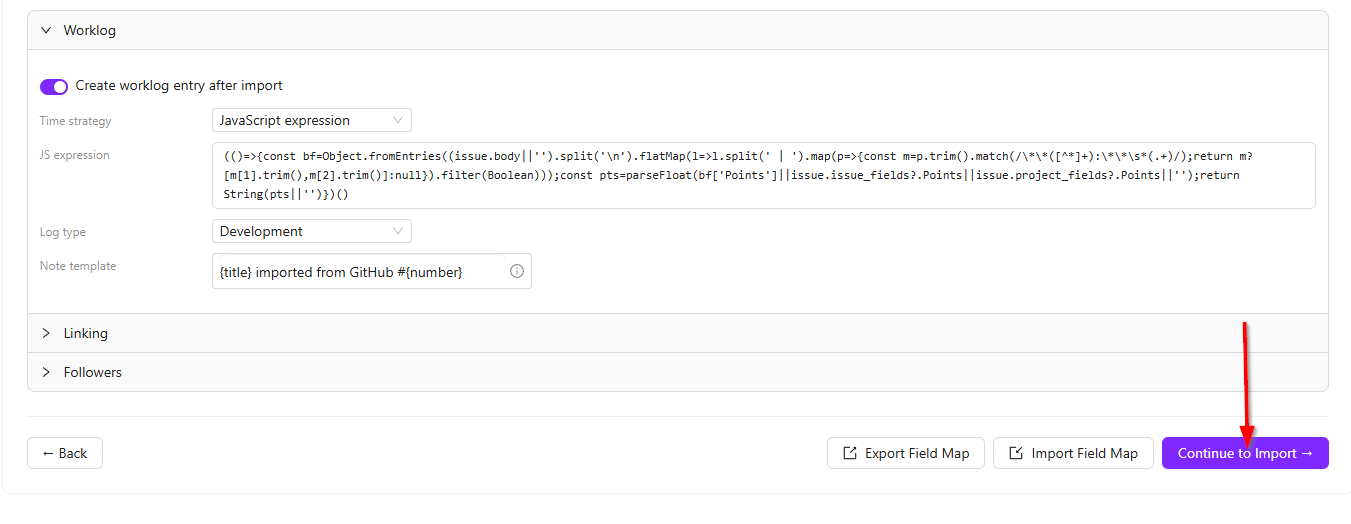
- Followers can also be configured in a similar way. If users want to add GitHub users as followers in ZeuZ, they can configure the mapping using a JavaScript Expression or any other supported mapping strategy.
- The same field mapping options are available for Tasks, Bugs, and Documentation, allowing users to configure how data should be imported for each work item type.
- The Comments tab is another important configuration page. It allows users to import GitHub issue comments as Discussions in ZeuZ. When this option is configured, all comments associated with a GitHub issue will be added to the corresponding Discussion section in ZeuZ after the import.
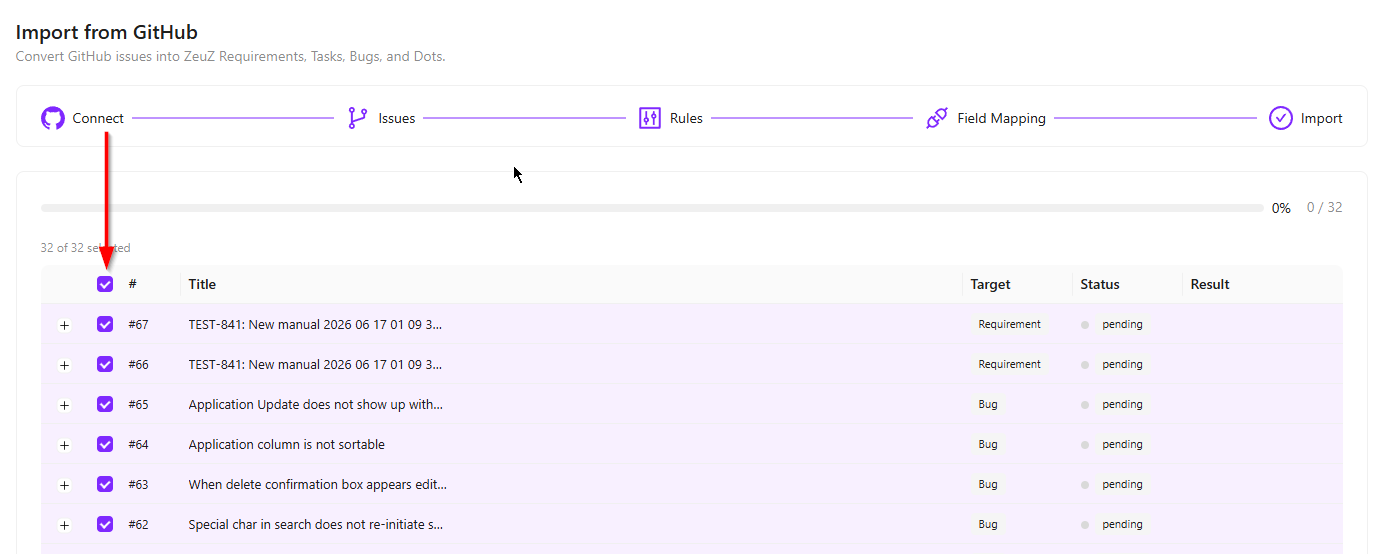
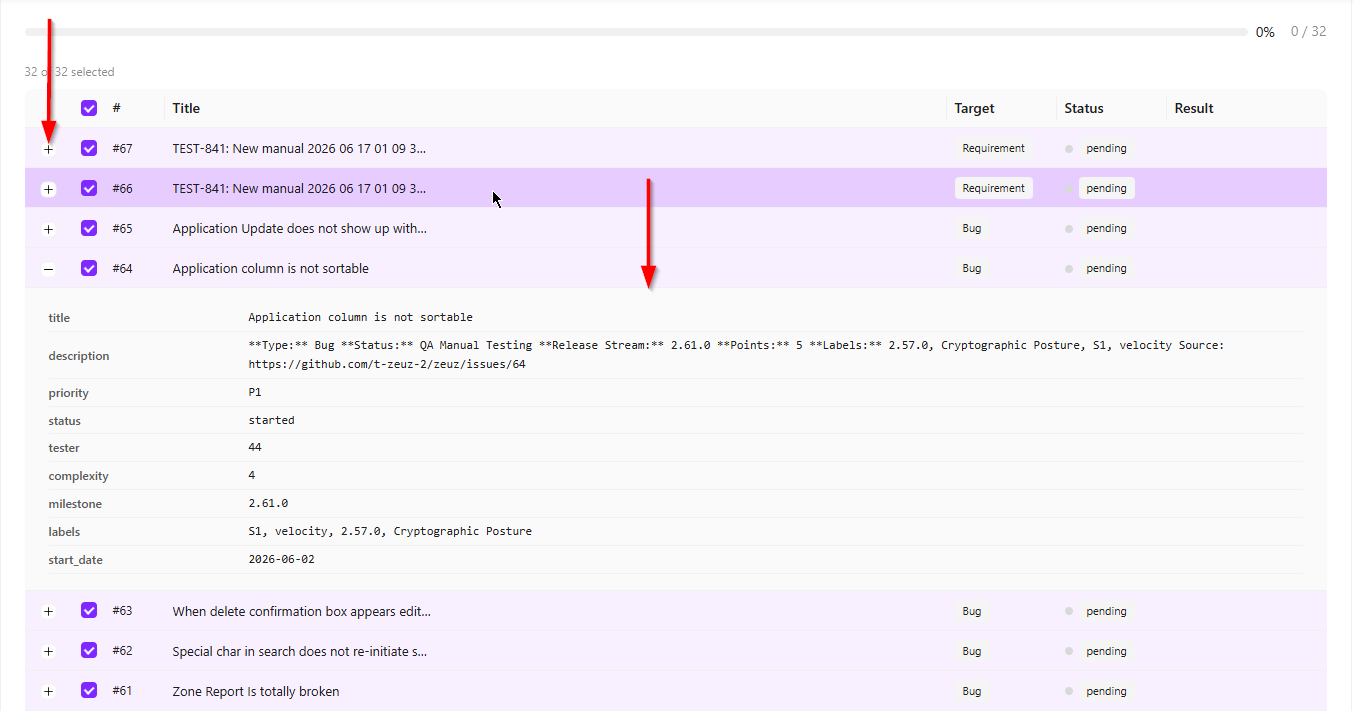
- After completing the field mappings, click Continue to Import. On the import page, users can click the plus (+) icon next to any issue to view a preview of how it will be imported into ZeuZ. The preview displays the target work item type (such as Task or Bug) and the information that will be transferred, including fields such as Labels, Description, and other mapped data. Users can expand and review multiple issues before proceeding with the import.
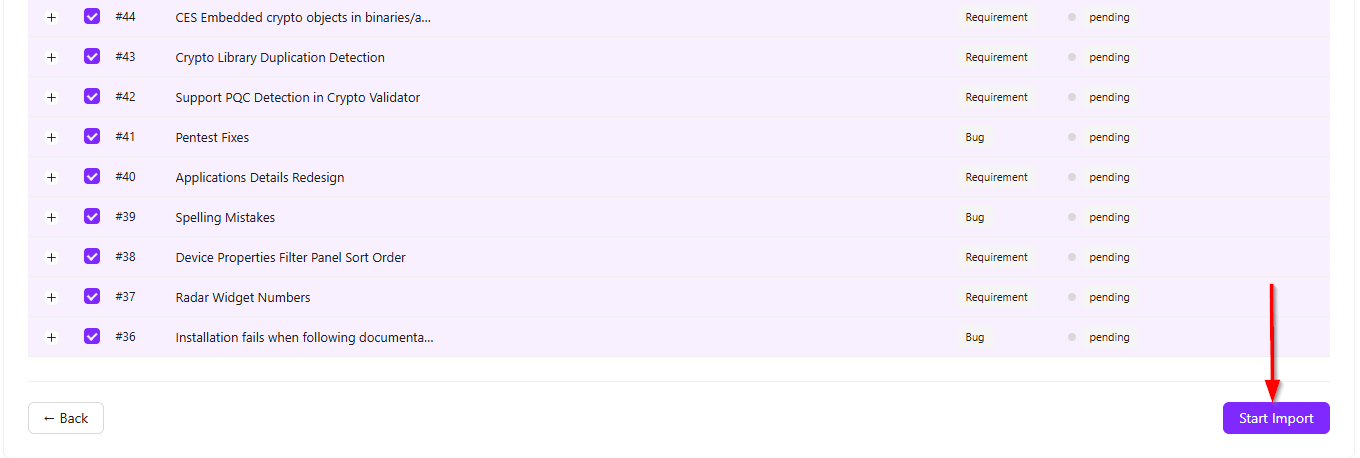
- Once everything has been verified, click Start Import. The selected GitHub issues will begin importing one by one. For example, if an issue is configured to be imported as a Bug, a new bug will be created in ZeuZ. Opening the imported bug will display all the associated information, including the issue description, imported comments in the discussion section, linked items, and any other fields that were mapped during the import process.
FAQs / Troubleshooting
Why can't I connect to GitHub?
Make sure you have entered a valid GitHub Personal Access Token (Classic) with the required permissions, such as repo and admin:org. Then click Validate & Connect to establish the connection.
Why are no issues displayed after clicking Fetch Issues?
Ensure that the selected repository contains GitHub issues and that your token has permission to read them. Then click Fetch Issues again.
Why are some GitHub fields not mapped automatically?
GitHub and ZeuZ use different field structures. Fields that do not have a direct match must be configured manually in the Field Mappings step.
Can I create multiple conditions for a conversion rule?
Yes. You can click Add Condition to define multiple conditions using fields such as Labels, Issue Type, Milestone, Title, or Project Fields.
Can I assign default values during the import?
Yes. You can use the Constant Value strategy to assign default values, such as Priority or Status, to imported items.
Why are worklog entries not imported?
Check the Worklog mapping configuration. If Skip Worklog is selected, no worklog entries will be imported. Choose another mapping strategy if worklogs should be included.
Changelog
- New feature has been added [202605]
Related Topics
- Project Management.