Dashboard
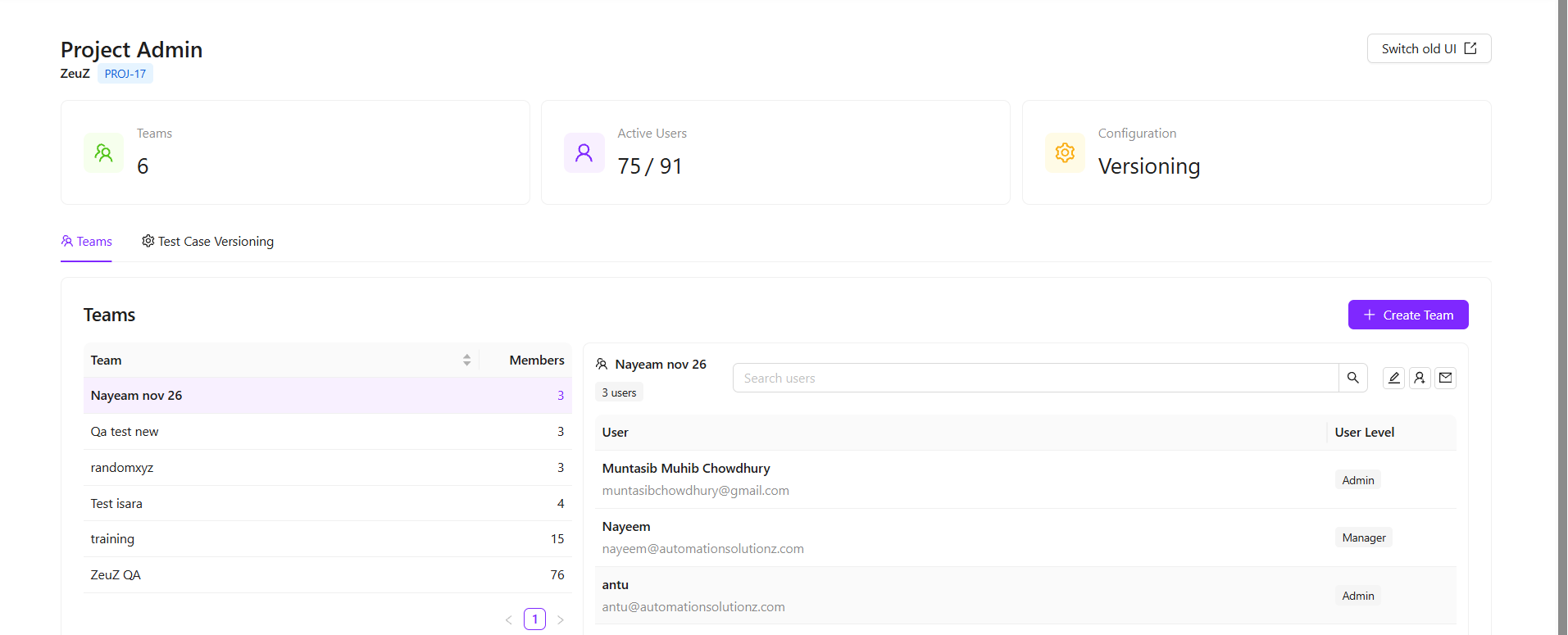
The Project Admin Dashboard is the project-level management page for the currently selected project. It gives project admins a quick view of teams, users, active users, and project configuration, with tools to create teams, add users, configure team email, and update test case versioning.
Why it matters / Use Cases:
- Project admins can see the selected project's team and user status at a glance.
- Team membership can be reviewed without leaving the project page.
- New teams and users can be created from the same workspace.
- Team email setup is available directly from the team detail area.
- Test case versioning settings can be reviewed and updated for the selected project.
Prerequisites
- Access to ZeuZ Server with permissions for Project → Manage → Dashboard.
- A project must be selected in ZeuZ before opening this page.
- You must have access to administer the selected project.
- Users must exist before they can be added as existing members to a team.
- Teams must exist before a new user can be assigned to them.
Features
Project Header
- The header displays the page Title, the selected Project Name, and the Project ID.

- Use Switch to old UI if you need to open the previous "Project Admin" page.

Summary Cards
- The dashboard displays three summary cards:
- Teams: Total teams in the selected project.
- Active Users: Active users compared with total users.
- Configuration: The current configuration area, such as Versioning.

Teams Tab
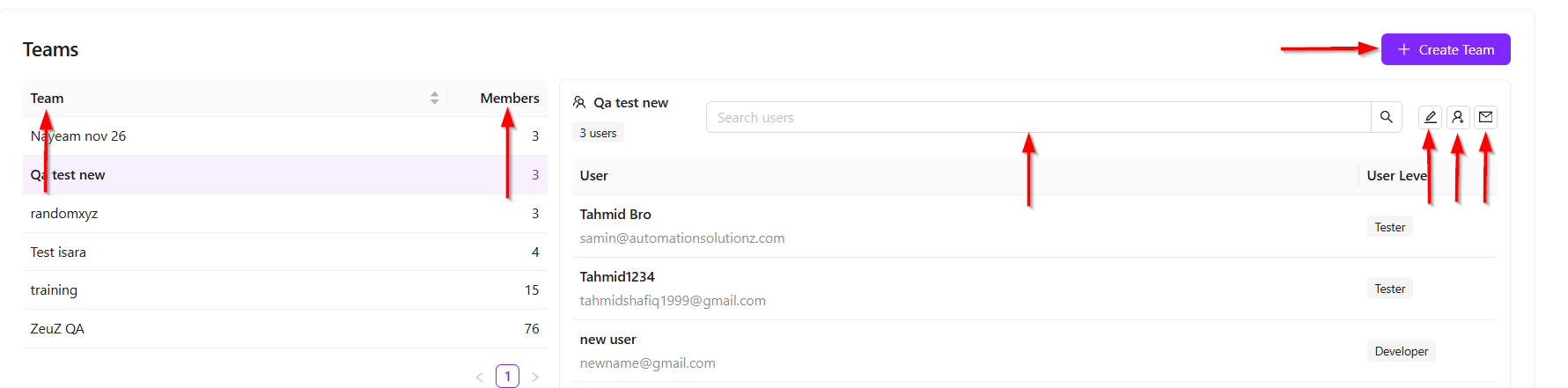
- The Teams tab lists the teams in the selected project. Selecting a team opens its member details in the right-side panel.
- You can:
- Select a team to review members.
- Create a new team.
- See each team's member count.
- Search members inside the selected team.
- Edit the selected team.
- Create and add a user to the selected team.
- Open Email setup for the selected team.
Team Member Details
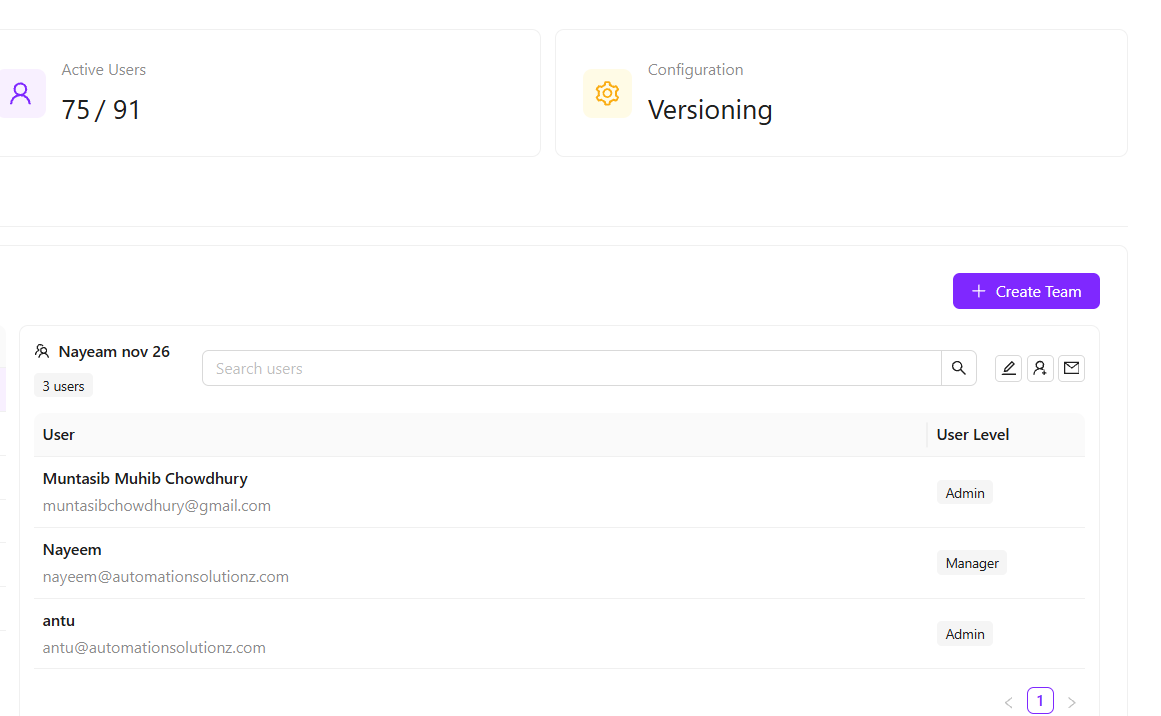
- When a team is selected, the member panel shows each member’s name, email, and user level.
- Use the Search Users field to quickly find a member within the selected team.
Create or Edit Team
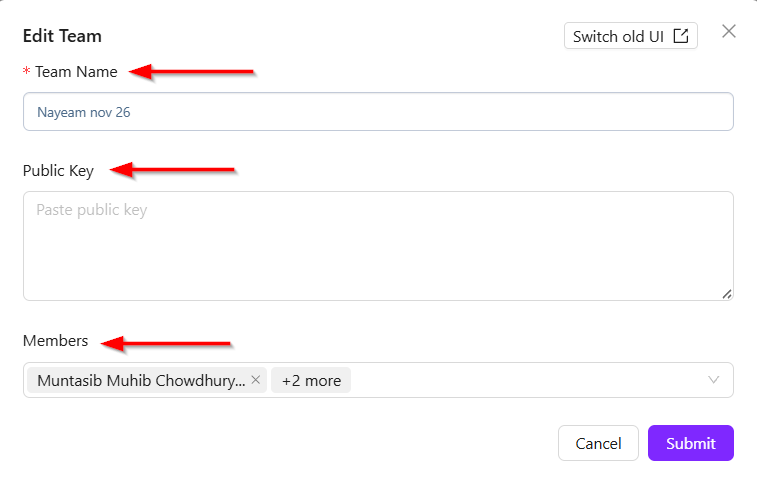
- The team form allows you to create a new project team or update an existing team.
- The form includes:
- Team Name: Only letters, numbers, spaces, and hyphens are allowed.
- Public Key: Paste the team public key if your process uses one.
- Members: Search for project users and select at least one member.
- The form cannot be submitted until a valid team name is entered and at least one member is selected.
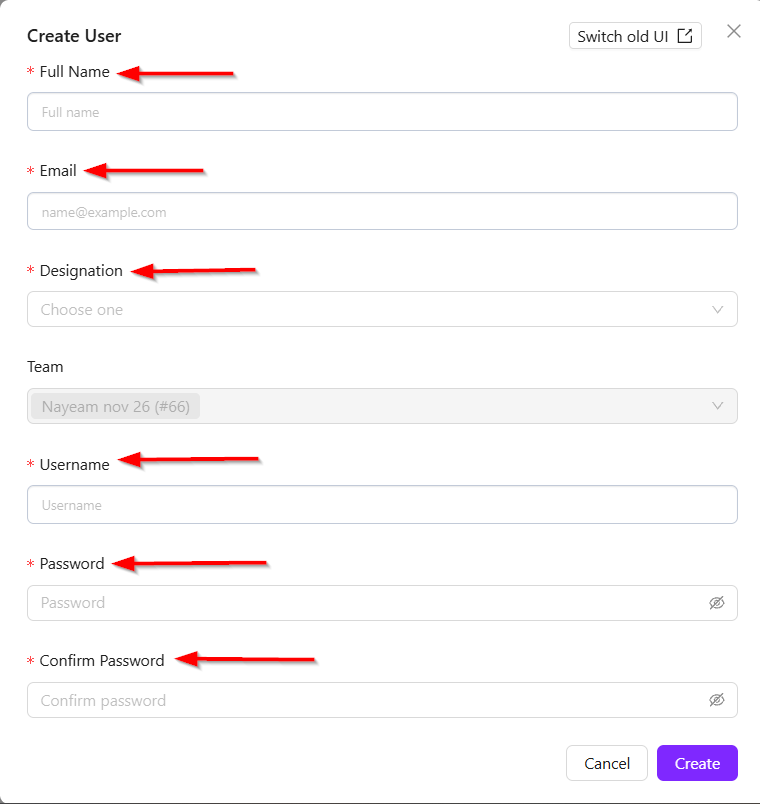
Create and Add User
- The Create User form is available from the selected team. When opened from a team, the Team field is already selected and locked so the new user is added to that team.
- Required fields include:
- Full Name.
- Email.
- Designation: Tester, Developer, Manager.
- Username.
- Password.
- Confirm Password.
- The password and confirm password fields must match.
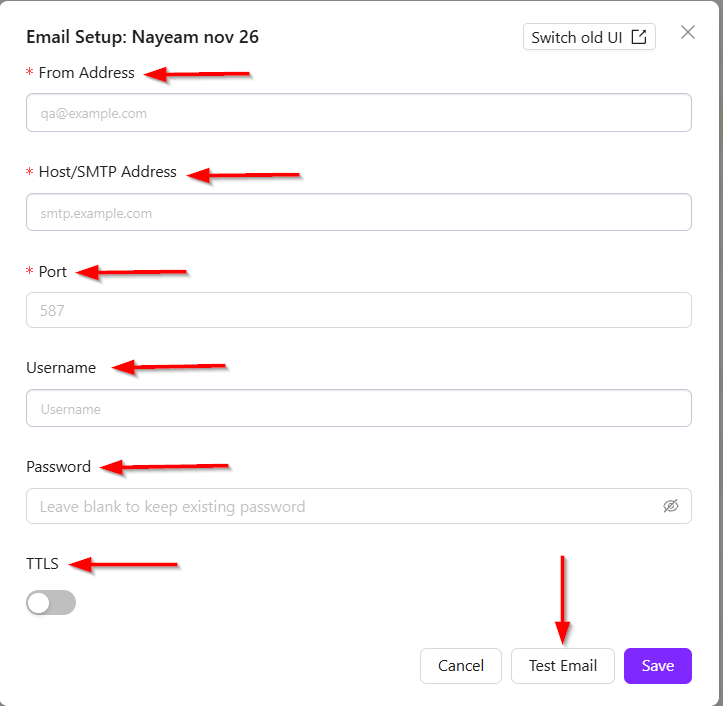
Team Email Setup
- Email Setup opens the SMTP settings for the selected team.
- You can update:
- From Address.
- Host/SMTP Address.
- Port.
- Username.
- Password.
- TTLS.
- Use Test Email to confirm the settings before saving.
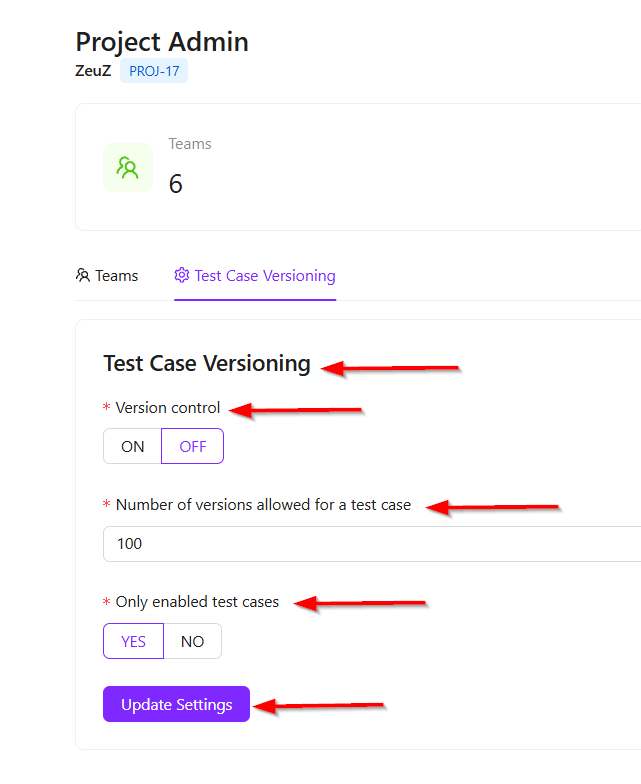
Test Case Versioning Tab
- The Test Case Versioning tab controls project-level test case versioning settings.
- Settings include:
- Version Control: Turn version control on or off.
- Number of versions allowed for a test case: Set how many versions can be stored.
- Only enabled Test Cases: Choose whether only enabled test cases should be considered.
- Select Update Settings to save changes.
FAQs / Troubleshooting
FAQs
Which project does this dashboard manage?
It manages the project currently selected in ZeuZ. The project name and ID are shown in the header.
Can I create users from this dashboard?
Yes. Select a team and use the create user action to add a new user directly to that team.
Can I edit team members here?
Yes. Use the edit action on the selected team to update team name, public key, and members.
Where do I update versioning?
Open the Test Case Versioning tab and update the version control, allowed versions, and enabled test case settings.
Troubleshooting
- No project selected: Return to ZeuZ and select a project before opening Project Admin.
- Teams are not loading: Refresh the page and confirm that you have access to the selected project.
- No members appear after selecting a team: Confirm that the team has members, or use Edit Team to add them.
- User creation fails: Check the required fields, email format, selected team, and matching passwords.
- Email test fails: Confirm the SMTP details, credentials, from address, port, and TTLS setting.
- Settings do not save: Confirm that all required settings are selected and try again.
Changelog
- Centralized project, team, user, and project settings management [202605]