Team
The Project Team Management page allows project admins to manage teams for the currently selected project. It focuses on finding teams, creating teams, managing team membership, creating users for a team, and configuring team email settings.
Why it matters / Use Cases:
- Project admins can keep project teams organized without using the super-admin area.
- Teams can be searched, reviewed, and updated from a single page.
- New users can be created directly for a team.
- Existing project users can be added to a team through the edit team form.
- Team email setup is available for each team row.
Prerequisites
- Access to ZeuZ Server with permissions for Project → Manage → Teams.
- A project must be selected in ZeuZ.
- You must have permission to manage teams in the selected project.
- At least one project user is required before you can create or update a team with members.
- SMTP details are required if you plan to configure team email.
Features
Project Header
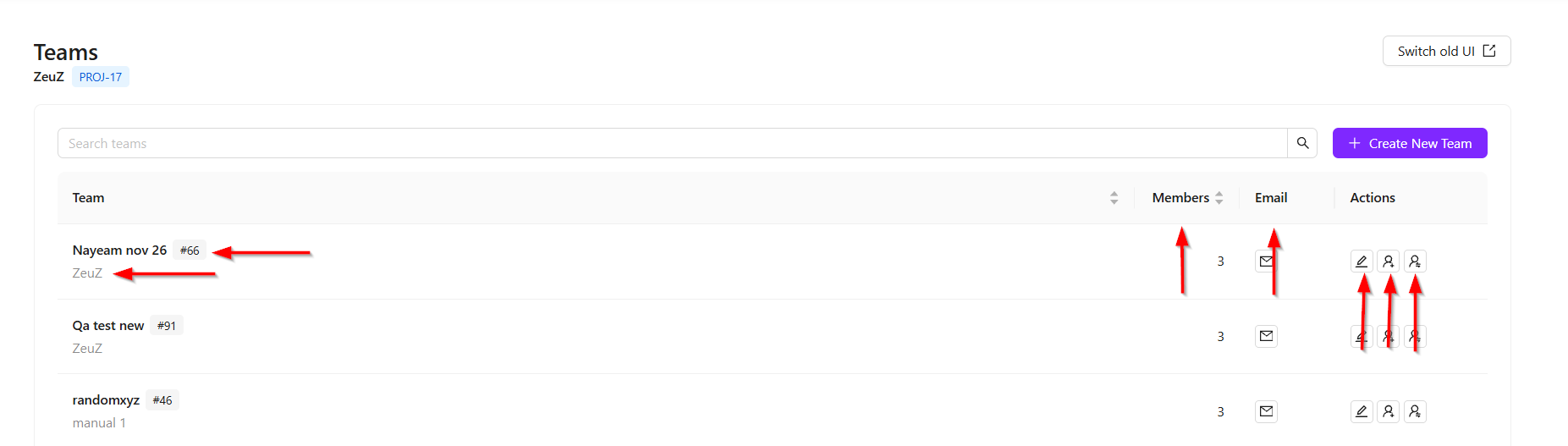
- The header shows the page title, the selected project name, and the project ID. Use Switch to old UI if you need to open the previous team management page.

Search Teams
- Use the Search Teams field to filter the list by team name. Clearing the search restores the full team list.

Team Table
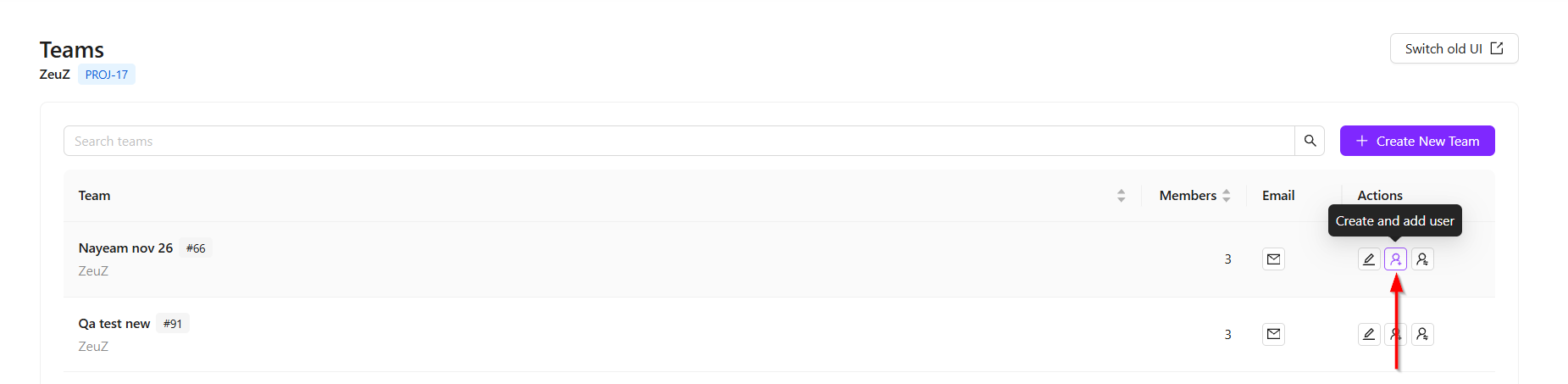
- The table shows:
- Team name and Team ID.
- Project Name.
- Member Count.
- Email Setup Action.
- Edit, Create User and Add Existing Users Actions.
- Teams can be searched by team name.
Create New Team
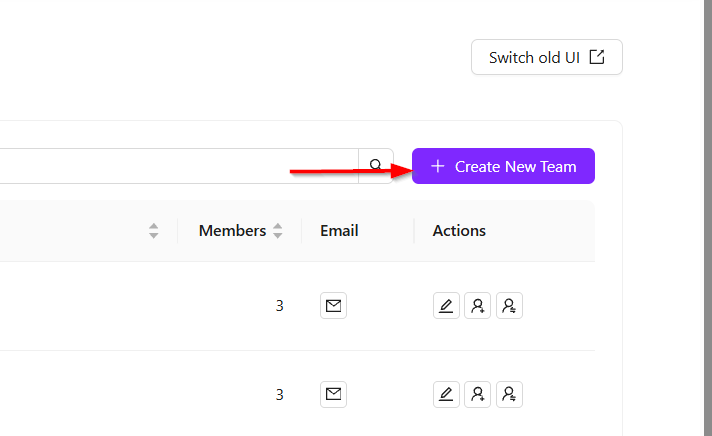
- Select Create New Team to add a new team to the selected project.
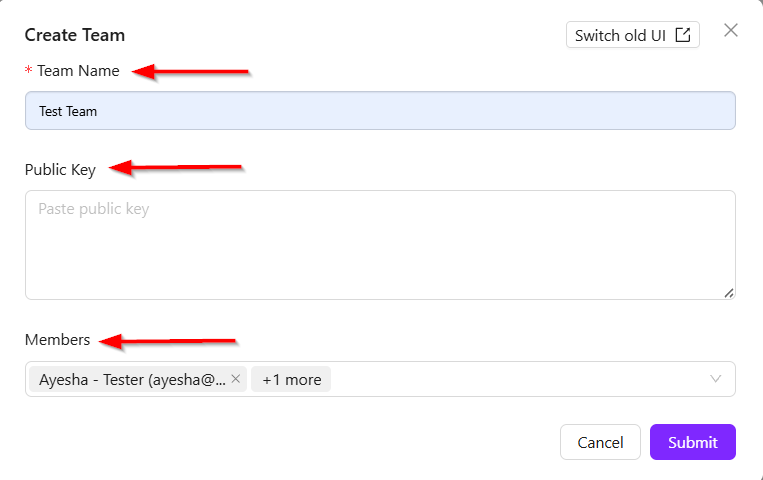
- The form includes:
- Team Name: Only letters, numbers, spaces, and hyphens are allowed.
- Public Key: This is an optional field for the team public key.
- Members: Search for project users and select at least one member.
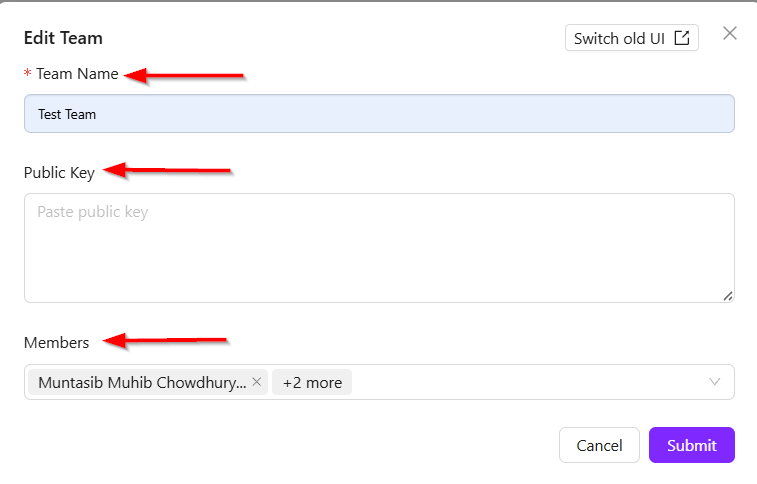
Edit Team
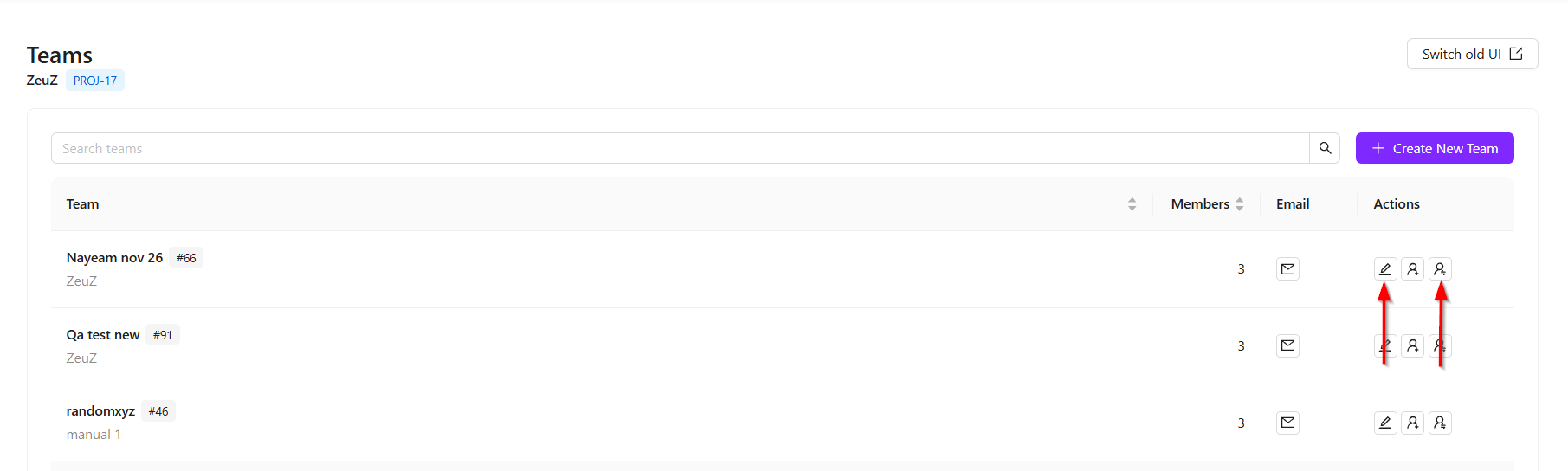
- Use the Edit action to update a team’s name, public key, or members. This is also where existing project users can be added to the team.
- The form cannot be submitted until the team has a valid name and at least one member is added.
Create and Add User
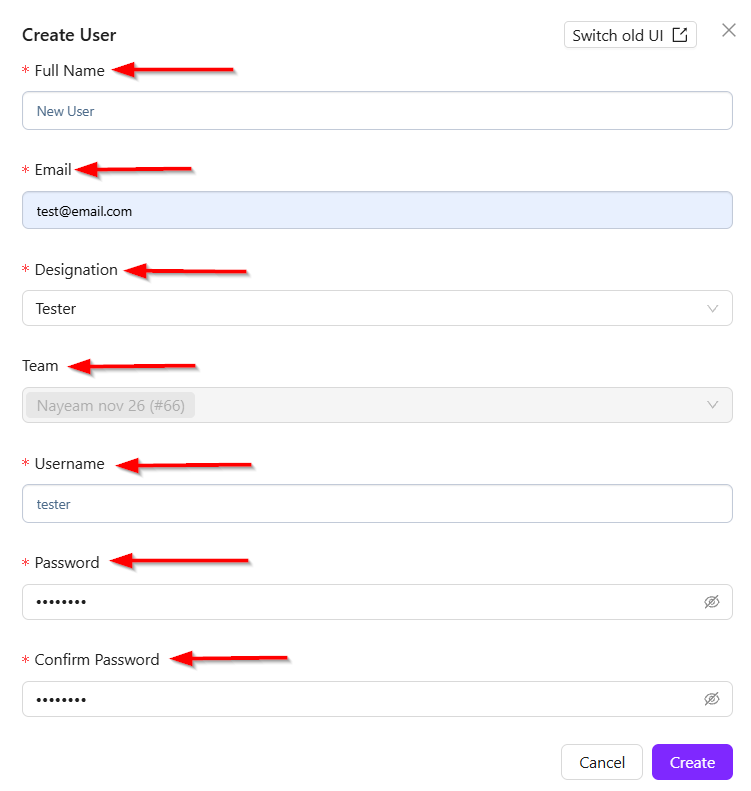
- Use the create user action on a team row to create a new user and add that user to the selected team.
- The form requires the following:
- Full Name.
- Email.
- Designation: Tester, Developer, or Manager.
- Username.
- Password.
- Confirm Password.
- The selected team is locked in the form to ensure the new user is added to the correct team.
Email Setup
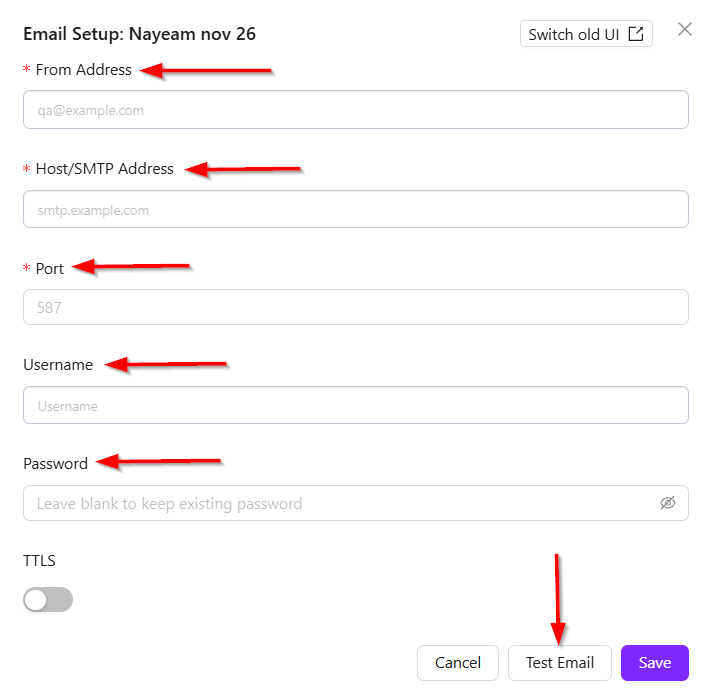
- Use the Email action to configure SMTP email for a team. You can enter the sender address, SMTP host, port, credentials, and TTLS setting, then send a test email before saving.
FAQs / Troubleshooting
FAQs
Can I manage teams for all projects here?
No. This page manage teams for the currently selected project only.
How do I add existing users to a team?
Use the edit action or the add existing users action, then select users in the Members field.
Can I create a user and add them to a team at the same time?
Yes. Use the create user action on the team row. The team will be selected automatically.
Why is the team locked when creating a user from a row?
The form locks the team so the new user is added to the selected team.
Troubleshooting
- Team list is empty: Confirm that the correct project is selected and that teams exist for that project.
- Search does not show a team: Clear the search or check the team name spelling.
- Team save fails: Confirm that the team name is valid and that at least one member is selected.
- User creation fails: Confirm that all required fields are filled, the email format is valid, and the passwords match.
- Email setup fails: Check the SMTP host, port, credentials, from address, and TTLS setting.
Changelog
- Centralized project, team, user, and project settings management [202605].