User
The Project User Management page lets project admins review active and inactive users for the selected project and create new users assigned to one or more project teams.
Why it matters / Use Cases:
- Project admins can quickly see which users are active or inactive in the current project.
- User search helps find users by their name.
- New users can be created and assigned to teams using the same form.
- Team assignments are visible in the user list, helping admins confirm access.
Prerequisites
- Access to ZeuZ Server with permissions for Project → Manage → Users.
- A project must be selected in ZeuZ.
- You must have permission to manage users in the selected project.
- At least one team must exist before creating a user, because each user must be assigned to at least one team.
Features
Project Header
- The header displays the page title, the selected project name, and the project ID. Use "Switch to old UI" to open the previous user management page if needed.

Search Users
- Use Search users to filter users by name.
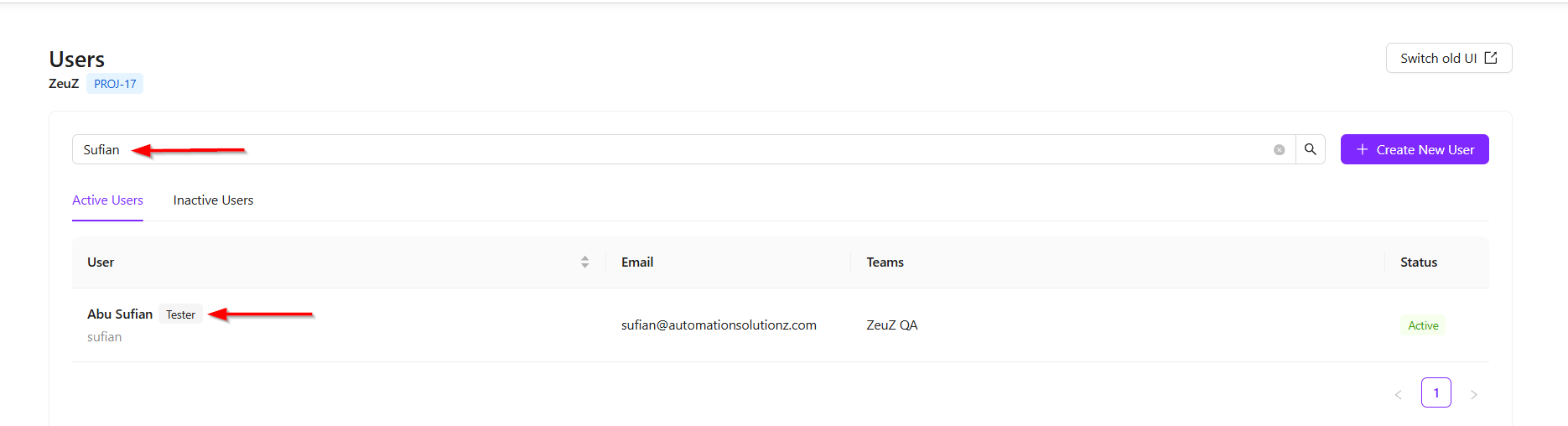
- The search is applied within the currently selected Active Users or Inactive Users tab.
Active and Inactive User Tabs
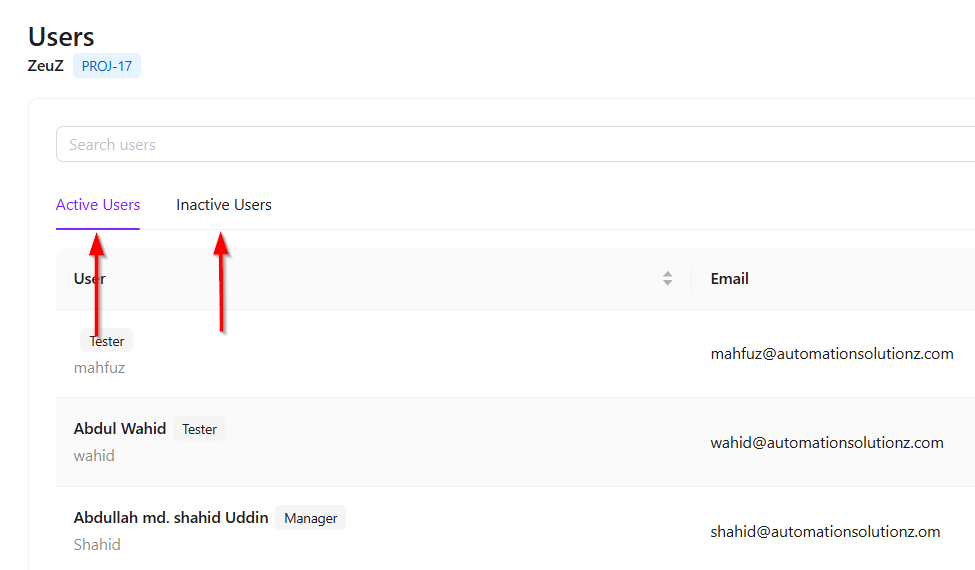
- The page is divided into two tabs for users:
- Active Users: Users who can currently work on the selected project.
- Inactive Users: Users who are no longer active but remain visible for review.
User Table
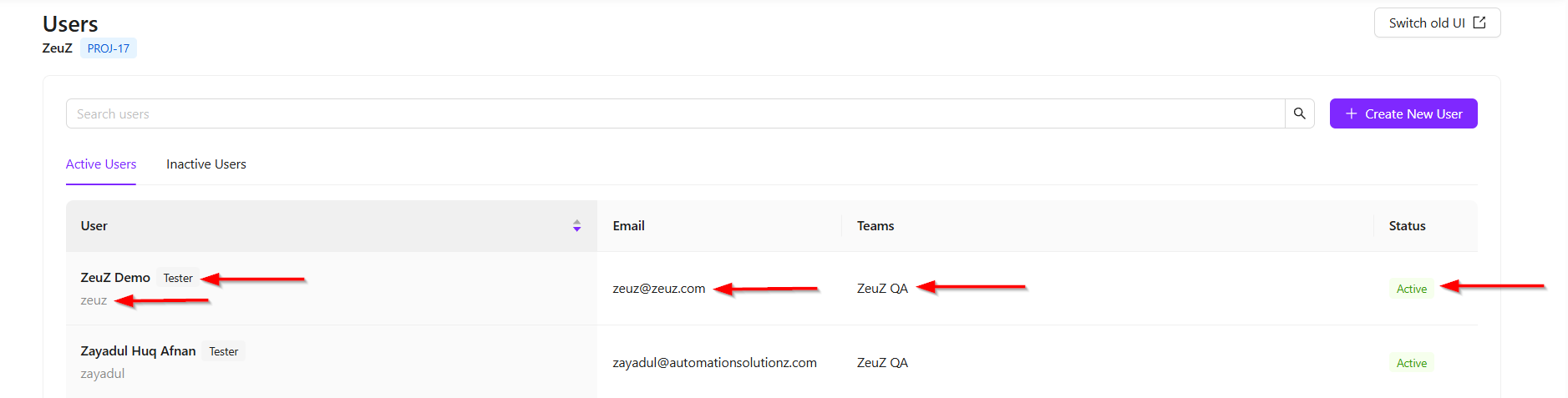
- The user table displays the following information:
- Full Name.
- Designation.
- Username.
- Email.
- Teams.
- Status.
- The Status column displays whether a user is Active or Inactive.


Create New User
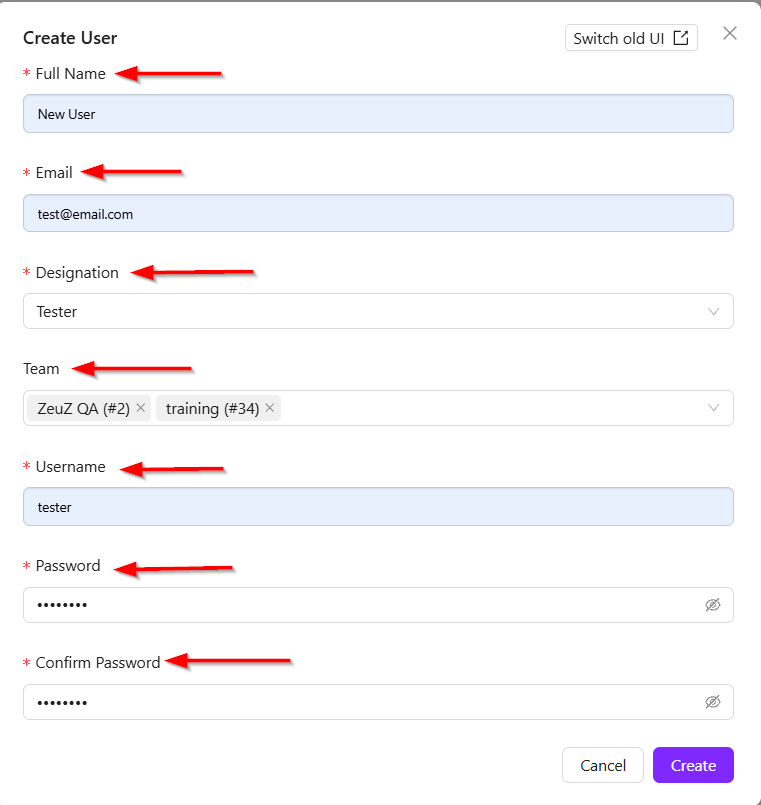
- Select + Create New User to add a user to the selected project.
- Required fields include the following:
- Full Name.
- Email.
- Designation: Tester, Developer, Manager.
- Teams: Select one or more teams.
- Username.
- Password.
- Confirm Password.
- A user cannot be created until all required fields are completed, at least one team is selected, the email address is valid, and the passwords match.
FAQs / Troubleshooting
FAQs
Can I see inactive users?
Yes. Open the Inactive Users tab.
Can I create a user without assigning a team?
No. At least one team must be selected.
Can I edit existing users from this page?
This page is focused on reviewing users and creating new users. Use the available project user workflows to update an existing account if needed.
Troubleshooting
- No users appear: Confirm that the correct project is selected and check whether you are on the Active Users or Inactive Users tab.
- Search does not find a user: Clear the search, switch tabs, or search using another value such as a username.
- Create user fails: Check the required fields, email format, team selection, and whether the passwords match.
- Team list is empty in the form: Create or link teams to the project first.
Changelog
- Centralized project, team, user, and project settings management [202605].