Everything
The Everything feature is a centralized workspace that allows users to search, track, filter, and manage all project items such as requirements, tasks, bugs, and documents from a single page, helping teams monitor progress, manage priorities, identify overdue work, and improve overall project visibility and organization in platforms like ZeuZ.
Why it matters / Use Cases:
- Centralized Project Visibility: Provides a centralized view of all project items in one place.
- Priority and Overdue Work Tracking: Helps teams identify overdue and high-priority work quickly.
- Project Progress and Status Monitoring: Improves project visibility through status, progress, and priority tracking.
- Unified Work Item Management: Simplifies management of requirements, tasks, bugs, and documents from a single interface.
- Critical Item Identification: Supports faster decision-making by highlighting critical project items.
- Filtered Work Focus: Helps users focus on assigned and upcoming work using filtered views.
- Progress and Time Tracking Optimization: Improves planning and execution by tracking progress and remaining time.
Prerequisites
- Access to ZeuZ Server with permissions for Project → View → Everything.
- All items such as requirements, tasks, bugs, and documents must follow a common or linked data model so they can be displayed together in a single view.
- Standard definitions for status (e.g., Not Started, Overdue, Complete) and priority (P1–P4) must exist across all item types to ensure accurate grouping and filtering.
- A strong filtering system must support searching by ID, title, status, priority, labels, and milestone for efficient navigation.
- Every item must be associated with a milestone or workflow stage (e.g., Backlog, QA Milestone) to enable structured tracking.
Features
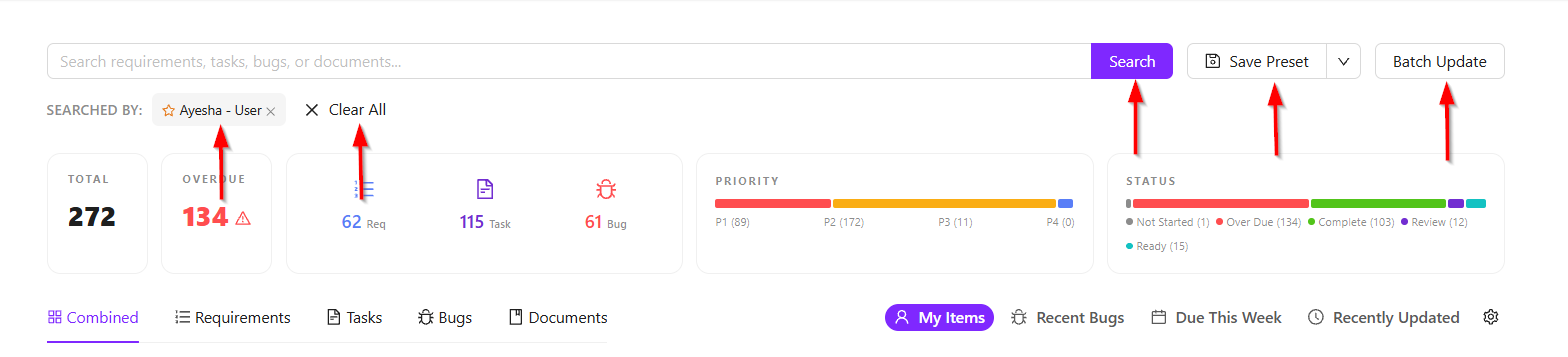
Unified Search and Filtering
- Global search for requirements, tasks, bugs, and documents.
- User-based filtering (e.g., “Ayesha - User”)
- Clear all filters option
- Save preset filters for reuse
- Batch update for multiple items
Summary Metrics Dashboard
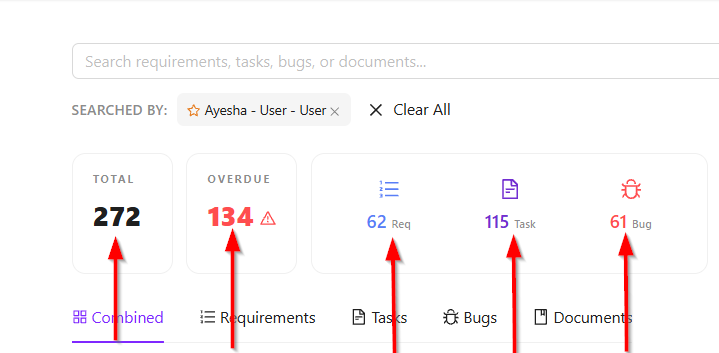
- Total Items Count: It refers to the total number of work entities in the system, including requirements, tasks, bugs, and documents within a selected scope, providing an overall workload overview.
- Overdue Items Count: It shows the number of incomplete items that have passed their due date and indicates schedule delays and execution risks.
- Breakdown of entities: It refers to the categorized distribution of all work items within a system. It includes the following:
- Requirements Count: It represents the total count of requirement items in the system, defining the expected business needs or functionality to be delivered.
- Tasks Count: This refers to the number of actionable work items created for implementing requirements or completing specific activities.
- Bugs Count: This indicates the total number of reported defects or issues identified during testing or usage.
- Documents Count: It refers to the total number of documents stored or managed in the system, including project-related files and artifacts.
Priority Overview
- Priority Distribution Visualization: It shows how work items are distributed across different priority levels such as P1, P2, P3, and P4 within a system or project.
- It helps identify the critical distribution of workload.

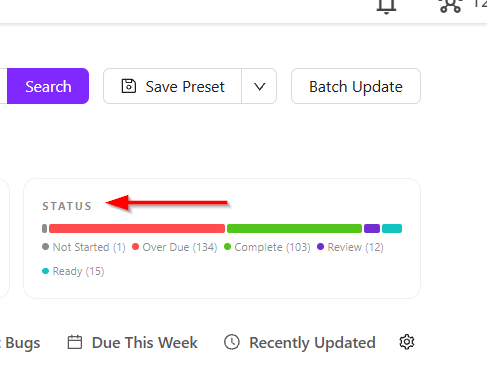
Status Tracking Overview
- Status-based categorization is a way to classify work items in project and test management according to their current progress stage.
- Not Started: It shows that the work item is created but not yet started and is still in the planning or pending stage.
- Overdue: It is assigned when a task has passed its due date without being completed. It signals a delay and may require immediate attention.
- Complete: This status means the task has been fully executed and all required work has been finished.
- Review: It indicates that the task is completed by the assignee and is awaiting verification, validation, or approval by a reviewer or QA role.
- Ready: This status shows that the task is prepared to be worked on. It is properly defined, prioritized, and available for assignment or execution.
- Visual progress indicators for quick assessment.
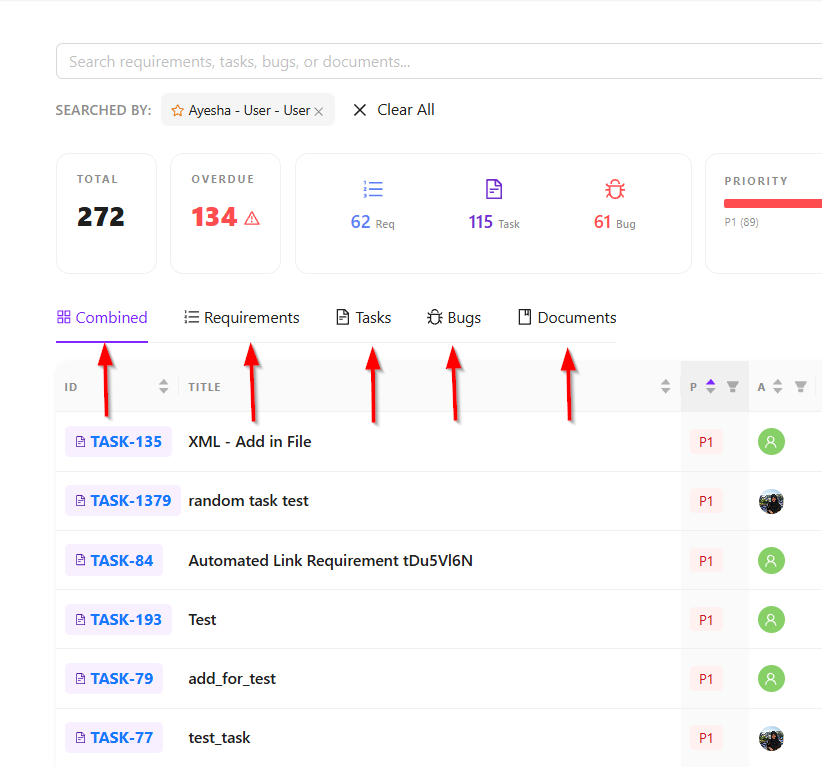
Multi-Entity Navigation Tabs
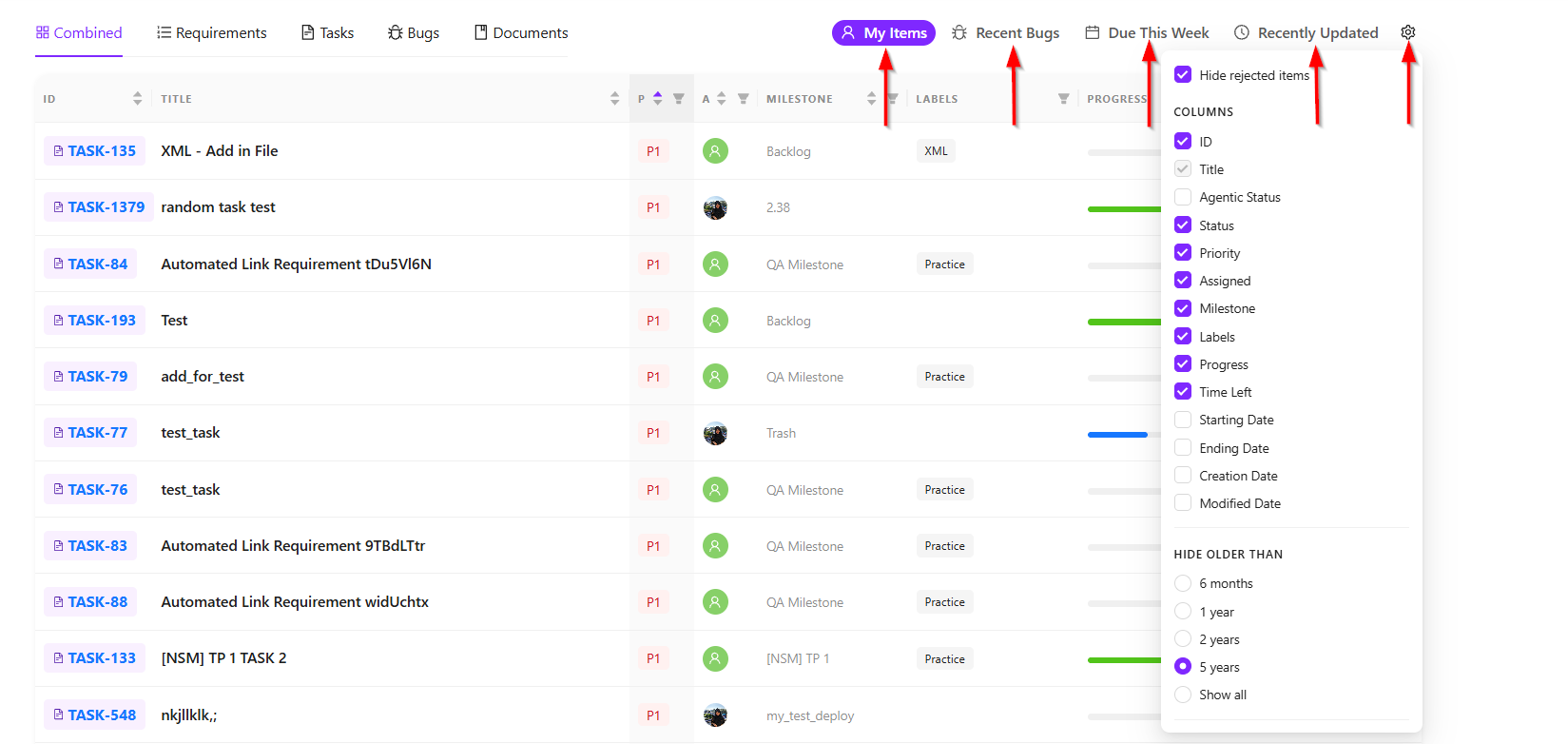
- Combined View: The combined view shows all items such as, requirements, tasks, bugs, and documents in one list. It provides a complete project overview in a single place, making it easier to see everything at once.
- Seperated View: It means that project items are divided into different sections based on their type. Instead of showing everything together, each category is displayed individually. For example:
- Requirements are shown only in the Requirements view
- Tasks are shown only in the Tasks view
- Bugs are shown only in the Bugs view
- Documents are shown only in the Documents view
Smart Work Views
- My Items (user-specific workload view): It is a filtered view that shows only the work assigned to a specific user.
- Recent Bugs (latest defect tracking): It is a view that displays the most recently reported or updated bugs in a project.
- Due This Week (short-term planning view): It is a view that shows items scheduled to be completed within the current week.
- Recently Updated (change tracking view): It is a view that displays items that were recently modified, such as tasks, bugs, requirements, or documents.
- Settings: There is also a Settings button that, when clicked, it displays options such as Hide Rejected Items, Columns, and Hide Older Than Sections.
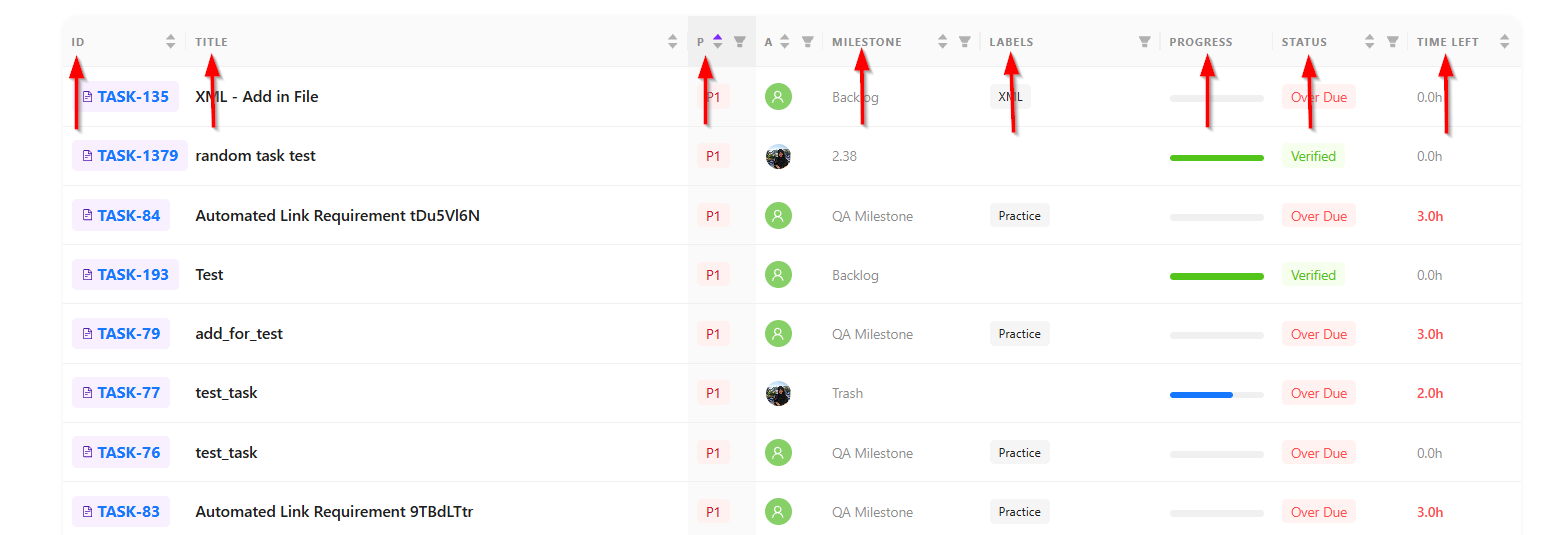
Detailed Work Item Table
- Each item includes structured tracking fields:
- ID and Title
- Priority level (e.g., P1)
- Assignee
- Milestone association
- Labels (categorization tags)
- Progress indicator (visual progress bar)
- Status (e.g., Overdue, Verified)
- Time Left (remaining or overdue duration).
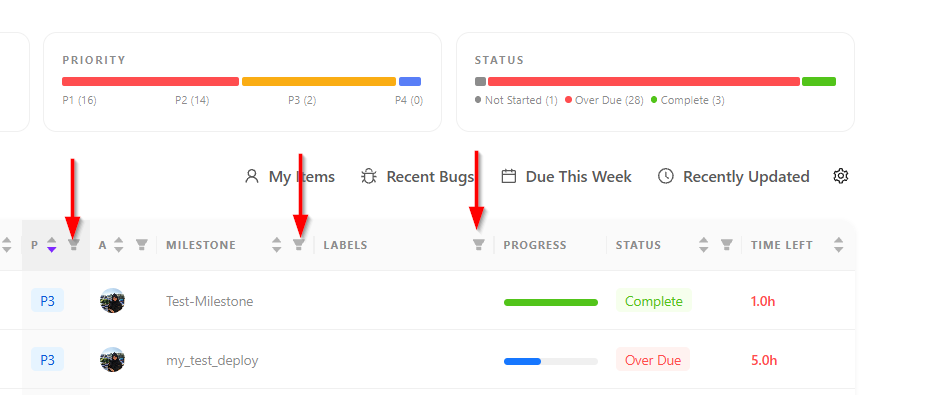
- A search field has been added to the Milestone, Labels, and Author columns.
FAQs / Troubleshooting
FAQS
What do you mean by Everything feature?
The Everything feature is a centralized dashboard that displays requirements, tasks, bugs, and documents in one unified view for simplified project tracking.
What does the Overdue count represent?
The Overdue count shows the number of items that have passed their due date without completion.
What does the Combined tab do?
The Combined tab displays all entity types together in a single consolidated list.
What do the progress bars indicate?
Progress bars visually represent the completion status or workflow progress of each item.
Troubleshooting
- Search is not returning expected results: If search results are not appearing as expected, verify the spelling of keywords, remove restrictive filters that may limit the displayed data, and try searching directly using the item ID for more accurate results.
- Incorrect overdue counts are displayed: If incorrect overdue counts are displayed, verify that due dates are configured correctly, ensure item statuses are properly updated after completion, and refresh the dashboard to load the latest data.
- Progress bars are not updating: The progress bars are not updating and can be resolved by properly saving workflow changes, refreshing the dashboard, and verifying that linked task completion updates are being recorded correctly.
Changelog
- New features have been added and a new UI has been introduced. [202604]
Related Topics
- User management
- [Project management]