Activities
The Activities feature in CRM is used to create, track, and manage all deal-related tasks and client interactions, such as demo sessions, meetings, training sessions, and POC sessions, ensuring that all follow-up actions are properly scheduled, assigned, monitored, and completed to improve deal management and team coordination.
Why it matters / Use Cases:
- Helps track client engagement: Activities allow teams to maintain a record of all interactions with clients, such as meetings, demos, and training sessions.
- Ensures timely follow-ups: Scheduled activities help prevent missed calls, sessions, or important client follow-ups.
- Improves deal progression: By tracking activity status, teams can understand how a deal is moving through the CRM pipeline.
- Enhances team accountability: Since activities can be assigned to specific team members, everyone knows their responsibilities and deadlines.
- Supports better planning and organization: Managing all deal-related tasks in one place helps teams prioritize work and stay organized.
Prerequisites
- Access to ZeuZ Server with permissions for CRM → Workspace → Activities.
- Activities must be linked to existing deals or customer records to maintain proper tracking.
- Standard activity categories such as Demo, Meeting, Training, or POC should be configured for consistency.
- A defined sales pipeline helps ensure activities are correctly associated with the right deal stage.
- The system should support date and time tracking to schedule and monitor activities effectively.
Quick-Start
- The Activities feature in the CRM can be accessed by navigating to the "My Deal Activities" page.
- To add a new activity, click the + Add Activity button available on the "My Deal Activities" page.
Features
Add a New Activity
- To add a new activity, click the + Add Activity button available at the top-right corner of the "My Deal Activities" page.

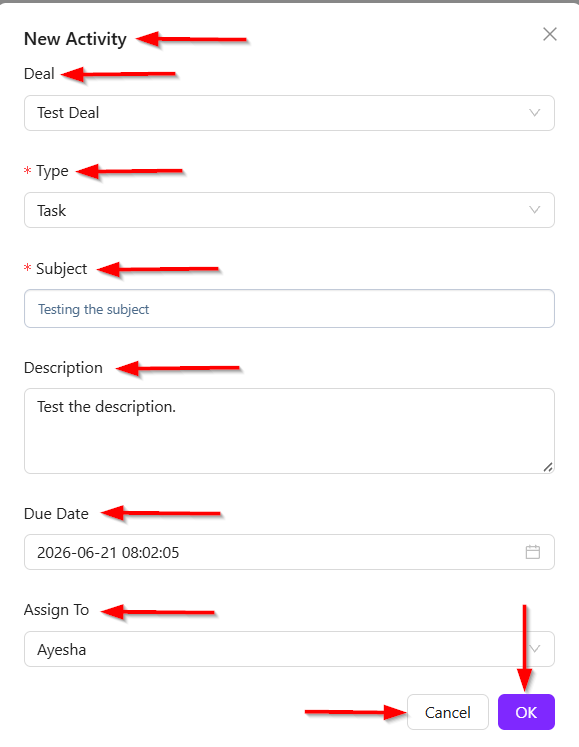
- After clicking the + Add Activity button, the "New Activity" window will appear. It includes the following fields:
- Deal: A dropdown field used to select the deal associated with the activity.
- Type: A dropdown used to choose the activity category, such as Task, Meeting, Email, or other activity types.
- Subject: A text field used to enter the activity title or main subject, providing a short summary of the task.
- Description: A text area where additional details or instructions related to the activity can be added.
- Due Date: A date selection field used to specify the deadline or scheduled date for completing the activity.
- Assign To: A dropdown used to assign the activity to a responsible team member. By default, it is assigned to the current user.
- At the bottom of the window, two action buttons are available:
- Cancel: Closes the window without saving the activity.
- OK: Saves and creates the new activity in the system.
My Deal Activities Page
- Filter Options: Three dropdown filters are available at the top:
- Type: Filters activities by activity type, such as Task, Meeting, Email etc.
- Status: Filters activities based on their current status, such as Completed or Pending.
- Deal: Filters activities by a specific deal.
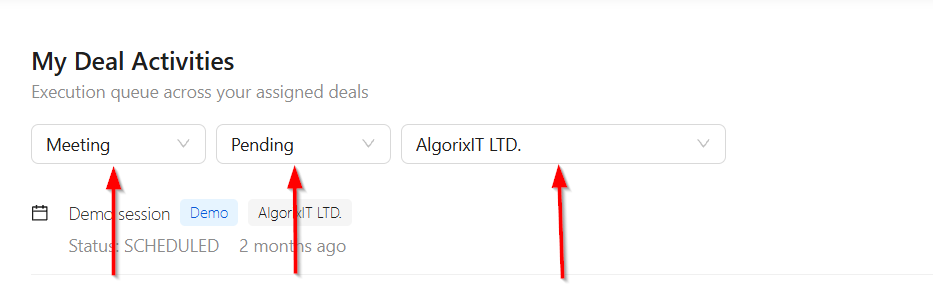
- Activity List: The main section displays a list of activities. Each activity entry includes:
- Activity Name: The title or subject of the activity.
- Type Tag: Indicates the activity type, such as Task or Meeting.
- Associated Deal: Shows the deal related to the activity.
- Assigned Status: Displays the current status of the deal, such as, Scheduled or Done.
- Time Information: Shows when the activity was created or last updated.
- Done Button: The Done button allows users to mark an activity as completed.

FAQs / Troubleshooting
Why is my activity not appearing in the My Deal Activities list?
This usually happens if the activity was not saved properly or if active filters (Type, Status, or Deal) are hiding it. Check the applied filters and refresh the page.
Why is the Deal field empty in the activity form?
The Deal dropdown will remain empty if no deals have been created in the CRM. Make sure at least one deal exists before linking activities.
How do I mark an activity as completed?
Click the Done button beside the activity to change its status from Scheduled or Pending to Done.
Can I create an activity without linking it to a deal?
Yes. Since the Deal field is optional, activities can be created without associating them with a specific deal.
Why is the Activities feature important?
The Activities feature helps teams organize follow-ups, assign responsibilities, track progress, and ensure no important client interaction is missed.
Changelog
- New feature has been added [202605].