Contacts
In CRM, Contacts refer to the individuals associated with a client or organization who are involved in communication regarding a specific pipeline, product, or deal. These may include decision-makers, managers, technical leads, or any representatives from the client’s side.
The purpose of contacts is to maintain organized communication by ensuring the right people are linked to the correct pipeline or deal. This helps teams efficiently manage meetings, follow-ups, demos, POCs, and other client-related activities while tracking all interactions in one place.
Why it matters / Use Cases:
- Centralizes client communication: Contacts store all important client representatives in one place for easy access.
- Supports deal management: Contacts can be linked to specific pipelines, deals, products, or services for better tracking.
- Improves follow-up activities: Meetings, demos, POCs, and training sessions can be scheduled with the relevant contacts efficiently.
- Enhances team coordination: Sales, support, and technical teams can view the same contact information and collaborate smoothly.
- Maintains interaction history: All communication and client-related activities can be tracked, making relationship management more organized.
Prerequisites
- Access to ZeuZ Server with permissions for CRM → Workspace → Contacts.
- A client or organization must be created in the CRM before adding contacts.
- The contact should be linked to the correct organization or company.
- A valid client category (such as client, internal team, or portal user) should be selected.
- The contact should be associated with the relevant pipeline, deal, product, or service for proper communication tracking.
Quick-Start
- The Contacts feature in the CRM can be accessed by navigating to the "Contacts" page.
- To add a person, click the + Add Person button available in the "People" tab.
- To add an organization, click the + Add Organization button available in the "Organizations" tab.
Features
Create a Person
- After clicking the Contacts feature, the "Contacts" page is displayed.
- It contains two main tabs: People and Organizations, allowing users to manage individual contacts or company records separately.
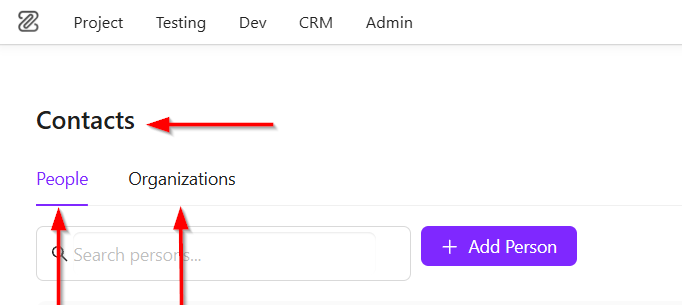
- At the top, there is a Search bar labeled “Search persons” for quickly finding contacts, along with an + Add Person button used to create a new contact entry.

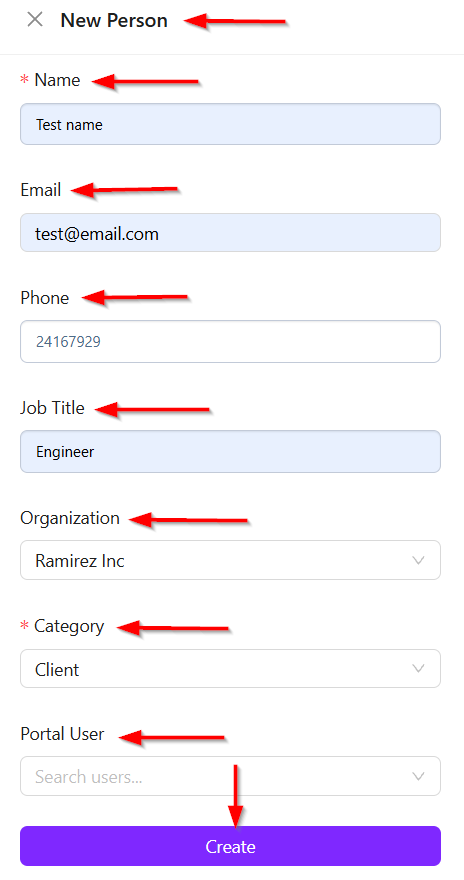
- After clicking the + Add Person button, the "New Person" window appears. It contains multiple input fields:
- Name: The person’s full name.
- Email: The person’s email address.
- Phone: Contact number.
- Job Title: The person’s designation.
- Organization: A dropdown to select the associated company.
- Category: Defines the type of contact.
- Portal User: A dropdown to link the person with an existing system user.
- At the bottom, a Create button is available, which submits the form and adds the new person record into the system.
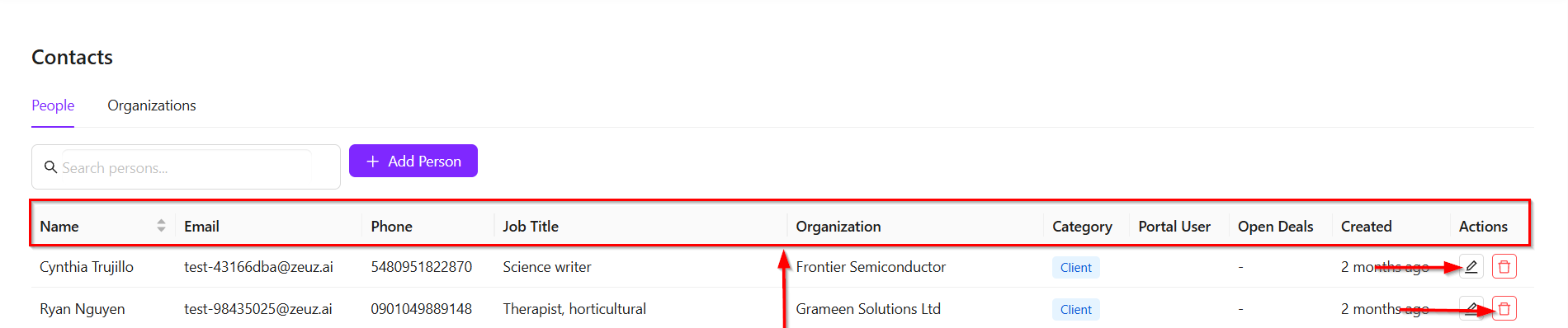
- Below, a structured table displays existing contacts with the following columns:
- Name
- Phone
- Job Title
- Organization
- Category
- Portal User
- Open Deals
- Created
- Actions.
- On the far right, the Actions column provides icons to Edit or Delete each contact, enabling quick management of records.
Create an Organization
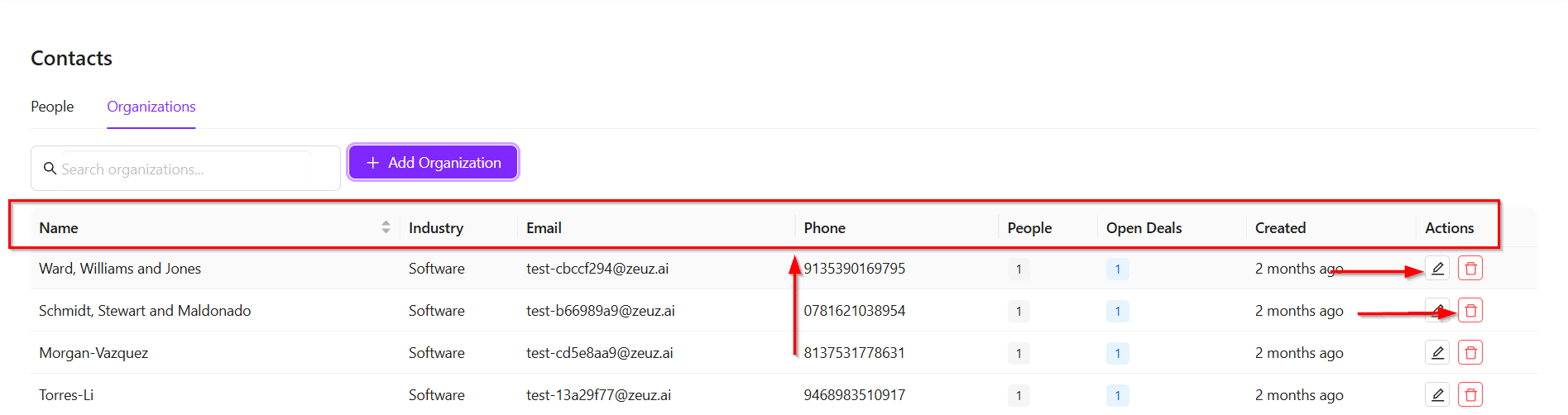
- At the top, there is a Search bar labeled “Search organizations” for quickly finding contacts, along with an + Add Organization button used to create a new contact organization.

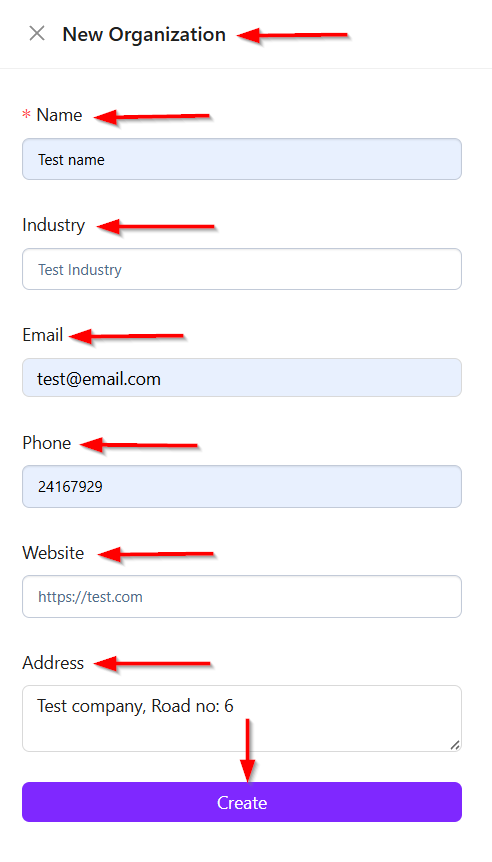
- After clicking the + Add Organization button, the "New Organization" window appears. It contains multiple input fields:
- Name: Name of the required organization.
- Industry: Required industry of the organization.
- Email: Email of the organization.
- Phone: Contact number of the organization.
- Website: Website of the organization.
- Address: Address of the organization.
- At the bottom, a Create button is available, which submits the form and adds the new organization to the system.
- Below, a structured table displays existing information of the organizations with the following columns:
- Name
- Industry
- Phone
- People
- Open Deals
- Created
- Actions.
- On the far right, the Actions column provides icons to Edit or Delete each organization, enabling quick record management.
FAQs / Troubleshooting
Why is a newly created contact not visible in the list?
A contact may not appear immediately due to filtering settings, such as status, pipeline, or search filters. Clearing filters usually resolves this issue.
Why is the contact creation form not submitting?
This may happen due to missing mandatory fields such as name, email, or organization. All required fields must be completed before submission.
Why is contact data not updating after editing?
This can happen due to browser cache or session issues. Refreshing the page or re-logging into the system usually resolves it.
Why are assigned contacts not visible to some users?
Visibility is controlled by role-based access. Users may only see contacts assigned to their team or permission scope.
Changelog
- New feature has been added [202605]