ZeuZ Studio
ZeuZ Studio helps transform a ZeuZ requirement into visual UI mockups before implementation begins. Users can generate one or multiple design variations, preview and refine them using natural-language feedback, attach image references, compare different versions, and remove mockups that are no longer needed.
ZeuZ Studio is useful for exploring how a feature may look and behave before assigning it to a team member or triggering an AI-driven implementation workflow.
Why it matters / Use Cases:
- Generate UI mockups directly from a requirement.
- Create up to five design variants for comparison.
- Preview generated mockups inside ZeuZ or in a new browser tab.
- Refine a mockup by describing changes in chat.
- Attach image references such as screenshots, sketches, or design examples.
- Select a specific element in the preview and refine only that part.
- Use Tweaks for quick visual adjustments when they are available.
- Browse previous mockup versions.
- View generated source when you need a closer look.
- Clean up individual versions or all generated mockups for a requirement.
Prerequisites
- Access to ZeuZ Server with permissions for Project → Ticket → Requirement.
- A connected source control repository, such as GitHub is required.
- A base branch is required for ZeuZ Studio to use as context.
- An AI provider must be selected for ZeuZ Studio.
- If ZeuZ recommends running Codebase Analyzer for the selected repository, consider doing that first. Codebase analysis helps ZeuZ Studio align mockups with your existing product language, page patterns, and UI conventions.
Features
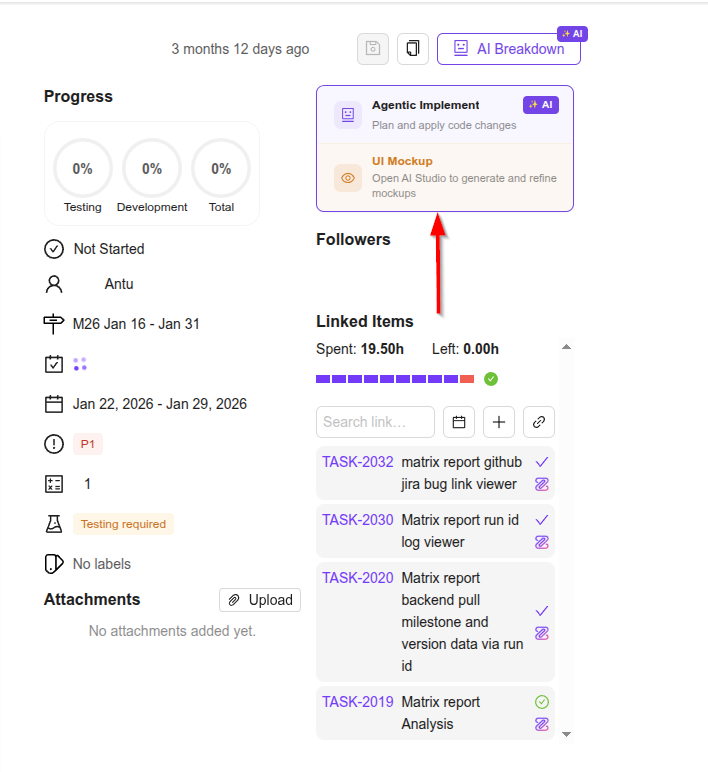
- Open ZeuZ Studio from the requirement you want to design and for this click the UI Mockup option for a specific "Requirement".
- ZeuZ Studio loads the requirement title and description so the AI can use them as the starting point for the mockup.
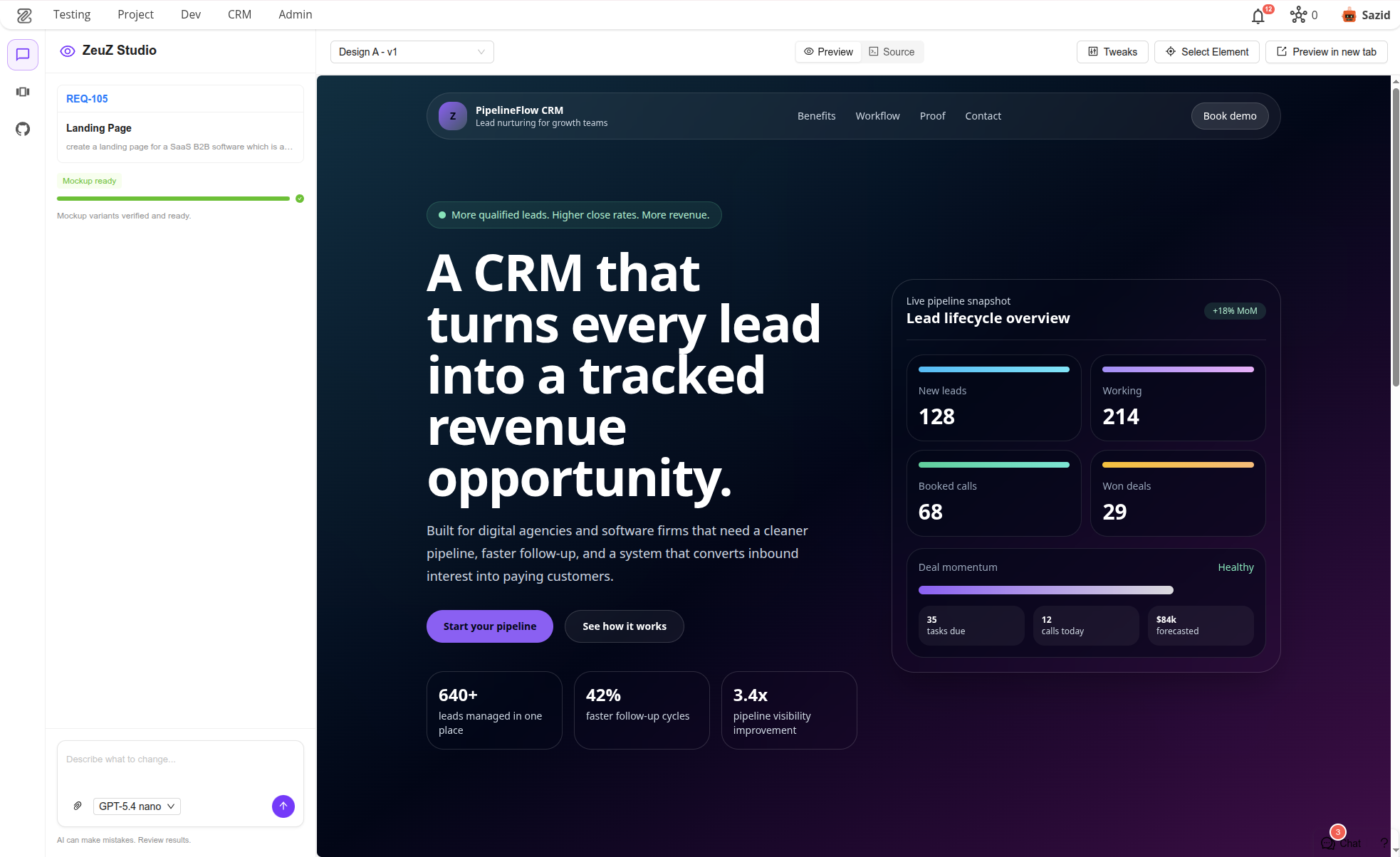
- The screen has three main areas:
- Left navigation rail: Switch between Chat, Variants, and GitHub configuration.
- Side panel: Configure generation, chat with ZeuZ Studio, or browse variants.
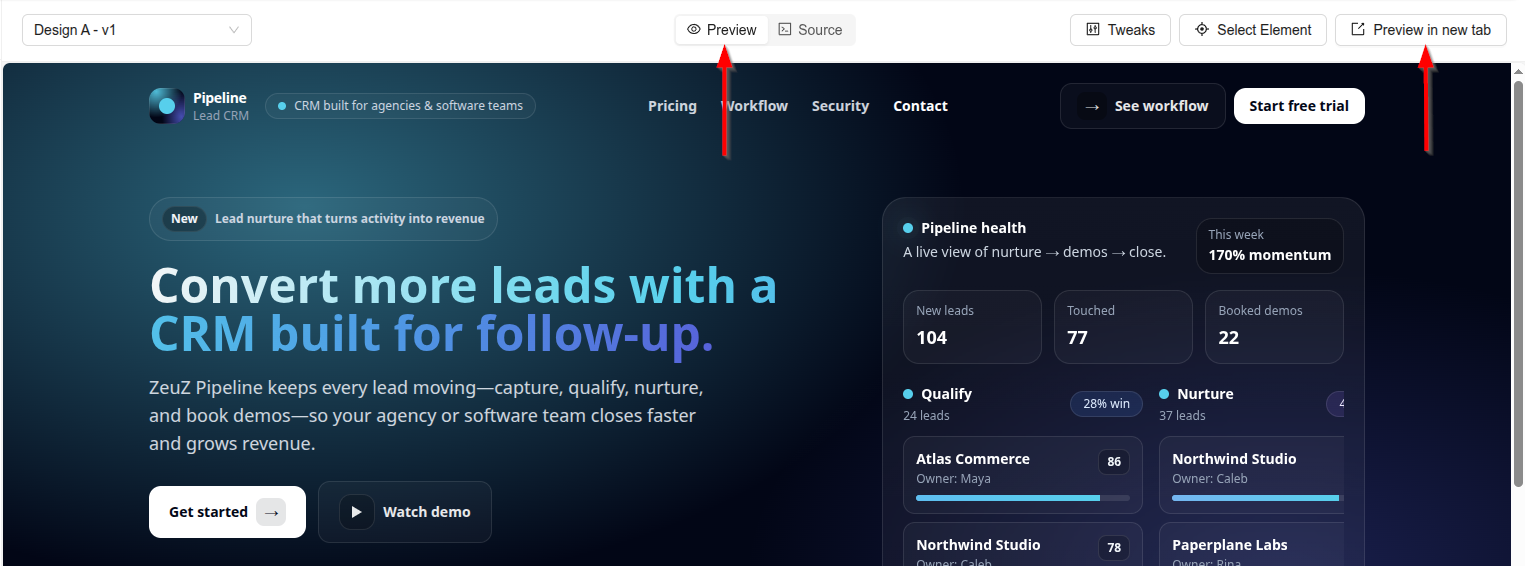
- Main preview area: Preview the selected mockup, view source, select elements, open tweaks, or open the mockup in a new tab.
Configure Repository and AI Provider
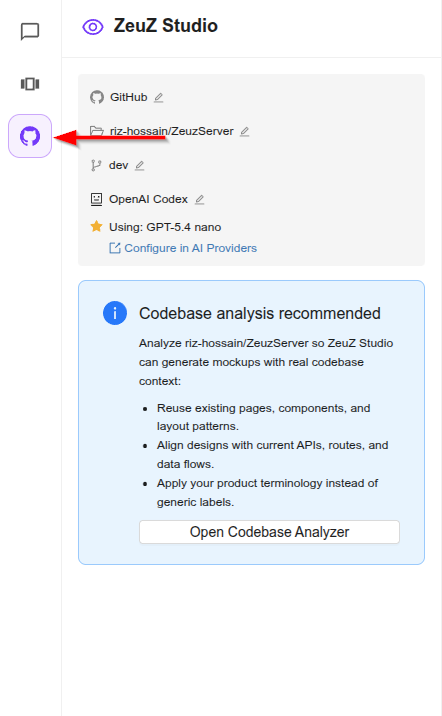
- If ZeuZ Studio shows Connect GitHub before generating, open the GitHub tab in the left rail.
- In the GitHub panel:
- Select the source control platform.
- Choose the repository.
- Choose the base branch.
- Select the AI provider or model assignment for ZeuZ Studio.
note
After a mockup job starts, repository settings may be locked until the job finishes or cleaned up.
Generate a Mockup
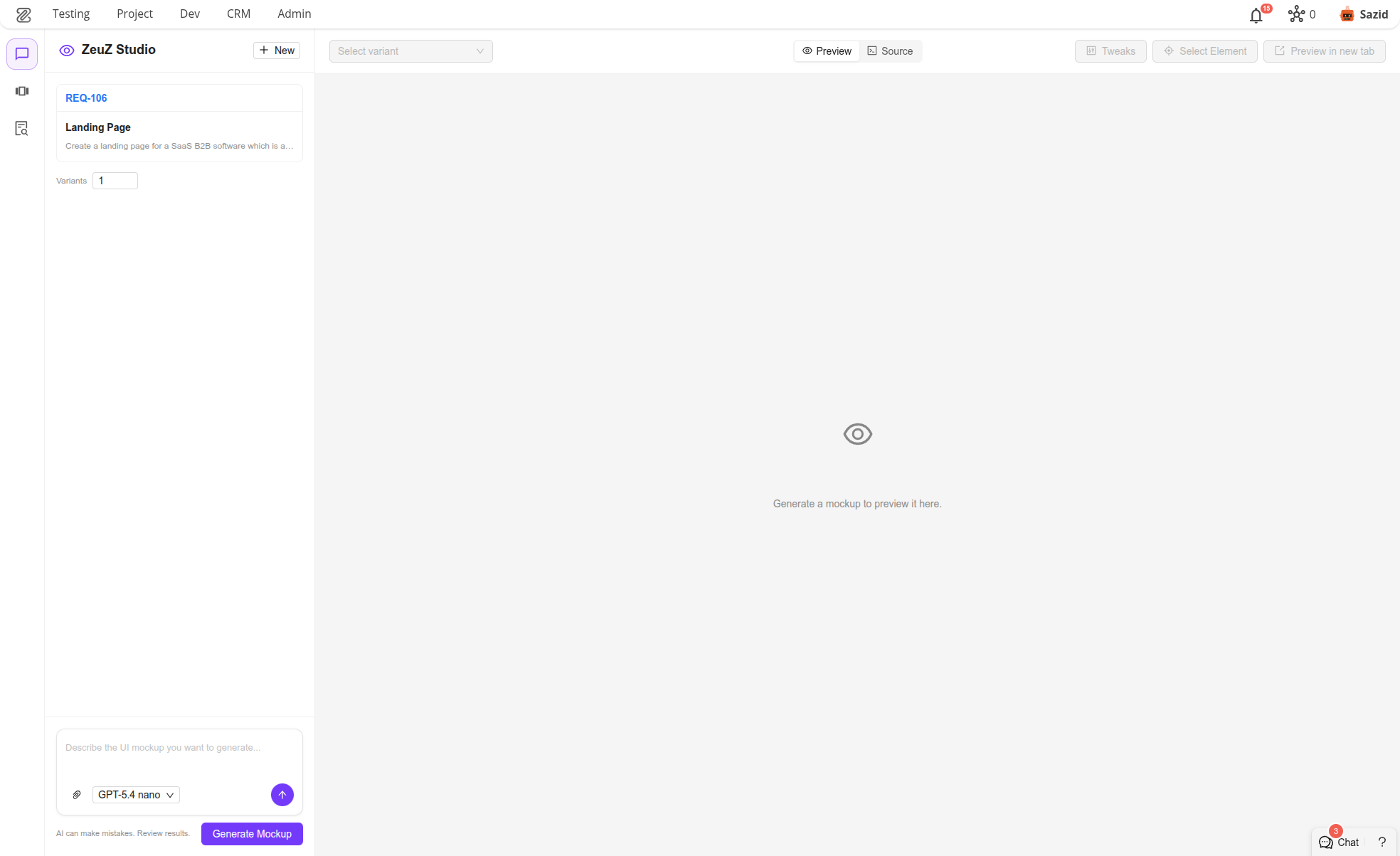
- Click Generate Mockup to start creating the first mockup.
- ZeuZ Studio shows progress while the work is running. You may see statuses such as:
- Queued
- Preparing workspace
- Loading context
- Generating variants
- Building variants
- Mockup ready
- You can click Cancel while generation is still running if you started the wrong request or need to change configuration.
Preview the Result
- When generation finishes, the selected mockup appears in the main preview area.
- Use Preview mode to interact with the mockup visually. If you want a larger view, click Preview in new tab.
- AI-generated results should always be reviewed. Check that the mockup matches the requirement, uses the right terminology, and represents the intended user flow.
Compare Variants and Versions
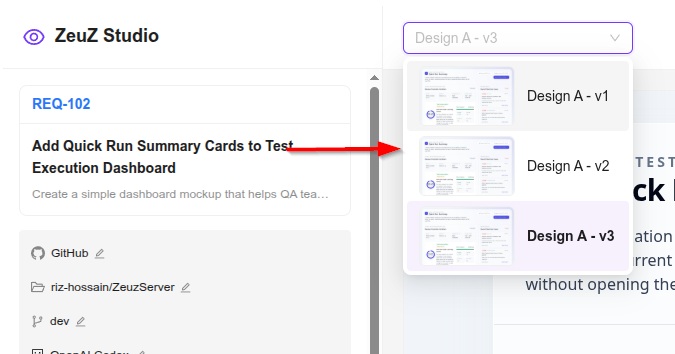
- Open the Variants tab to browse generated designs and previous versions.
- Each card shows a screenshot thumbnail, the design label, and the version number. Click a card to select that design and show it in the preview area.
- Designs are labeled with letters such as Design A, Design B, and Design C. Versions are labeled as v1, v2, and so on.
- New versions are created when you refine a mockup. This lets you compare earlier and later ideas without losing the previous result.
Choose the Number of Variants
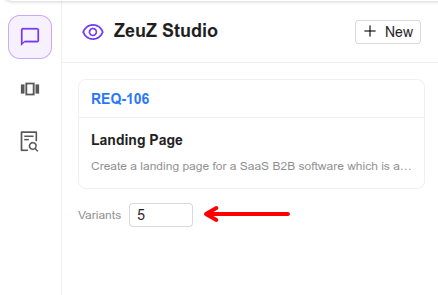
- Before generating, use the Variants field in the Chat panel to choose how many design options you want.
- You can generate between 1 and 5 variants. More variants give you more choices, but they can also take longer to generate.
- For quick exploration, start with 1 or 2 variants. For important screens or larger UX decisions, use 3 to 5 variants.
Refine a Specific Element
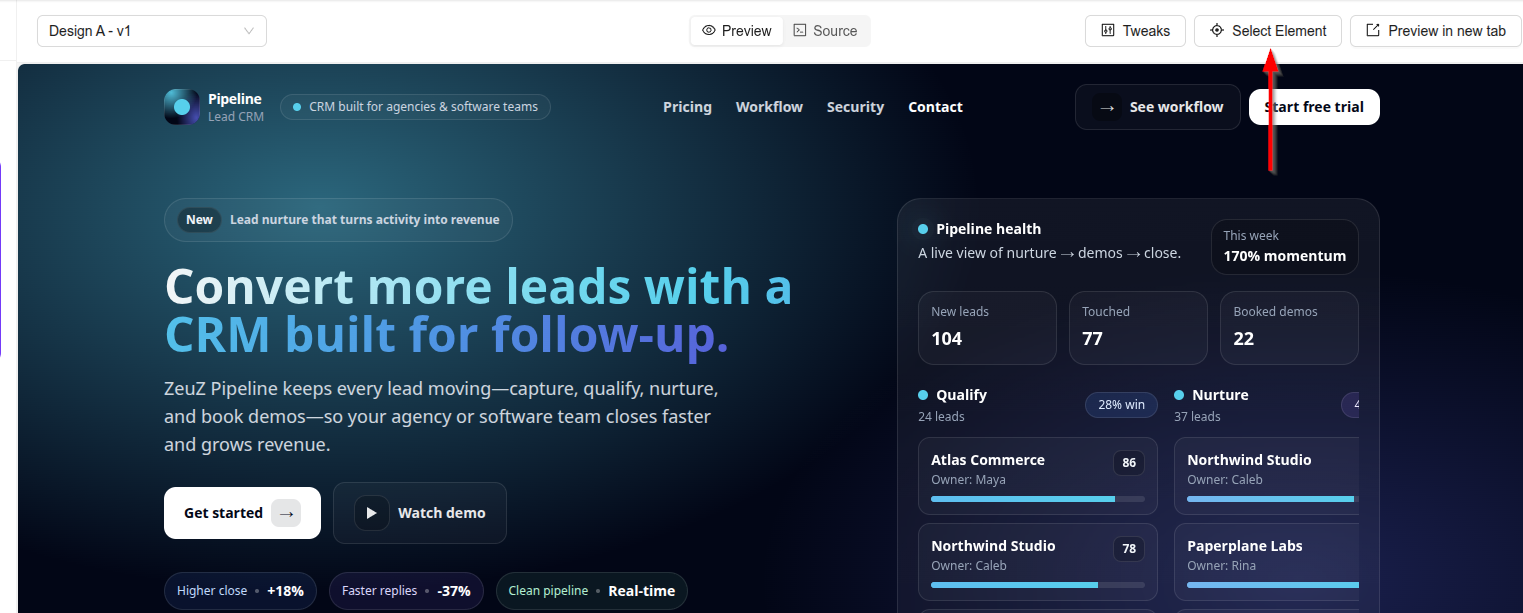
- Use Select Element when you want to change exactly a specific element.
- To refine a specific element:
- Click Select Element.
- Click the element you want to change in the preview.
- Enter your feedback in the refinement box that appears.
- Send the message.
- Examples:
Make this button more prominent.Change this card to show priority, owner, and due date.Replace this table with a timeline view.
- Press Escape to cancel element selection.
Use Tweaks
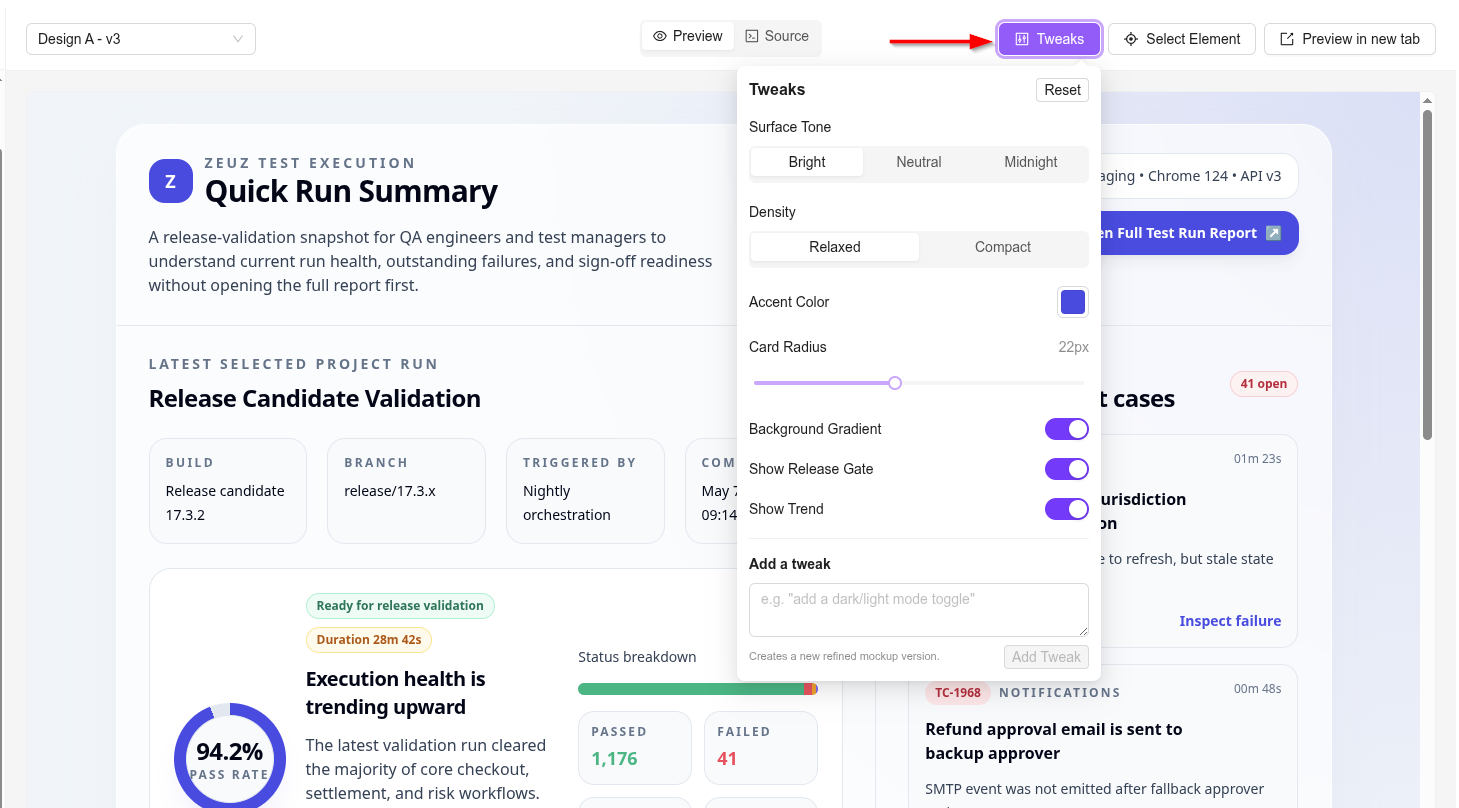
- Click Tweaks to open quick controls for the selected mockup. Depending on the generated mockup, Tweaks may include sliders, toggles, color pickers, or segmented options.
- Use Tweaks to quickly adjust visual details without writing another full refinement prompt. Click Reset to return available tweak controls to their default values.
- If no tweaks are available, you can ask ZeuZ Studio to add one. For example:
Add a dark/light mode toggle.Add a density control for compact and spacious layouts.Add a color control for the accent color.
- Adding a tweak creates a new refined mockup version.
View Source
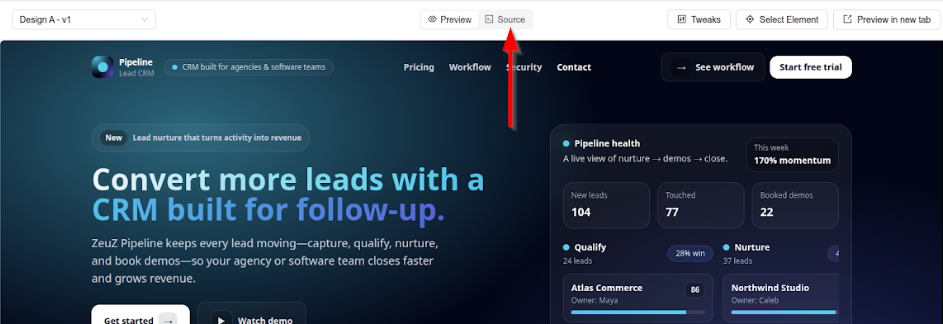
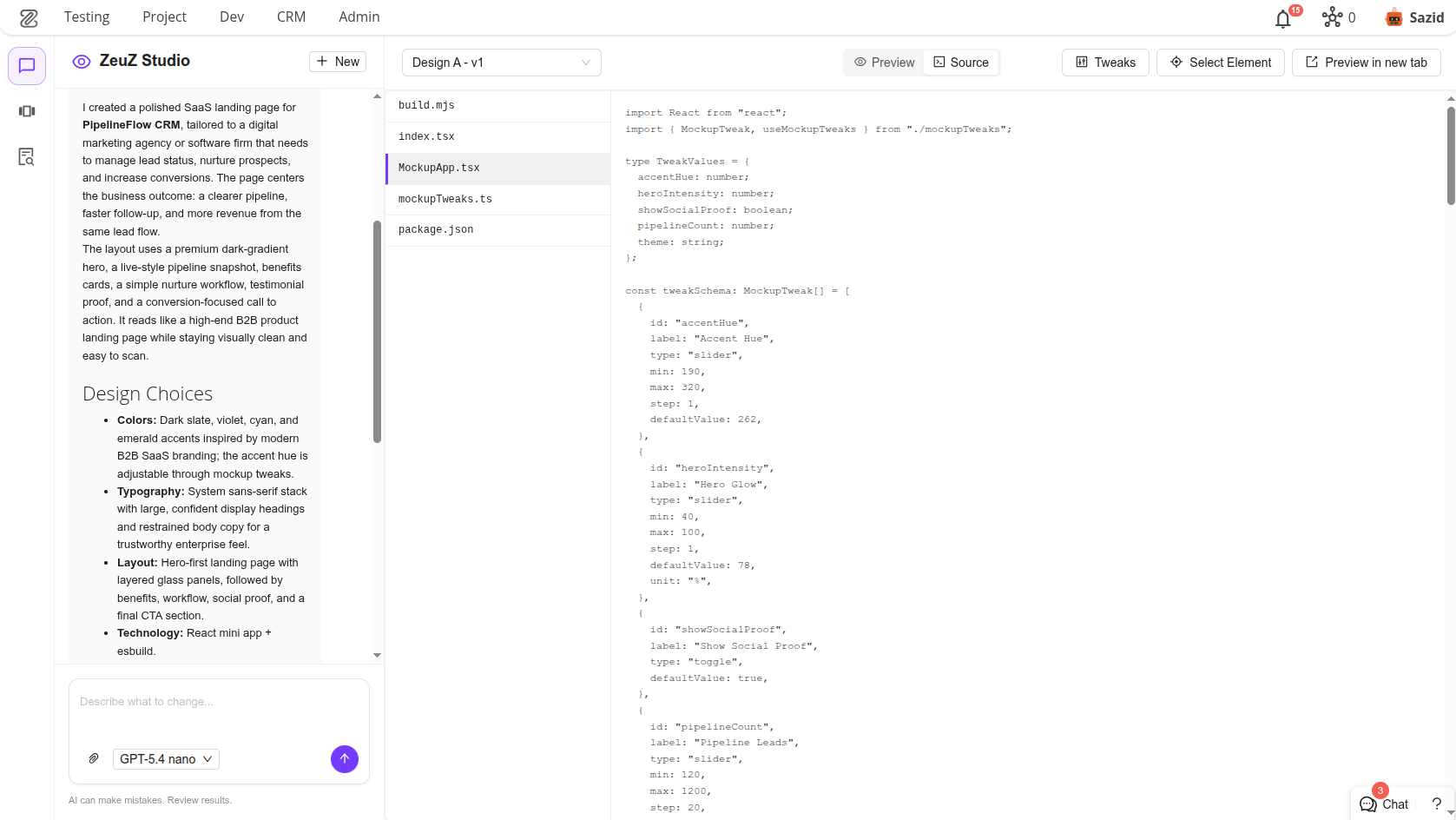
- Switch from Preview to Source when you want to inspect the generated files behind the mockup.
- Most users do not need this view. It is mainly useful for users who want to understand how the mockup is structured or share extra context with an implementation team.
Clean Up Mockups
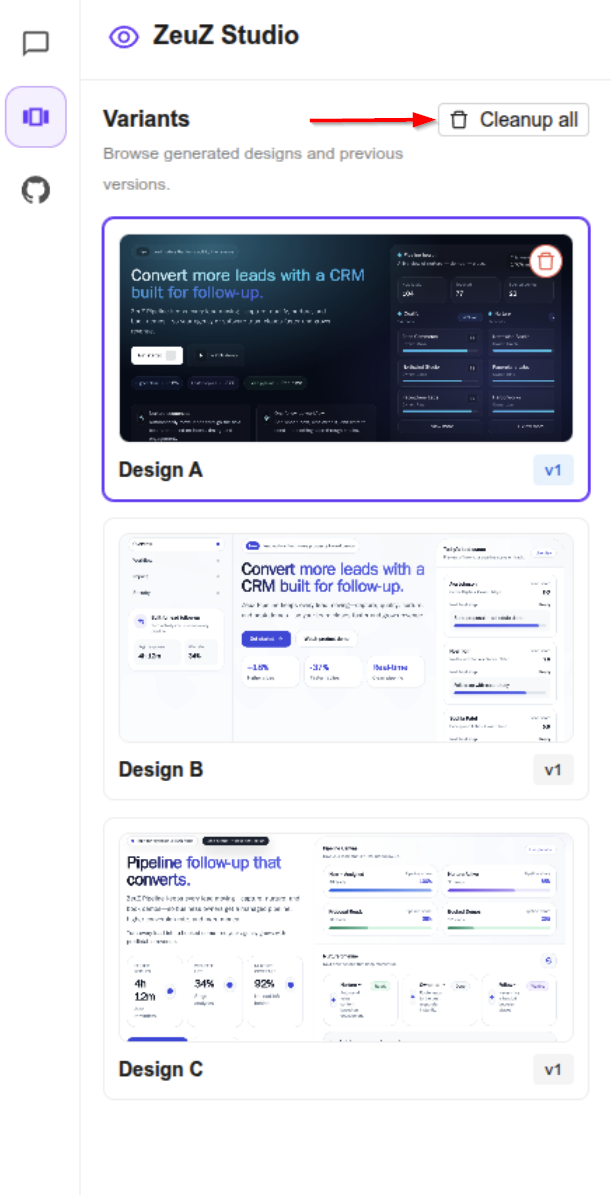
- Open the Variants tab to clean up generated mockups.
- You can:
- Clean up a single design version.
- Clean up all generated mockups for the requirement.
- Cleanup removes generated mockup artifacts for that version or requirement. Use it when a mockup is no longer useful, was generated by mistake, or should be replaced with a fresh start.
Chatbot
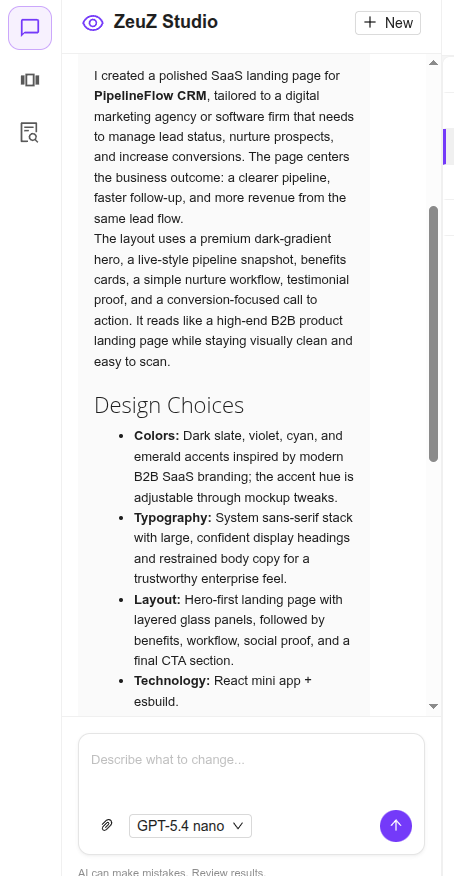
- You can request layout changes for the preview through the chatbot.
- If needed, attachments can also be added here. Users can upload image references and select a model from the available options.
- For example, if the page should look similar to a specific image, the image can be attached as a reference along with instructions to update the design based on that reference.
Tips for Better Results
- Start with a clear requirement title and description.
- Generate multiple variants when exploring early design direction.
- Use short, specific refinement prompts.
- Attach screenshots or sketches when words alone are not enough.
- Refine one selected element when only a small part needs to change.
- Review AI-generated output before using it as product or implementation guidance.
- Run Codebase Analyzer when you want mockups to better match an existing application.
FAQs / Troubleshooting
- Generate Mockup is disabled: Check that you selected a repository and base branch in the GitHub panel. Also make sure no mockup generation or refinement is already running.
- Feedback is disabled: Feedback unlocks after the first mockup finishes. Wait until the mockup is ready, then select a design if needed.
- The mockup does not match what I expected: Send a refinement prompt explaining what should change. If the issue is visual, attach a reference image or use Select Element to target the exact area.
- No Tweaks options are visible.: Not every mockup includes tweak controls by default. Use the Add a tweak prompt in the Tweaks panel to ask ZeuZ Studio to create one.
- Generation failed or was cancelled: Review the visible message in ZeuZ Studio. You can retry generation, change the repository or branch after cleanup, or reduce the number of variants for a faster attempt.
- The preview looks too small: Click Preview in new tab to open the mockup in a larger browser view.
Changelog
- Newly available feature [202604]