Search
The Search feature enables users to quickly locate specific test cases within a large repository. It provides a search input field at the top of the test case list, where users can enter keywords such as test case ID or title. As a result, only matching test cases are displayed, reducing the need for manual folder navigation.
Why it matters / Use Cases:
- Quick Test Case Access: It allows users to quickly find specific test cases by ID, title, folder, feature, or priority, reducing time spent navigating large test case lists.
- Efficient Test Case Management: It supports organized handling of extensive test cases by displaying only relevant results.
- Organization of Folder and Feature: It helps to manage the organization of folders and features.
Prerequisites
- Access to ZeuZ Server with permissions for Testing → Test Case → Search.
- At least one test case must exist for the search feature to work.
Quick-Start
- Click on the Search Test Cases bar available at the top to find specific test cases.
- Enter search keywords such as ID, Title, Folder, Feature, Priority, etc., in the search field.
Features
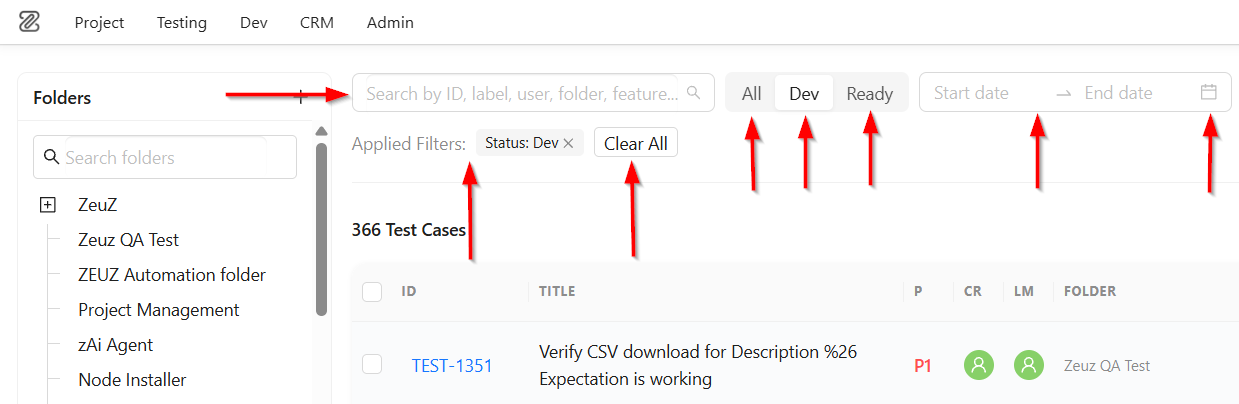
Search bar
- A text box labeled Search Test Cases... allows users to enter keywords to locate specific test cases. It contains the following components:
- Search Bar: Located at the top left, this allows users to search for test cases by ID, label, user, folder, feature, and other criteria.
- Search Icon: Clicking the search icon executes a search for test cases based on the entered keywords.
- Status Filters: Next to the search bar, filter buttons such as All, Dev, and Ready are available to display test cases based on their current status.
- Date Range Filter: The Start date and End date field allows users to filter test cases within a specific date range.
- Calendar Icon: Opens the calendar for selecting start and end dates.
- Applied Filters Section: Displays all currently active filters. Here, three types of statuses are available, such as: All, Dev and Ready.
- Clear All Button: Removes all applied filters at once and resets the filter settings.
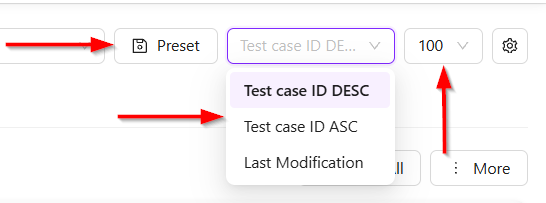
Sorting and filtering test cases
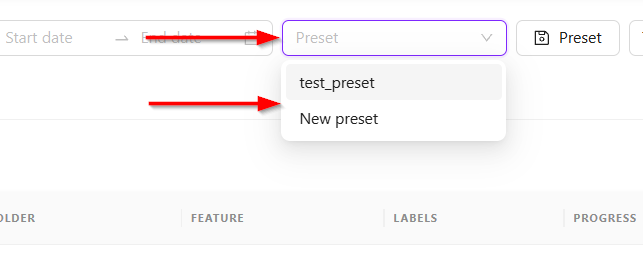
- A Preset option is visible, which is used to apply previously saved filter configurations.
- A dropdown menu is open that allows users to sort test cases based on different criteria, such as Test Case ID in descending order (DESC), Test Case ID in ascending order (ASC), or Last Modification date.
- An additional numeric dropdown (for example, 100) indicates the maximum number of test cases displayed per page.
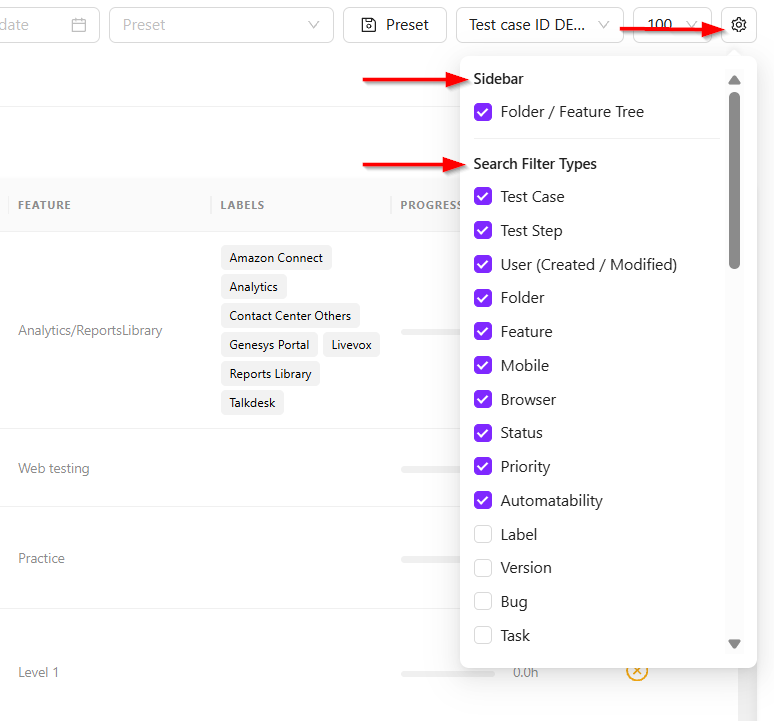
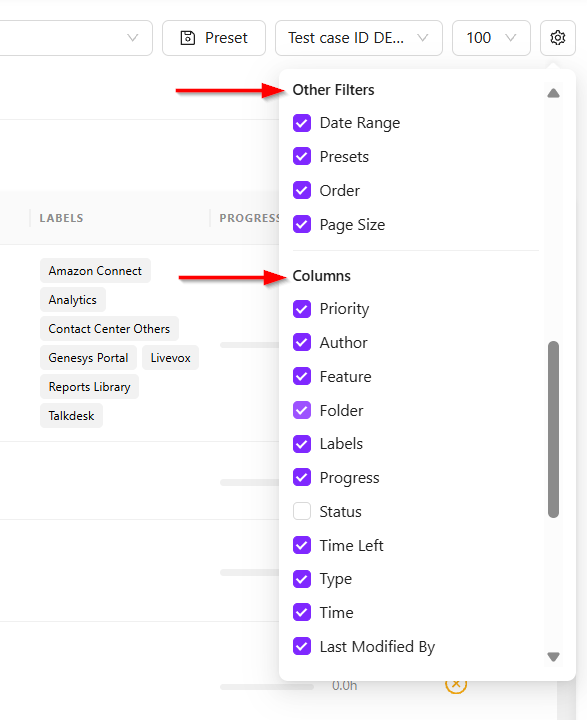
Settings Menu
- It allows users used to customize the search interface by selecting which filter options will be visible in the table. It contains the following components:
- Sidebar Section: Contains the Folder / Feature Tree option, which is currently enabled. This allows the folder and feature structure to be displayed in the sidebar.
- Search Filter Types Section: Displays multiple checkbox options that allow users to choose which search filters should appear in the search panel.
- Other Filters: Users can enable or disable additional filter options by selecting or deselecting the corresponding checkboxes.
- Columns: Users can choose which columns to display in the table, such as, Priority, Author, Feature and more.
- Row Actions: Users can control which action buttons appear in each table row, such as, Copy, Move to Folder, Link to Prerequisite and more
Preset Section
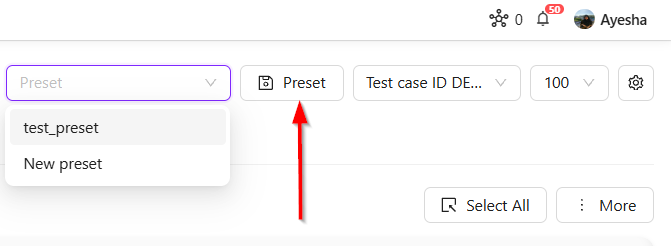
- The Preset button is used to save and reuse predefined filter or search configurations.
- Its main purpose is to help users avoid manually setting the same filters repeatedly. Users can save a specific combination of filters, columns, or settings as a preset and quickly apply it whenever needed.
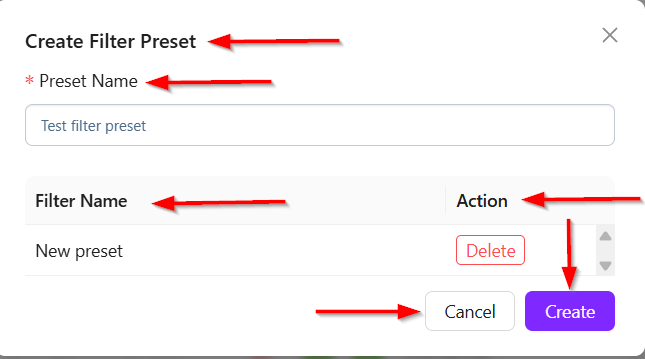
- To create a new preset, click the Preset button, and the "Create Filter Preset" window will appear. It contains the following fields:
- Create Filter Preset Window: A popup window used to create and manage filter presets for saving frequently used filter configurations.
- Preset Name Field: A required input field where users must enter the name of the preset.
- Action Column: Contains action buttons for managing the listed filters.
- Delete Button: Removes the selected filter from the preset list.
- Cancel Button: Closes the window without saving any changes.
- Create Button: Saves the preset with the entered name and selected filters.
Select and Deselect Options
- To select all test cases, click the Select All button.
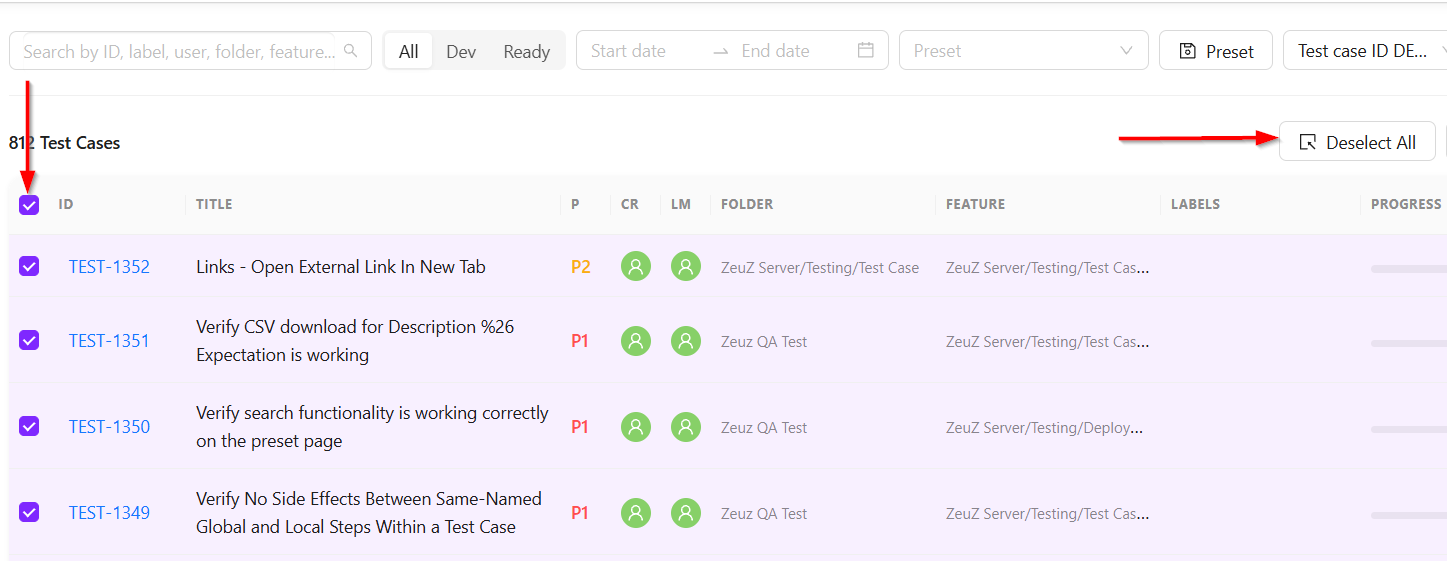
- To deselect all test cases, click the Deselect All button after all test cases are selected.
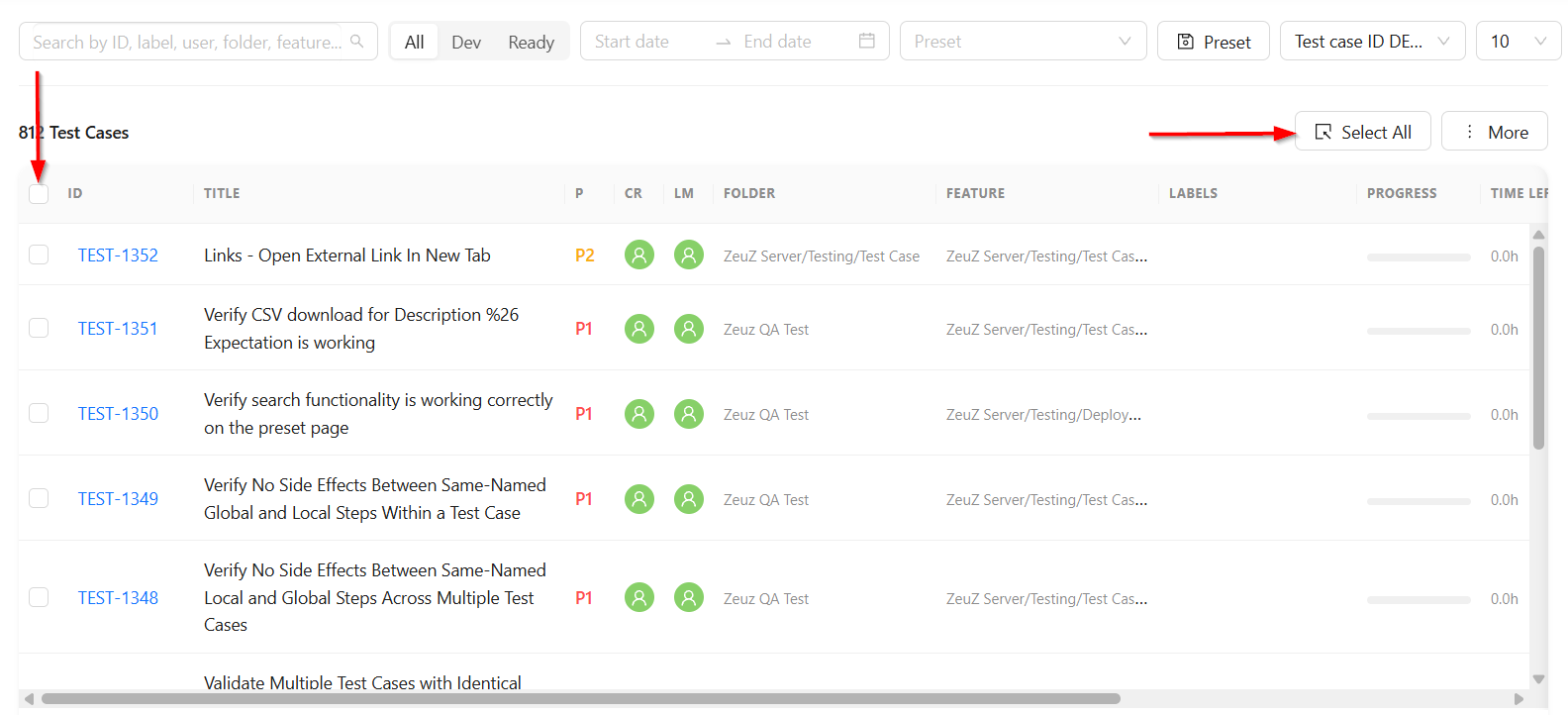
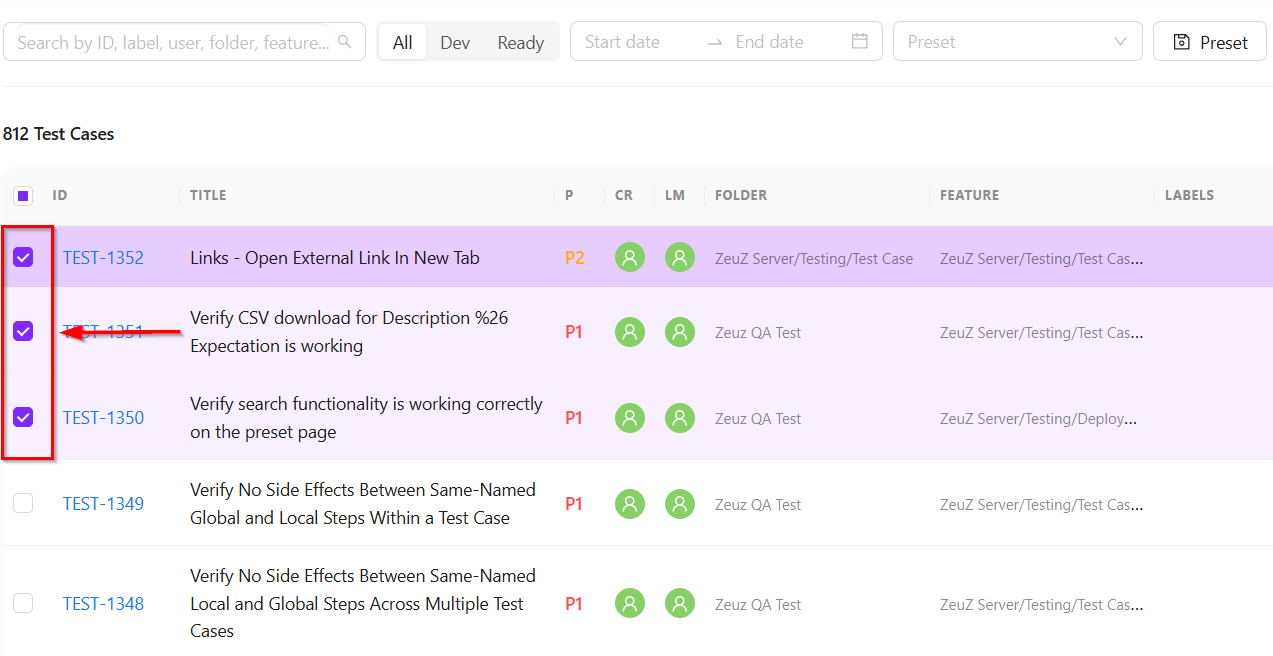
- To select specific test cases, click the checkboxes of the required test cases.
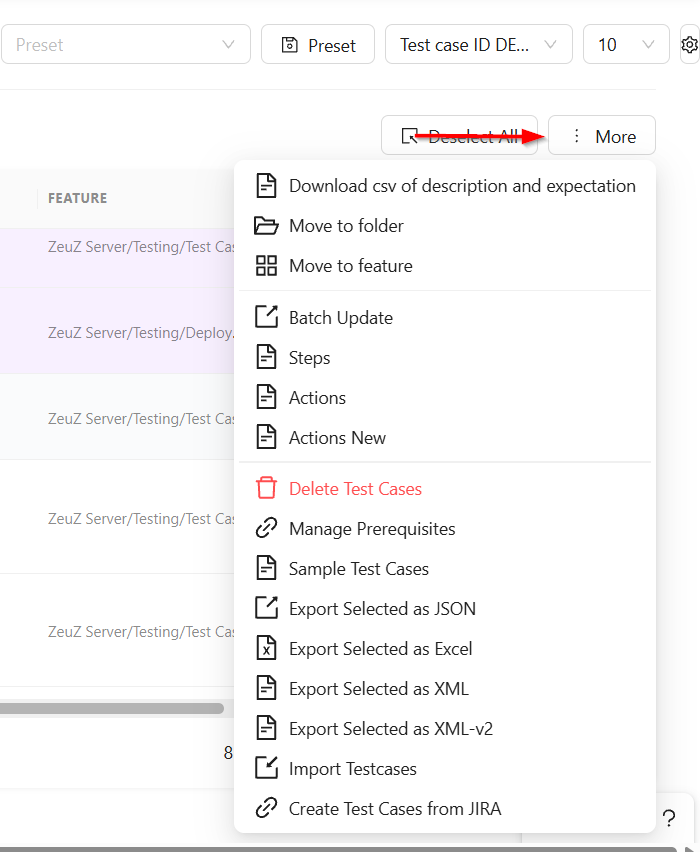
More option
- It provides various actions and management options for the selected test cases. The available options are:
- Download CSV of description and expectation: Downloads a CSV file containing the descriptions and expected results of the selected test cases.
- Move to folder: Moves the selected test cases to a different folder.
- Move to feature: Moves the selected test cases to another feature.
- Batch Update: Allows multiple selected test cases to be updated at once.
- Steps: Manages or updates the steps of the selected test cases.
- Actions: Allows actions to be added or modified for the selected test cases.
- Actions New: Opens the newer version of the actions management interface.
- Delete Test Cases: Permanently deletes the selected test cases.
- Manage Prerequisites: Allows prerequisites to be added, removed, or modified for the selected test cases.
- Export Selected as JSON: Exports the selected test cases in JSON format.
- Export Selected as Excel: Exports the selected test cases in Excel format.
- Export Selected as XML: Exports the selected test cases in XML format.
- Export Selected as XML-v2: Exports the selected test cases in the updated XML version 2 format.
- Import Testcases: Imports test cases from an external source.
- Create Test Cases from JIRA: Creates test cases by importing issues from JIRA.
Create a folder
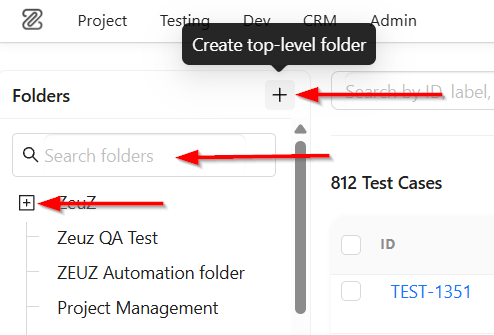
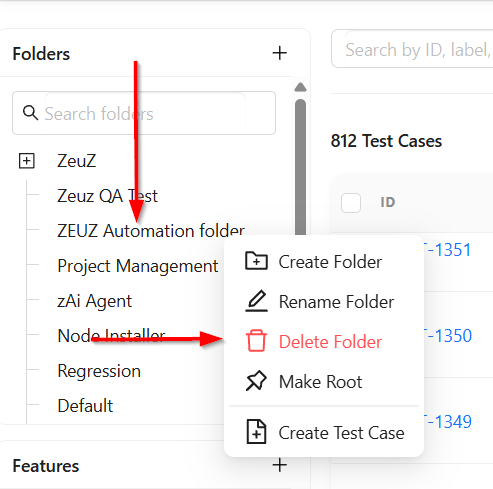
- At the top of the test case search page, a plus icon with the tooltip Create top-level Folder allows users to create a new top-level folder in the hierarchy.
- Here, Search folders refers to a feature that allows users to quickly find specific folders by entering a folder name or keyword instead of manually browsing through all the folders.
- The plus sign next to folders suggests that folders can be expanded to view subfolders if any exist.
- A folder action menu appears after right-clicking on a specific folder. The available options are:
- Create Folder: Creates a new folder inside the selected folder to organize test cases or features.
- Rename Folder: Allows users to change the name of the selected folder.
- Delete Folder: Permanently removes the selected folder from the system.
- Make Root: Moves the selected folder to the root level, making it a top-level folder instead of a subfolder.
- Create Test Case: Creates a new test case directly inside the selected folder.
Create a feature
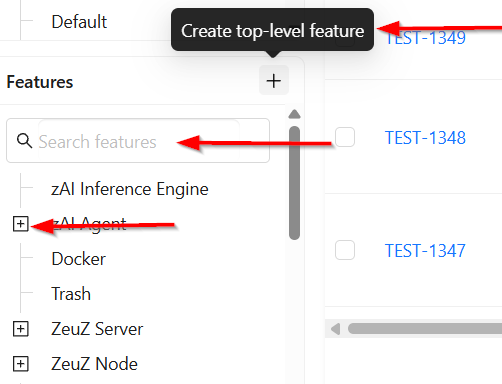
- At the top, a button labeled Create top-level Feature, represented by a folder icon with a plus sign, allows users to create a new top-level feature.
- Here, Search features refers to a feature that allows users to quickly find specific features by entering a feature name or keyword instead of manually browsing through all available features.
- The plus icon next to a feature is used to expand the folder when subfolders are present.
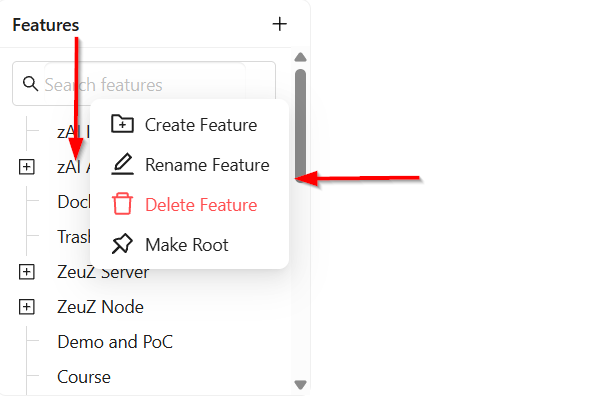
- A feature action menu appears after right-clicking on a specific folder. The available options are:
- Create Feature: It allows users to create a new feature within the project structure.
- Rename Feature: It allows users to change the name of an existing feature.
- Delete Feature: It allows users to permanently remove an existing feature from the project structure.
- Make Root: It efers to an option that moves the selected feature to the root level of the feature structure.
FAQs / Troubleshooting
How can I search for a specific test case?
Enter keywords such as test case ID, title, folder name, feature, or priority in the search field at the top of the test case list. Matching results will be displayed instantly.
What should I do if no results appear?
Check that the keywords are correct, the test case exists, and that at least one test case is present in the list.
Can I search using multiple criteria?
Yes, you can search using multiple criteria. The search feature allows combining keywords such as test case ID, title, folder, feature, or priority.
Can I search for test cases across all projects?
No, the search feature only works within the selected project or test case repository. Switch projects if you need to search elsewhere.
The search is slow or unresponsive. What should I do?
Ensure that your project contains an indexed list of test cases, and use more specific keywords or apply filters to speed up the search.
Changelog
- New UI has been introduced [20250712]
Related Topics
- Create test cases
- Export and import test cases
- Create folders and features
- Move test cases to folder and feature