Label
The Label feature in ZeuZ allows users to create or edit a descriptive tag by entering a label name and selecting a label color. This label can be applied to Requirements, Tasks, Bugs, or Test cases to organize and filter related items efficiently. The page displays tabs showing where the label is used and includes audit information, such as who created or last modified the label and the corresponding dates. After defining the label, the user can save the changes.
Why it matters / Use Cases:
- Better Organization: Labels allow teams to group related items, making it easier to filter and locate them quickly.
- Improved Visibility: By applying labels, stakeholders can instantly see the type, priority, or category of an item at a glance.
- Enhanced Reporting: Labels make it possible to generate reports and metrics based on specific tags, helping track progress or problem areas.
- Facilitates Workflow Management: Teams can use labels to indicate status, responsibility, or stage in the process, improving task tracking.
- Supports Cross-Project Consistency: Standardized labels across projects ensure consistency and reduce confusion when multiple teams work together.
- Quick Filtering and Search: Users can filter or search work items using labels, saving time and avoiding manual sorting.
- Custom Categorization: Teams can relate labels that match their unique workflow, like "High Priority", "UI Bug", or "Regression Test", adapting the tool to their needs.
Prerequisites
- Access to ZeuZ Server with permissions for Project → Others → Label.
- A clear and descriptive name must be defined for the label.
- Choosing a label color helps visually differentiate labels, though it is not mandatory.
- Teams should follow a standard naming approach to ensure labels are meaningful and easy to search.
Quick-Start
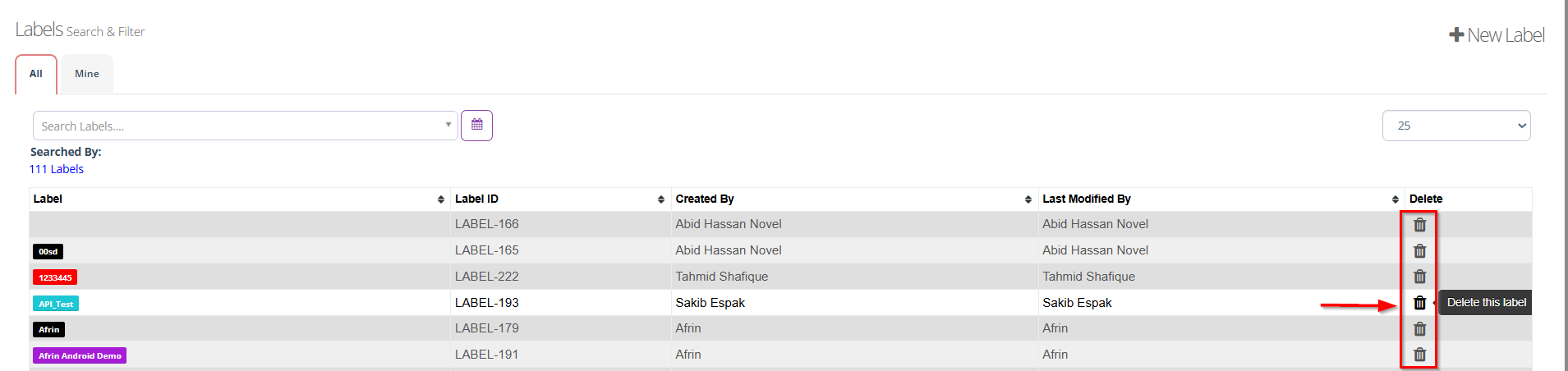
- View Labels: There are two tabs: All shows every label in the system and Mine shows only the labels you have created.
- Search Labels: Use the field to quickly locate a label by its name.
- Filter by date (Optional): Click the calendar icon next to the search box to filter labels by creation or modification date.
- Select Per Page Item: Use the dropdown on the right to select how many labels to display per page (e.g., 25, 50, 100).
- Create Label: Click the + New Label button at the top right to create a label, enter the Label name and optionally choose a color in the form that appears.
Features
Create a new label
- Navigate to the Labels page.
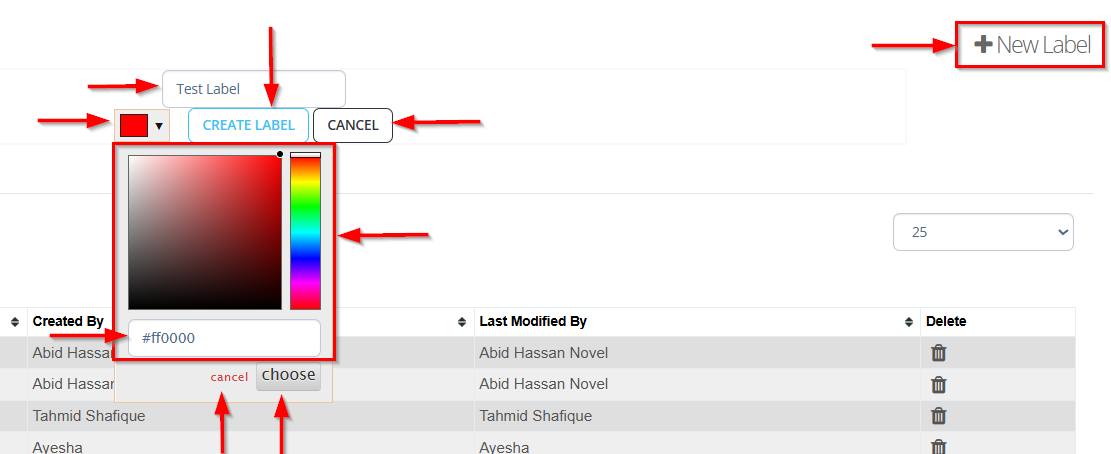
- To create a new label, click the + New Label button.
- Enter the required fields below, such as:
- Label Name Field: At the top, a text box labeled Label Name.... is where the user types the name of the new label (e.g., Test Label).
- Color Picker:
- A small color box with a dropdown lets the user select a color for the label.
- Clicking the color box opens a color palette where users can pick any color using the gradient area and rainbow slider.
- The hexadecimal code of the selected color is displayed below (e.g.,
#ff0000for red). - Buttons such as, choose and cancel allow confirming or cancelling the color section.
- Action Buttons:
- CREATE LABEL: Saves and creates the new label with the entered name and selected color.
- CANCEL: Closes the form without saving.
Delete a label
- To delete a label, click the Delete button located on the right side of that specific label.
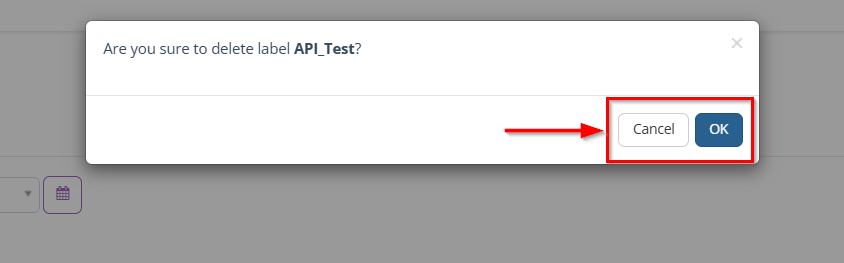
- A confirmation pop-up appears when a user tries to delete a label. It prompts the user to confirm the deletion. Two options are available:
- OK: Confirms and deletes the label.
- Cancel: Closes the pop-up without deleting anything.
Create/Edit label
- Click the specific label that needs to be edited.
- Navigate to the Create/Edit Label page.
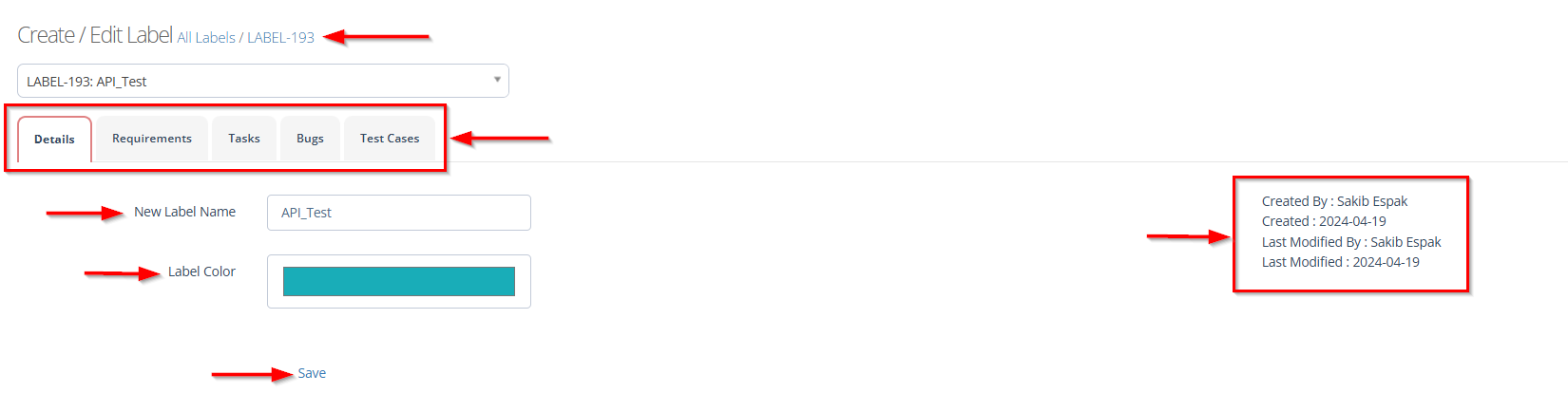
- It allows a user to modify an existing label or create a new one.
- On the page:
- The Details tab is selected, indicating that the user is working with the basic label information.
- A field labeled New Label Name allows the user to type or update the name of the label.
- A section named Label Color provides a color selection area where the user can choose a visual color for the label.
- A Save button appears below the fields, allowing the user to confirm and store the changes.
- On the right side, audit information is shown. It records who created the label and who last modified it, along with the respective dates.
- The Requirements, Tasks, Bugs and Test cases tabs indicate where the label can be associated.
FAQs / Troubleshooting
FAQs
What is a label?
A label is a descriptive tag used to categorize and identify items such as Requirements, Tasks, Bugs, and Test Cases. It helps maintain clarity and organization across a project.
Where labels can be applied?
Labels can be applied under Requirements, Tasks, Bugs, and Test Cases. This allows a single label to be reused across multiple areas.
Can an existing label be edited?
Yes. A label can be edited by opening it from the label list, updating its details, clicking Save.
Does a label require a color?
Yes. A color must be selected so the label is visually distinguishable across different project modules.
Can multiple items share the same label?
Yes. A single label can be applied to multiple Requirements, Tasks, Bugs, and Test Cases, allowing consistent categorization across different project components.
Troubleshooting
- Save button is not active: Ensure both the label name and label color fields are filled. The button remains disabled if mandatory fields are incomplete.
- Label does not appear under Requirements, Tasks, Bugs, or Test Cases: The label must first be saved in the Details tab. Without saving, the label cannot be used in other sections.
- Unable to edit the label details: The user might not have edit permissions. Check access rights or contact the administrator.
- Error message for label name: The name may already exist. A unique name must be used, as the system does not allow duplicate label names.
- Color selection is not retained: Make sure to click Save after choosing the color. Navigating away before saving will discard the change.
Changelog
- Introduced before Version [20250518]