Time Shift
The Time Shift provides a weekly view that allows users to select a project, team, and milestone, define the type of work, and record planned or actual working hours for each day within a selected date range. This helps teams systematically track, monitor, and manage work effort in an organized and structured manner.
Why it matters / Use Cases:
- Accurate Work Tracking: It enables teams to record planned and actual hours, ensuring visibility in daily and weekly work effort.
- Improved Project Planning: By analyzing time allocations, project managers can more accurately estimate project timelines and optimize resource distribution.
- Performance Monitoring: It helps identify workload imbalances, such as overutilized or underutilized team members.
- Milestone Progress Validation: Recorded hours can be evaluated against milestones to determine if project objectives are progressing as planned.
- Reporting and Analysis: Time data can be utilized for analyzing effort, conducting audits, and generating management reports within the platform.
Prerequisites
- Access to ZeuZ Server with permissions for Project → Others → Work Schedule.
- A project, the relevant team, and the milestone under which the work is being tracked must be selected from their respective dropdowns to accurately associate and track the work entries.
- The type of work must be specified (e.g.,
Working,Vacation,Sick,Training) for proper categorization. - Planned or worked hours for each day must be entered in the provided fields to reflect effort.
Quick-Start
- First, click the MORE option available at the top-right corner of the "Work Schedules" page.
- Then, click the TIME SHIFT option.
Features
- Navigate to the Time shift page.
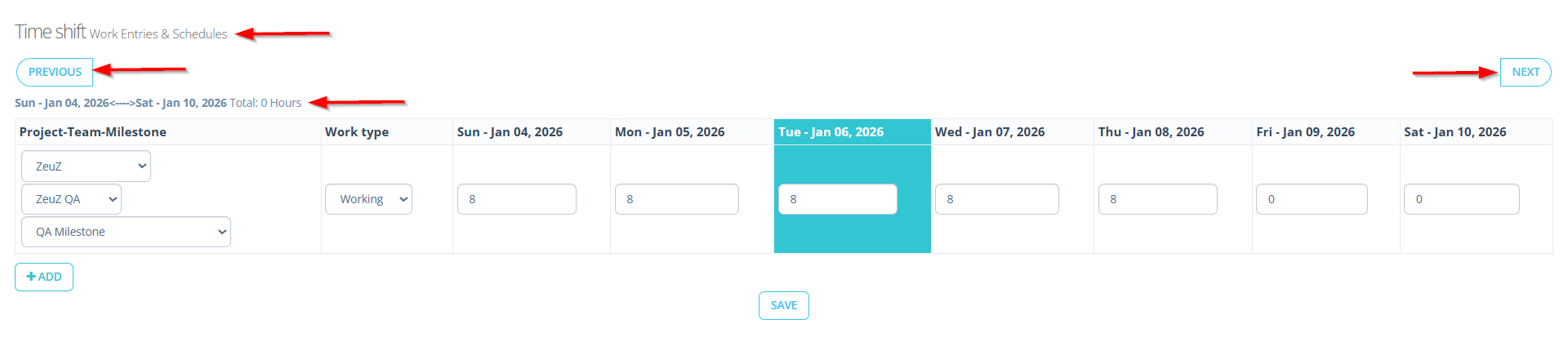
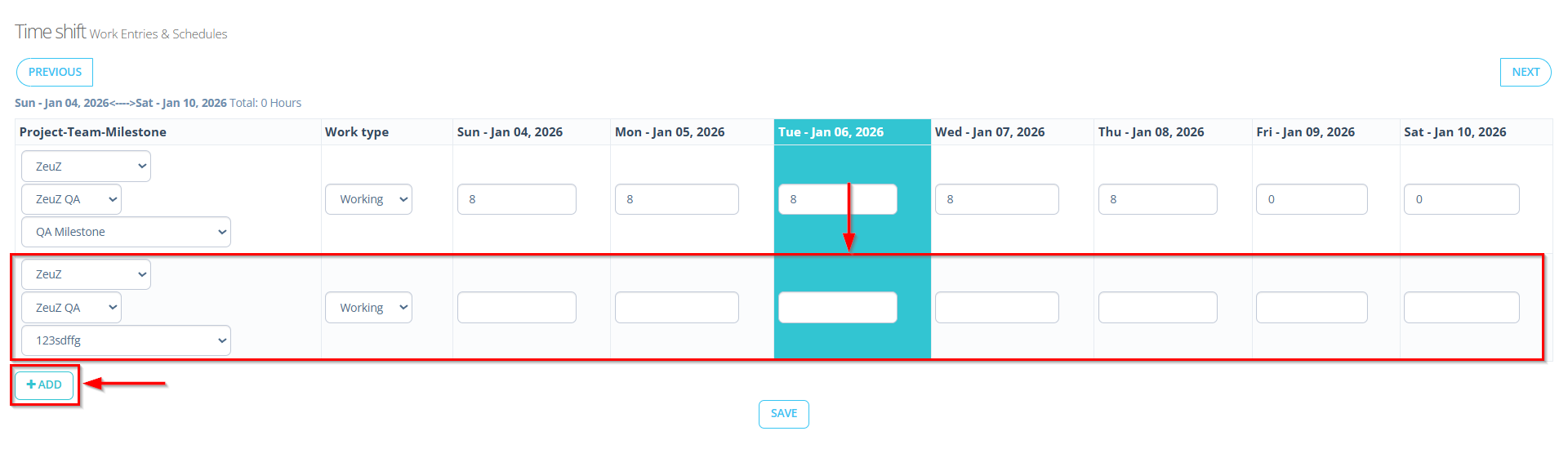
- At the top, navigation buttons allow users to move between PREVIOUS and NEXT weeks, while the selected date range and total logged hours are displayed.
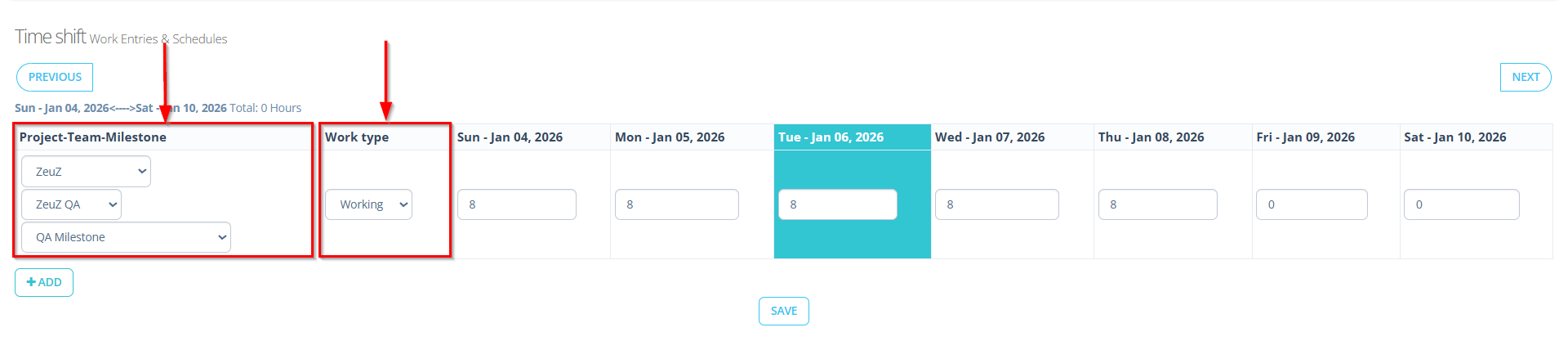
- On the left side, dropdown fields are provided to select the Project, Team, and Milestone, ensuring that the recorded work is linked to the correct context.
- A Work type dropdown is also available, allowing users to categorize the time as
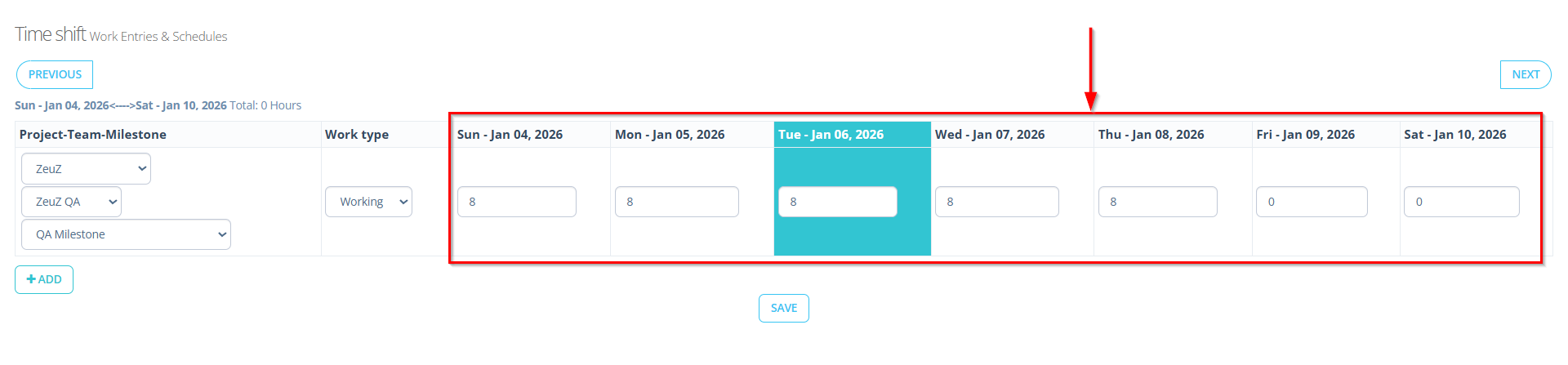
Working,Vacation,Sick, orTraining. - The main section presents a weekly grid from Sunday to Saturday, where users can enter planned or actual hours for each day.
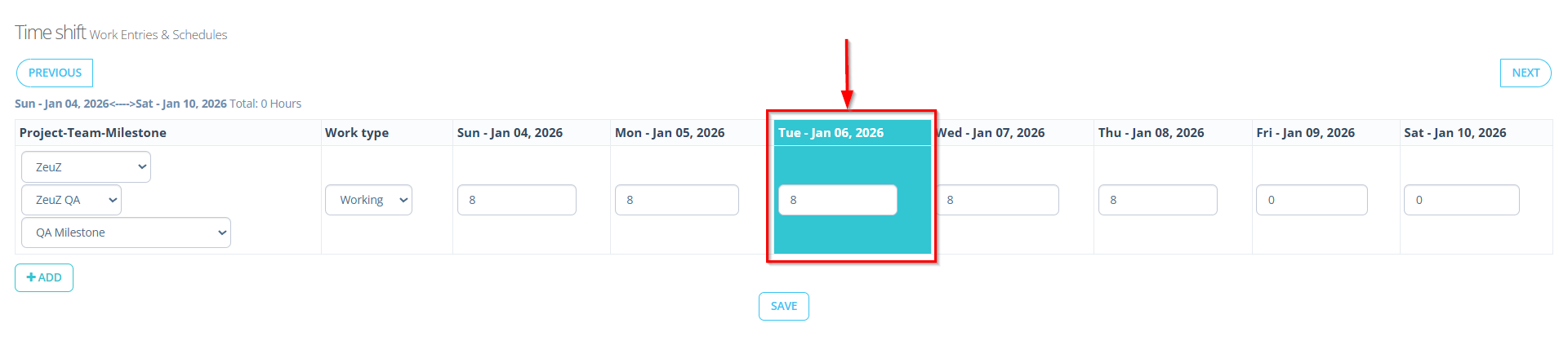
- The highlighted column indicates the currently selected day.
- Additional rows can be added using the + ADD button.
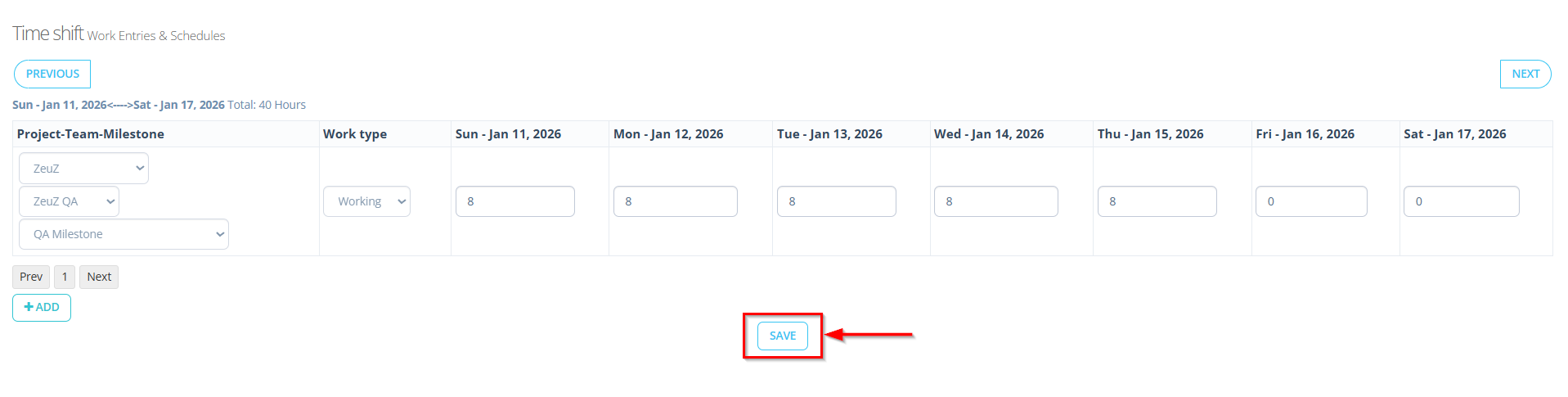
- All entered data can be saved using the SAVE button.
FAQs / Troubleshooting
Why am I unable to enter hours in the Time Shift grid?
This usually occurs when the Project, Team, or Milestone is not selected. All three must be chosen before hours can be entered.
Why is the total hours value showing as zero?
The total remains zero if no hours are entered or if the entered values are not saved. Users must click the Save button to update the total hours.
Why are my previously entered hours not visible?
This may happen if the user is viewing a different date range. Ensure the correct week is selected using the Previous and Next navigation buttons.
What should be done if the Save button does not store the entries?
Users should verify that all required fields are filled correctly and that valid numeric values are entered for hours before saving.
Why is the wrong work type recorded?
The Work Type must be selected before entering hours to ensure correct categorization.
Changelog
- New UI has been introduced [20250518]