Milestones
In ZeuZ, a Milestone represents a key phase or goal within a project. It allows users to group and track related work items such as tasks, bugs, run IDs, and other activities that contribute to a specific objective or release.
By linking items to a milestone, teams can efficiently monitor progress, organize deliverables, and share updates for that particular phase. It provides a clear overview of what has been planned, what is completed and what is still pending within the milestone.
Why it matters / Use Cases:
- Progress Tracking: Monitor the completion status of tasks, test cases, and runs linked to a specific milestone.
- Release Planning: Group related activities to prepare for a product release or version update.
- Goal Management: Define and measure progress toward project objectives or key deliverables.
- Test Management: Associate test plans, executions, and results with milestones for better traceability.
- Team Collaboration: Share milestone updates with stakeholders to align efforts and timelines.
- Performance Evaluation: Compare achievements across milestones to assess project efficiency.
- Quality Assurance: Ensure that all test activities and bug resolutions are completed before moving to the next phase or release.
Prerequisites
- Access to ZeuZ Server with permissions for Project → Others → Milestones.
- Relevant tasks, test cases, or runs must exist to associate them with a milestone.
- All related test data (plans, executions, results) should be organized to ensure accurate milestone reporting.
Quick-Start
- Navigate to the Milestone page.
- Use the search bar at the top to quickly locate a specific milestone by name.
- Each card represents an individual milestone displaying its name, date range, and also indicates the number of run IDs, test cases, tasks, and bugs.
- Click the plus (+) at the top right corner to create a new milestone.
- The Navigate to old milestone page link allows users to switch to the previous milestone view if needed.
Features
Create a new milestone
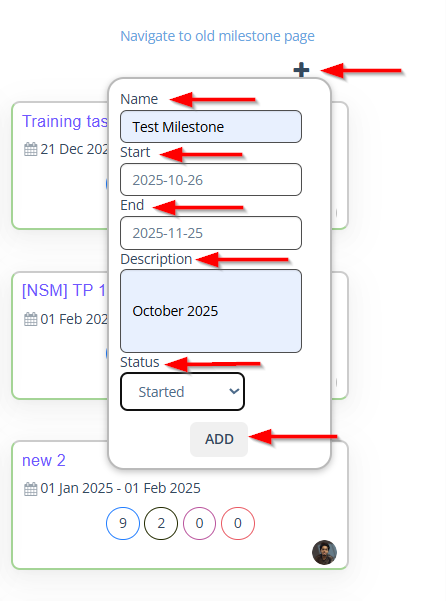
- Create a new milestone by clicking the plus (+) icon located at the top-right corner.
- The required information needs to be filled in:
- Name: Enter a unique title for the milestone to identify it easily.
- Start Date: Specify the starting date of the milestone.
- End Date: Define the ending date by which the milestone should be completed.
- Description: Provide additional details or objectives related to the milestone.
- Status: Select the current progress state of the milestone from the dropdown menu (e.g., Not Started, Started, Complete, Over Due).
- Add Button: Click ADD to save and create the milestone.
Redirect to the Create/Edit Milestone page
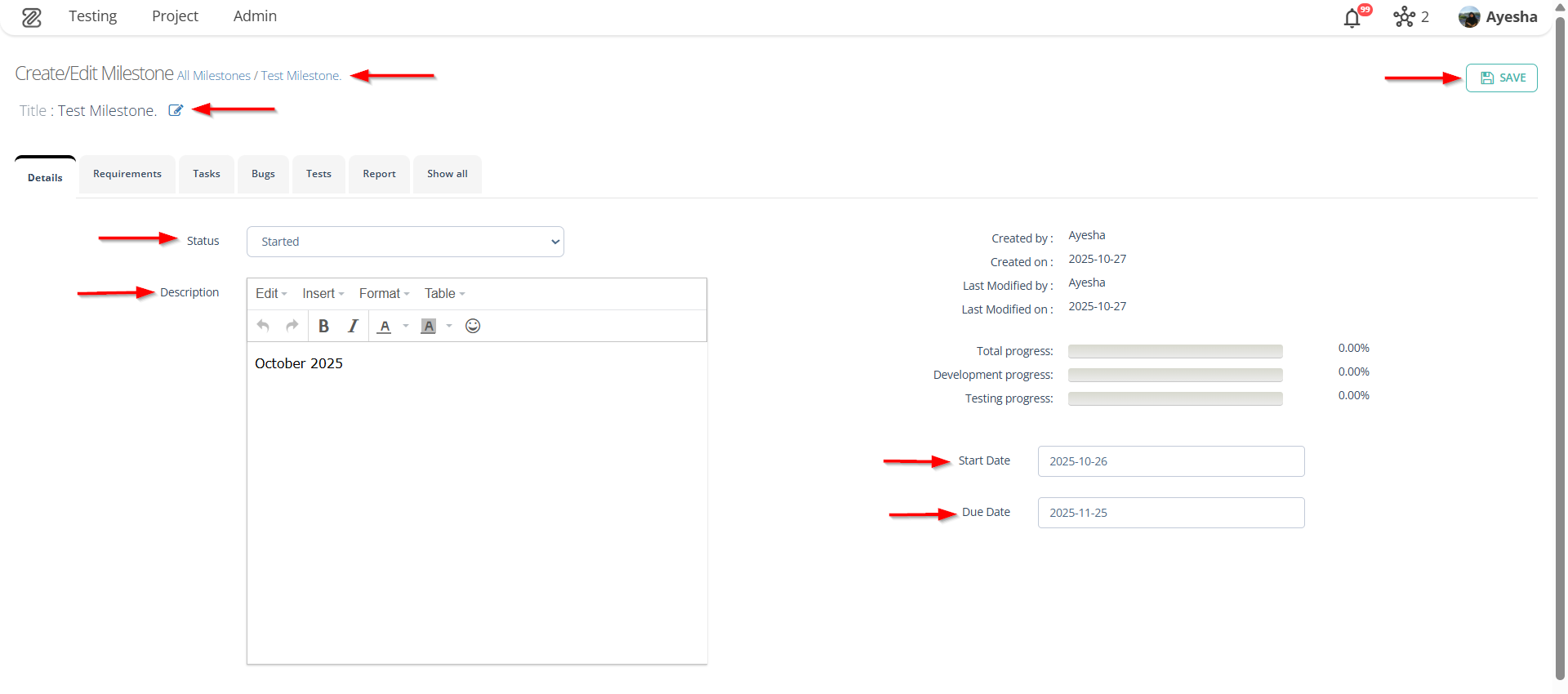
- After creating a new milestone, the system will redirect to the Create/Edit Milestone page.
- Modify the required information in the Details tab of the milestone, including the title if necessary.
- Rename Milestone title
- Status (Not Started, Started, Complete, Over Due)
- Description
- Start Date
- Due Date.
- Click the SAVE button to store the modified details.
FAQs / Troubleshooting
FAQs
What is a milestone
A milestone represents a specific phase or goal within a project, helping users group related work items and track progress.
Can I edit an existing milestone?
Yes, users can edit milestones to update their name, duration, description, or status at any time.
How do I link items to a milestone?
Items such as tasks, bugs, and test runs can be associated with a milestone during their creation or by editing their details.
What do the progress bars indicate?
The progress bars show the total, development, and testing progress for the selected milestone.
Troubleshooting
- Unable to save milestone details: Check if all required fields (name, start date, and end date) are filled in correctly.
- Progress not updating automatically: Verify that linked tasks or test runs are updated with correct statuses to reflect progress.
- Incorrect milestone dates: Ensure that the end date is later than the start date and that the milestone does not overlap with any restricted time periods.
- Cannot rename milestone: Ensure that you have the required project permissions to modify milestone titles.
Changelog
- New UI has been introduced [20250518]