Version
A Version refers to a specific release or iteration of a software application. It represents a defined state of the product at a particular point in time, usually after new features, fixes, or improvements have been implemented.
Each version helps teams track changes, compare performance or results across builds, and ensure that testing aligns with the correct software release. Versions are often linked with milestones to monitor progress and quality before deployment.
Why it matters / Use Cases:
- Track Software Progress: Helps teams monitor the evolution of the software across different releases.
- Compare Test Results: Allows comparison of test outcomes between versions to identify regressions or improvements.
- Organize Test Execution: Enables testers to execute and record tests against the correct software version.
- Ensure Release Accuracy: Ensures that each test corresponds to the right build, avoiding confusion between old and new functionalities.
- Support Continuous Improvement: Facilitates clear documentation of changes, helping teams analyze product quality trends over time.
- Simplify Reporting: Makes it easier to generate reports and summaries for a particular version or release cycle.
Prerequisites
- Access to ZeuZ Server with permissions for Project → Others → Version.
- The user must have the necessary permissions or role (e.g., Project Admin or Editor) to create, edit, or delete Versions.
- A Milestone should be created beforehand if the Version needs to be linked to a specific project phase.
- The team should have clarity on what the Version represents (e.g., release number, build ID, or iteration goal).
- Test cases, runs, or tasks should be ready so they can be properly assigned to the Version for tracking progress.
Quick-Start
- Search Versions: Use the search bar to locate a specific version by name.
- Filter Versions: Use the dropdown menu on the right (showing Show all, Production, Dev) to filter and view versions based on environment or category.
- View Version Summary: Each version card displays key information such as:
- When the version was last updated.
- Number of associated test runs, passed tests, blocked tests, and failed tests.
- Choose a Version to work with: Click on any version card to open its detailed view and manage items linked to that version.
Features
Create a new Version
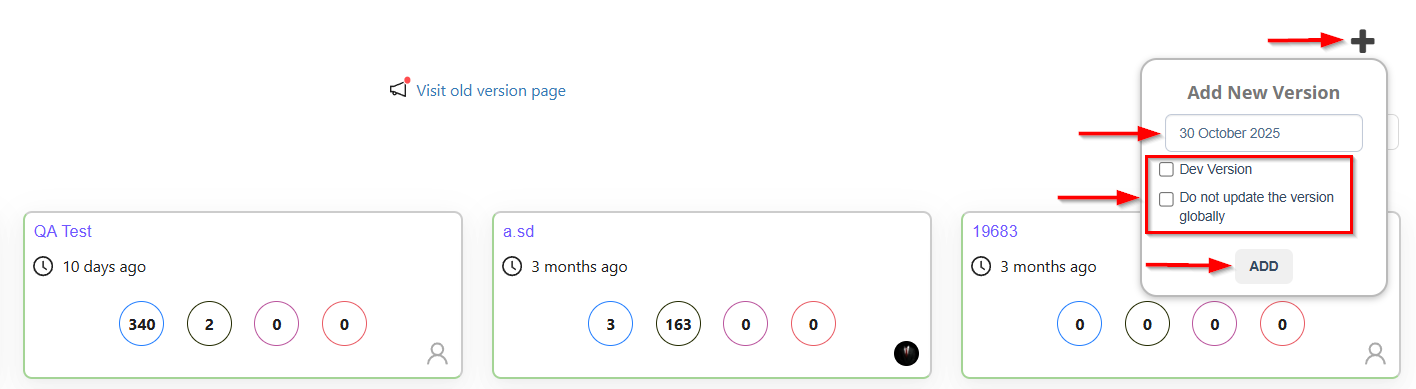
- The Add New Version window appears when the user clicks the plus (+) icon to create a new version.
- Key fields and available options are displayed below:
- Version Name: The user enters the name of the new version (in this case, 30 October 2025).
- Dev Version (Checkbox): When selected, the version will be marked as a development version.
- Do not update the version globally (Checkbox): If selected, the new version will be applied only within the current context and will not modify the global version settings for the entire project.
- After entering all required details, select ADD to create the new version.
Delete a Version
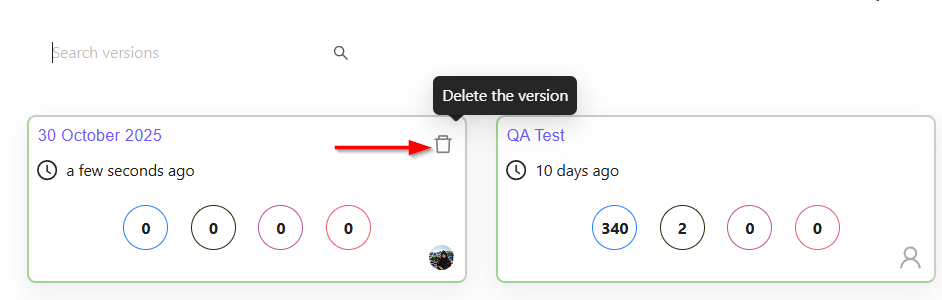
- A Trash-Bin icon appears on a specific version card. When a user clicks this icon, ZeuZ allows the user to permanently delete that version from the project.
- This action removes the version and its associated data from the version list, helping keep the workspace clean and organized.
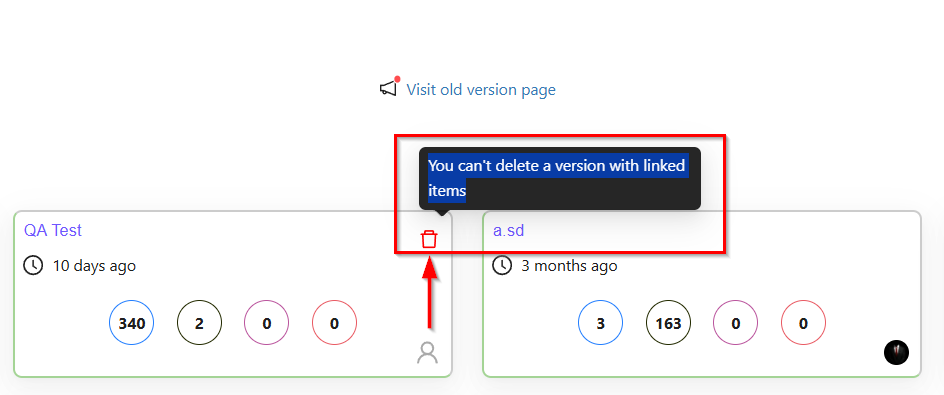
A version cannot be deleted if it has linked items.
Version card details
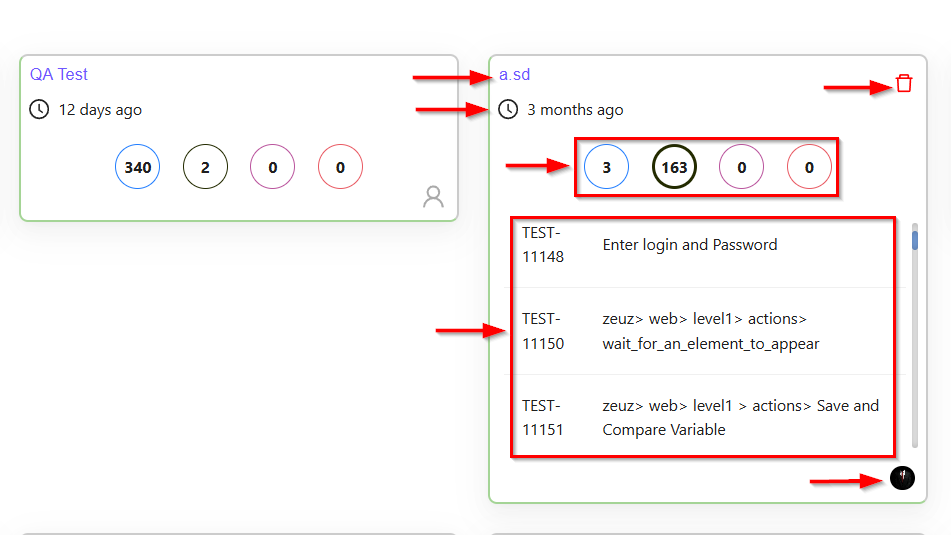
- Version Name (at the top): Identifies the version currently being viewed.
- Timestamp (e.g., 3 months ago): Indicates when the version was last updated or worked on.
- List of Linked Items: It refers to all work items connected to a specific version, including Run IDs, Test cases, Tasks or Bugs.
- Circle description:
- The blue colored circle on the version card the total count of Run IDs associated with that version.
- The black colored circle on the version card represents the total count of Test cases associated with that version.
- The pink colored circle on the version card represents the total count of Tasks associated with that version.
- The red colored circle on the version card represents the total count of Bugs associated with that version.
- Delete Icon (trash symbol): Allows the user to delete the version, provided it has no linked items.
- It also displays the Profile image of the user who created the version in the bottom-right corner.
FAQs / Troubleshooting
FAQs
What is a version?
A version represents a specific release or milestone of a project, grouping associated work items like test cases, tasks, bugs, and runs for tracking progress.
How do I create a version?
Navigate to the version module, click on the Plus (+) icon, fill in the required details in the Add New Version window, and then click ADD.
Can a version be linked to multiple milestones?
No. Each version can be associated with only one milestone to maintain clear progress tracking.
How are linked items displayed in a version?
All connected work items including test cases, tasks, bugs, and run IDs are displayed within the version for easy tracking.
Who can access or edit a version?
Users with Version Create/Edit permissions can modify it. Others may have view-only access depending on their role.
Troubleshooting
- Linked items not visible: Check assignments, permissions, and refresh the page.
- Changes in version not reflecting in reports: Ensure edits are saved and the correct version filter is applied.
- Cannot create version: Fill in the mandatory fields and verify that the required permissions are granted.
- Profile image of creator not visible: Refresh the page or ensure that a profile image is uploaded.
- Duplicate versions appearing: Check whether the version was created twice, and delete the redundant entry or rename it accordingly.