Details
After a ticket is created, the edit page displays key information to help users track its progress:
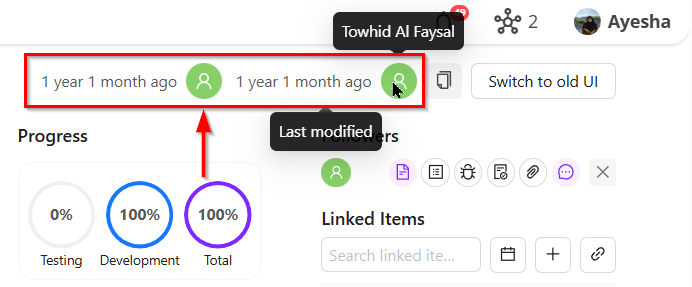
- Ticket History: Shows when the ticket was created, when it was last updated, and the user responsible for each action.
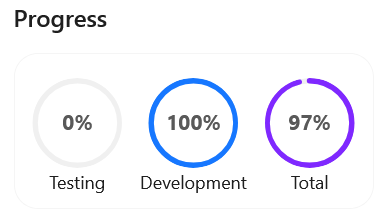
- Progress Chart: Displayed in a circular format, reflecting the log type and the time recorded for each entry.
Common details available for all ticket types (Task, Bug, Requirement, Documents):
- Status
- Assignee
- Milestone
- Version
- Feature
- Start and End Date
- Priority
- Rejected Status
- Testing
- Labels
Additional details for Bug tickets:
- Found Version
- Fixed Version
- Verified Version
Why it matters / Use Cases:
- Ticket History: Helps users track when the ticket was created, last updated, and by whom, ensuring accountability and transparency.
- Progress Overview: Provides a visual overview of Testing, Development, and Total progress, making it easy to monitor work status at a glance.
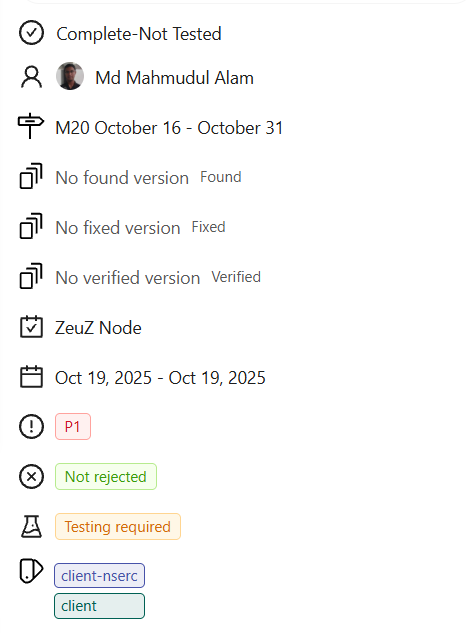
- Ticket Details: Allows users to quickly access all relevant ticket information, supporting informed decision-making and task management.
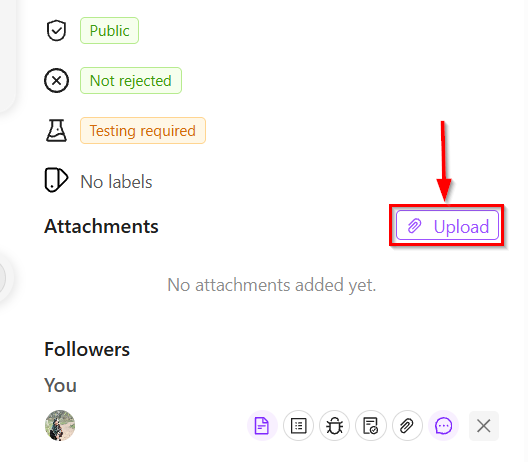
- Attachment Management: Enables users to attach files directly to the ticket, facilitating documentation, collaboration, and record-keeping.
Prerequisites
- Access to ZeuZ Server with permissions for Project → Ticket → (Requirement, Task, Bug, Document).
- Required to view the item’s creation date, last modified date, and the user who created it.
- Necessary to monitor Testing, Development, and Total progress in a circular format.
- Needed to review all information related to the ticket.
- Required to add attachments to the ticket using the Upload button.
Features
- Item History Display: Shows the item’s creation date, last modified date, and the user who created it.
- Circular Progress Chart: Visualizes progress for Testing, Development, and Total in a circular format.
- Ticket Details Section: Provides all relevant information related to the ticket below the progress chart, such as:
- Status
- Complete - Verified
- Complete - Not Tested
- Not Tested
- Assignee
- Milestone
- Version
- Feature
- Start and End Date
- Priority
- P1
- P2
- P3
- P4
- Rejected Status
- Not Rejected
- Rejected
- Testing
- Testing ignored
- Testing required
- Labels
- Status
- Attachment Upload: Allows users to upload files directly to the ticket using the Upload button.
- The Status and Rejected Status appear only after a ticket is created.
- The Found Version, Fixed Version, and Verified Version are available for the Bug ticket type.
- In the Ticket Details section, hovering over the available icons will display the corresponding fields.
FAQs / Troubleshooting
How do you mark a ticket as 100% complete?
If a ticket has additional time set to 0, the total progress chart will be shown as 100% complete.
Why is the Progress showing 0% for Testing?
This indicates that there are no linked test cases or the linked test cases have not been mentioned in the current milestone.
Why do Found Version and Fixed Version appear only for the Bug ticket type?
Found Version and Fixed Version appear only for the Bug ticket type because they are specific to defect tracking. A bug is identified in a particular application version, which is recorded as the Found Version. Once the issue is resolved, the Fixed Version indicates the version in which the bug has been corrected.
Why is the Total progress equal to Development progress?
When testing has not started, the total progress reflects only the completed development work.
When do “Complete - Verified”, “Complete - Not Tested”, and “Not Tested” appear as ticket statuses?
The statuses “Complete - Verified”, “Complete - Not Tested”, and “Not Tested” appear based on the testing requirement and the testing outcome of a ticket.
- Not Tested appears when testing is required for the ticket, but no testing activity has been performed yet.
- Complete - Not Tested appears when the work is marked as complete, but testing was either skipped or explicitly marked as not required.
- Complete - Verified appears when the work is completed and the associated testing has been successfully executed and verified.
Changelog
- New UI has been introduced [202512]