Manage Linked Items
Linked Items refer to the ability to connect the current ticket with other related work items, such as Details, Requirements, Bugs, Test Cases, Attachment, Discussion or Remove follower.
Linking items helps maintain traceability by showing how different pieces of work are related. It improves visibility by allowing users to quickly understand dependencies, impacts, and relationships between tickets.
Why it matters / Use Cases:
- Maintaining Traceability
- Improved Context and Visibility
- Cross-Platform Collaboration
- Dependency Management
- Efficient Reporting and Tracking
Prerequisites
- Access to ZeuZ Server with permissions for Project → Ticket → (Requirement, Task, Bug, Document).
- The primary ticket must be created and saved before any linked items can be added, as linking is not possible until the ticket exists.
- If items are linked from ZeuZ, GitHub, or Jira, the corresponding integration must be properly configured and active.
- There must be existing tasks, bugs, documents, requirements, or test cases available to establish a link.
Quick-Start
- Select the Link New button to initiate the linking process.
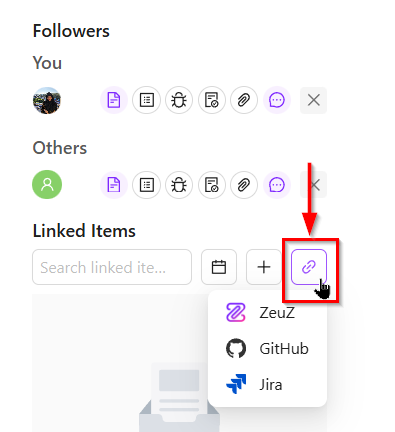
- Select the appropriate source for linking, such as ZeuZ, GitHub, or Jira.
Features
- The Linked Items section allows users to associate external items or references with the current work item. Here's a detailed explanation:
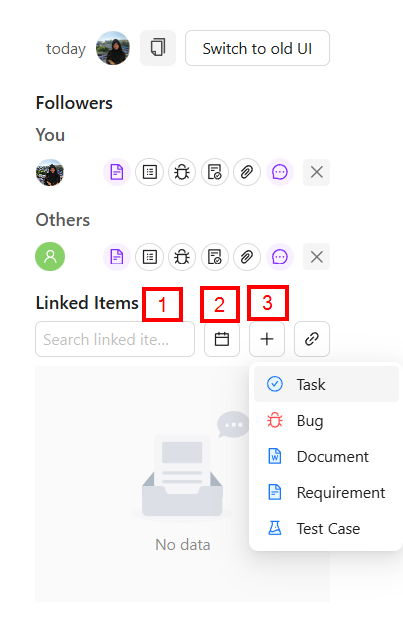
- Search Bar: There is a search bar labeled “Search linked item” which allows users to quickly find already linked items.
- Calendar Icon: Likely used to link a date-specific item or schedule-related reference.
- Plus (+) Icon: Opens a menu for creating or linking new items, such as, Task, Bug, Document, Requirement, or Test Case.
- Link New Icon: Used to add a direct link or reference to an external item.
- ZeuZ: Allows linking another ZeuZ work item.
- GitHub: Allows linking a GitHub issue or repository.
- Jira: Allows linking a Jira ticket.
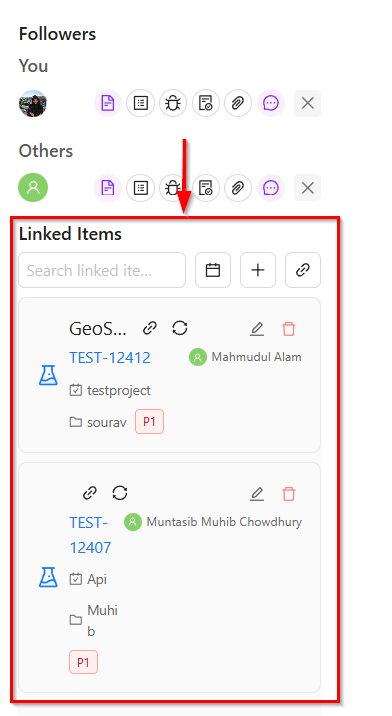
- If a user hovers over a linked test case or task, the related information is displayed. When the item is clicked, a slider panel opens.
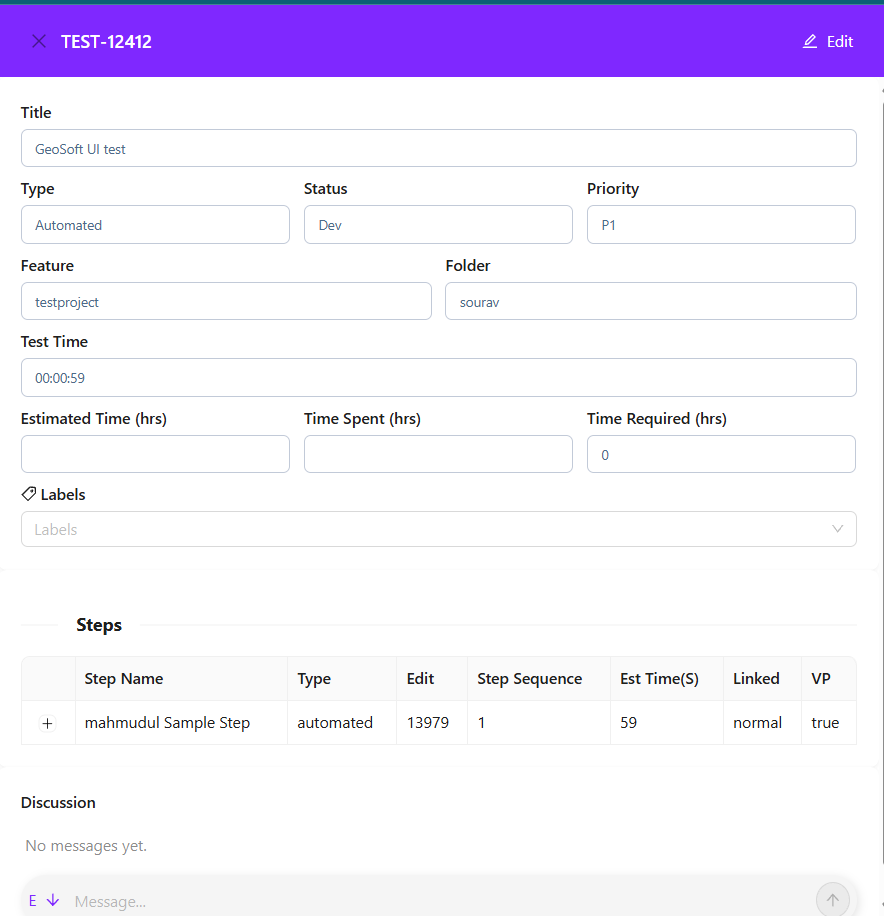
- If users make any updates, the changes are saved automatically.
FAQs / Troubleshooting
Why is the “Link New” option disabled or unavailable?
This occurs when the ticket has not been created or saved yet. Linked items can only be added after the ticket exists.
Why are GitHub or Jira options not selectable?
This usually indicates that the GitHub or Jira integration is not properly configured or is currently inactive.
Can the same item be linked multiple times?
No, the same item cannot be linked multiple times.
What should be done if a linked item cannot be found?
Ensure that the item exists, the correct source is selected, and the user has permission to view it.
How can a linked item be removed?
Linked items can be managed or removed using the available manage or remove option within the Linked Items section.
Changelog
- New UI has been introduced [202512]