Ticket Worklog
Ticket Worklog is the process of tracking the effort associated with a ticket by recording the actual time spent and the estimated time required to complete it.
Why it matters / Use Cases:
- Tracks effort distribution clearly, by showing how time is spent across activities such as development, testing, meetings, documentation, and research.
- Improves estimation accuracy, by comparing the initial estimate, latest estimate, and actual time spent on the ticket.
- Supports progress monitoring, as the progress indicator reflects how much of the estimated work has been completed.
- Enhances accountability, by maintaining a transparent record of time logged against specific work categories.
- Enables better resource allocation, by understanding which activities consume the most effort.
Prerequisites
- Access to ZeuZ Server with permissions for Project → Ticket → (Requirement, Task, Bug, Document).
- Time categories must be available, such as
development,testing,meetings,documentation, andresearch. - Initial or latest time estimates should be defined, enabling comparison with actual time spent.
- Work progress tracking must be active, so progress percentage and remaining time can be calculated accurately.
Quick-Start
- Click the clock icon, and the Add Spent/Needed Time window will appear.
Features
Worklog
-
The Worklog category includes the following information:
- Estimated Time, showing the initial time planned for the ticket.
- Latest Estimation, reflecting the most recent updated time estimate.
- Time Spent, indicating the total effort already logged.
- Estimated Time Left, showing the remaining time required to complete the ticket.
-
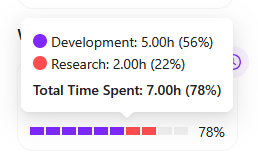
When hovering over the progress bar, the timings for log types such as
development,documentation,meetings,research, andtestingare displayed. However, each timing also appears as a percentage in brackets.

Add Spent/Needed Time
-
Click the Clock icon first.
-
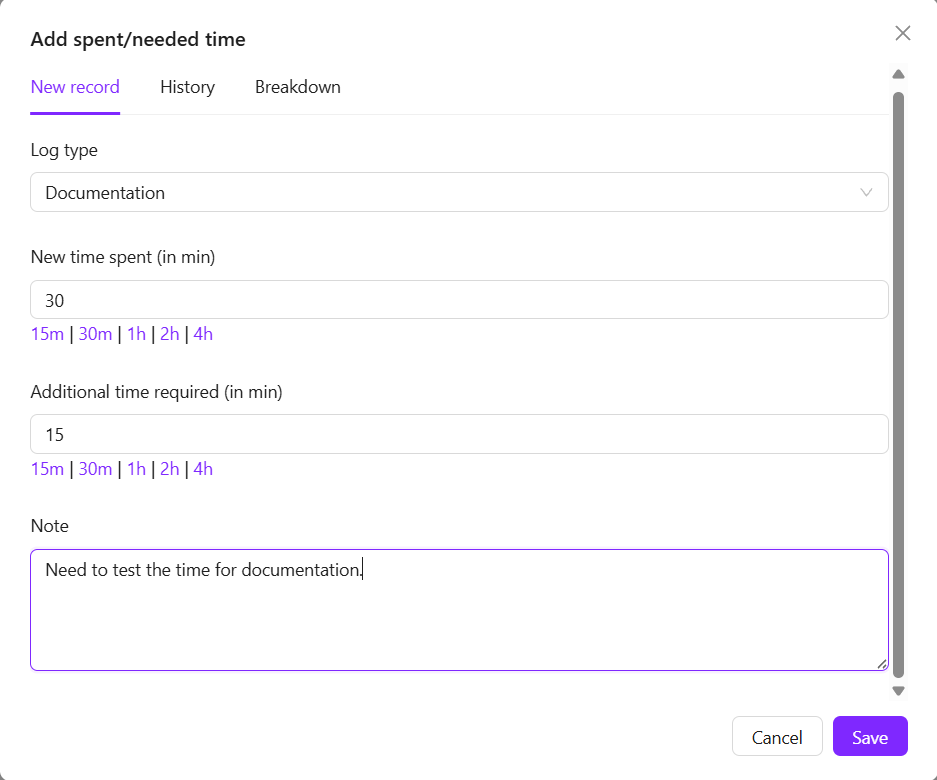
Then the Add Spent/Needed Time window appears to record the time spent on a work item and to estimate any additional time required.
- The Log type dropdown allows the user to select the nature of the work, such as documentation. The New time spent (in minutes) field is used to log the actual time already spent, while the Additional time required (in minutes) field is used to estimate remaining effort. Quick time options are provided for faster entry.
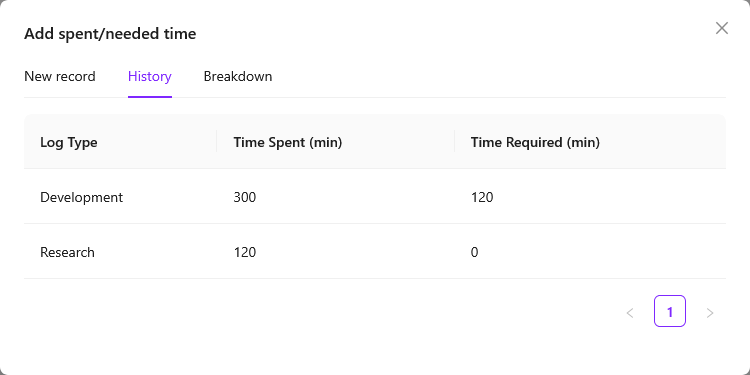
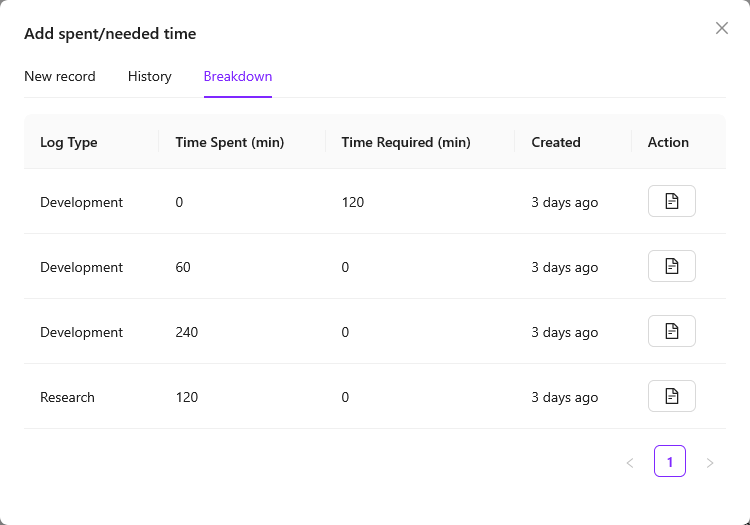
- The Note field is used to add a brief explanation or comment about the logged time. The dialog also includes New record, History, and Breakdown tabs for managing and reviewing worklog entries. The Save button records the information, and Cancel closes the dialog without saving.
Example:
- Here, the note we add while logging time in the worklog is displayed along with its details.

- The note can include details such as how many hours were spent on research if Research is selected on Log type, who added the entry, when it was added, and whether the work type was research or something else. If one hour was spent on research, adding this information in the note clearly indicates that one hour of research time was logged. However, in work management, both the research time and the total time spent are displayed separately for better tracking.
- Different icons are provided for different log types.
- The latest estimation, time spent, and estimated time left are displayed using different icons to clearly distinguish each value.
FAQs / Troubleshooting
FAQs
What is Estimated Time and Latest Estimate?
Estimated Time is the planned effort for a ticket, while Latest Estimate reflects any updated effort after scope or requirement changes.
What does Spent Time represent?
Spent Time shows the actual effort already logged by users on the ticket and is the primary input for progress calculation.
What does Time Left indicate?
Time Left represents the remaining effort required to complete the ticket, calculated from the latest estimate minus spent time.
What does the overall progress percentage indicate?
The overall percentage represents completion progress based on spent time compared to the total estimated effort.
What does the activity-wise time breakdown mean?
The breakdown (for example, Development and Research) shows how the total spent time is allocated across different types of work within the ticket.
Troubleshooting
- Activity time does not appear in the breakdown: This usually means the time was logged without selecting an activity. Ensuring an activity is chosen during logging resolves this.
- Spent Time exceeds the estimate: This indicates the ticket required more effort than planned. Updating the Latest Estimate is recommended to maintain accurate tracking.
- Total Time Spent is correct, but activity split looks wrong: This indicates that time may have been logged under an incorrect activity, and editing the worklog entry resolves the issue.
Changelog
- New UI has been introduced [202512]