Create Project
In the context of test cases and project management, a Project is a structured workspace created to manage all testing and delivery activities for a specific application, product, or release. It defines the scope of work and acts as a central place where test cases, requirements, features, milestones, executions, defects, and reports are organized. From a project management perspective, it helps teams plan tasks, track progress, assign responsibilities, and monitor quality, ensuring that testing and development activities remain aligned with project goals and timelines.
Why it matters / Use Cases:
- Project Identification: The project name clearly identifies the application or product under testing, ensuring all test cases and results are grouped correctly.
- Ownership and Accountability: Assigning a project owner defines responsibility for maintaining test cases, managing execution, and overseeing quality.
- Structured Test Management: Creating a project establishes a structured space to organize test cases, features, test sets, and automation assets.
- Access Control and Coordination: A defined project allows teams to collaborate efficiently under a single workspace with clear ownership.
- Accurate Reporting and Metrics: All reports, dashboards, and automation metrics are generated based on the selected project, ensuring reliable insights.
- Scalability Across Products: Multiple projects can be created to manage testing for different applications or releases without overlapping data.
Prerequisites
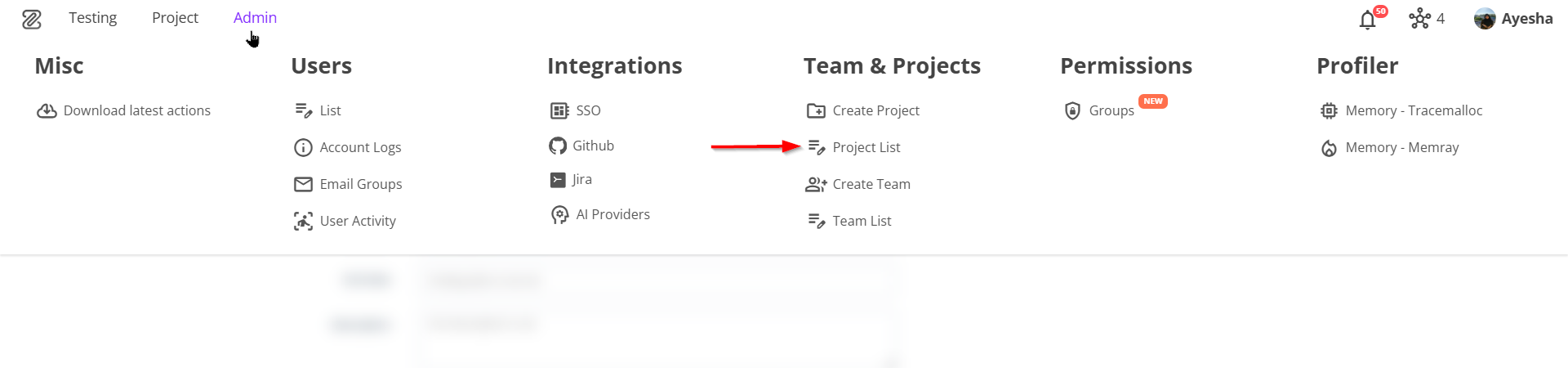
- Access to ZeuZ Server with permissions for Admin → Team & Projects → Create Project.
Features
Create Project
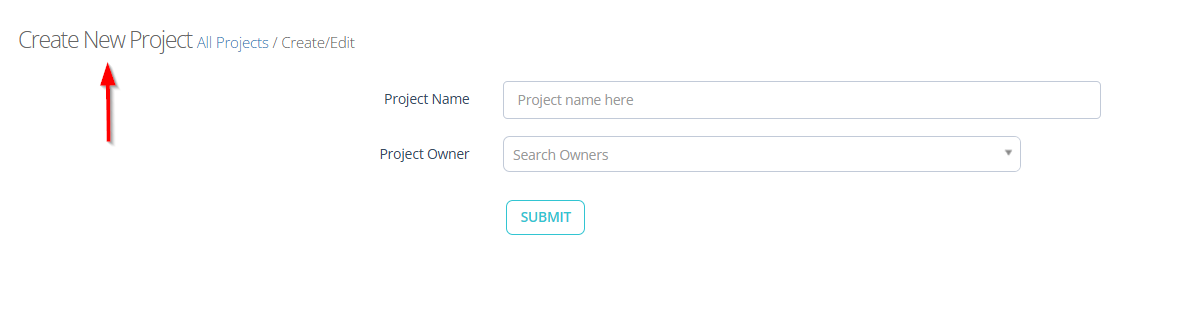
- Navigate to the Create New Project page.
- After navigating to the Create New Project page, users are required to provide the following information:
- Project Name Field: A text input field labeled Project Name is used to enter the name of the new project.
- Project Owner Selection: A searchable dropdown labeled Project Owner, allowing selection of one or more responsible users who will own and manage the project.
- Submit Button: After providing the required information, click the SUBMIT button to store the entered details and create the project.
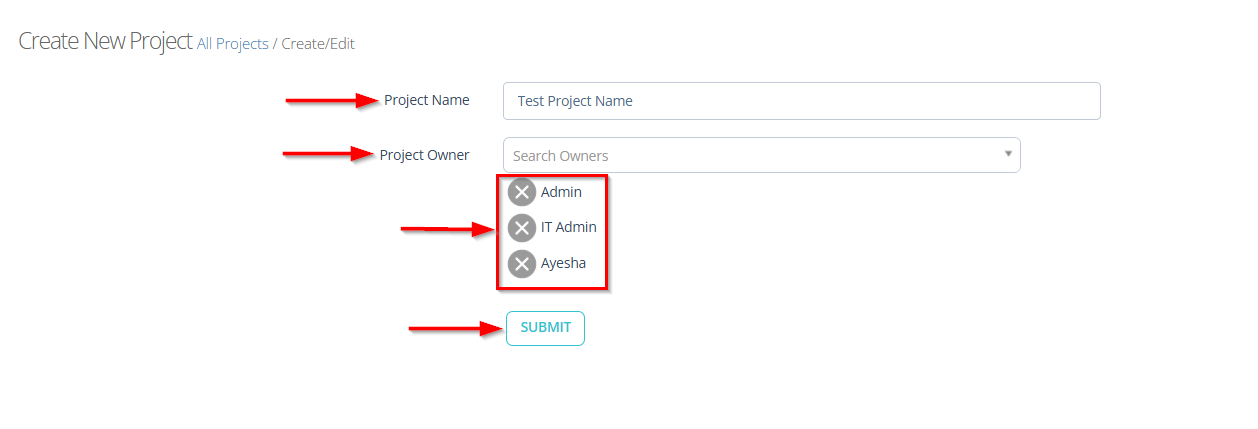
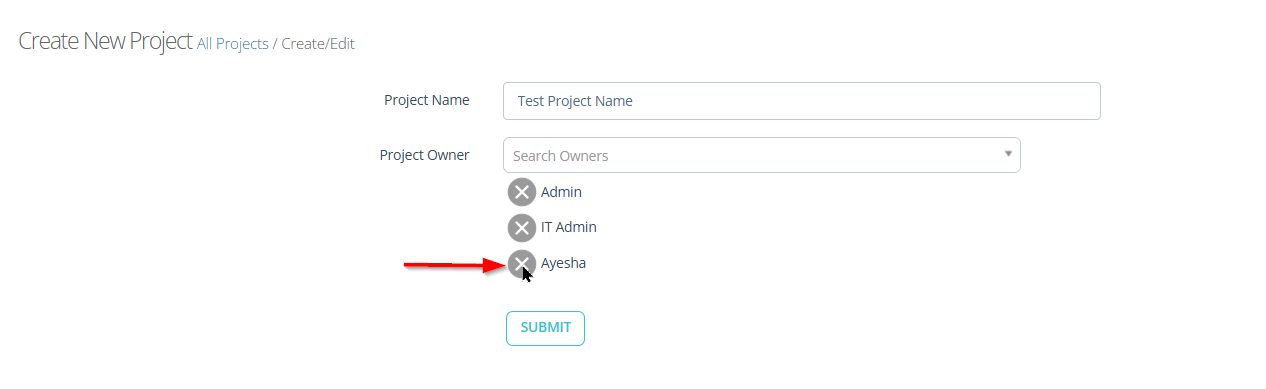
To remove a Project Owner, click the Delete (X) button next to the selected owner.
Edit the Project
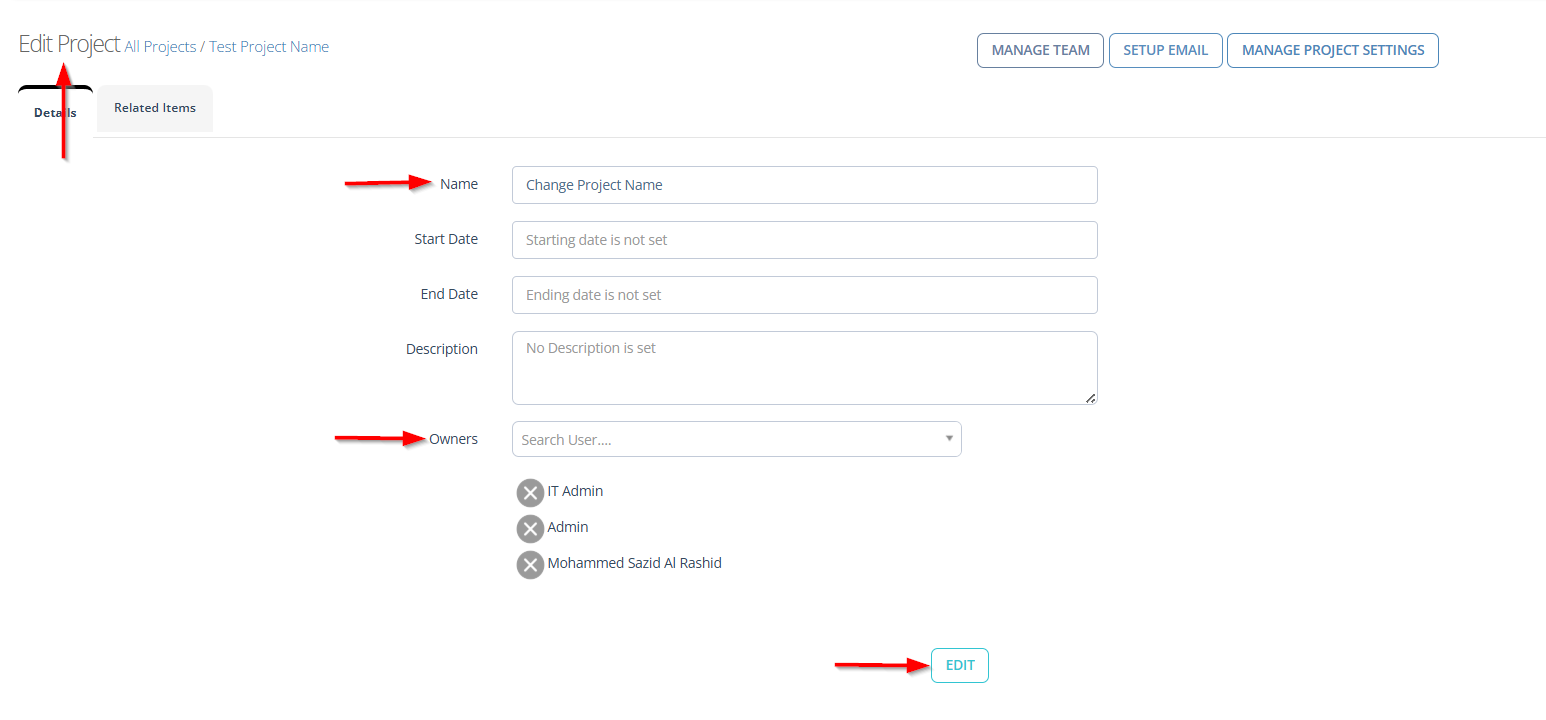
- After saving all the required project information, the Edit Project page will appear.
- If it is necessary to edit the project, update the required information, such as the Project Name or Project Owners, and then click the EDIT button to save the changes.
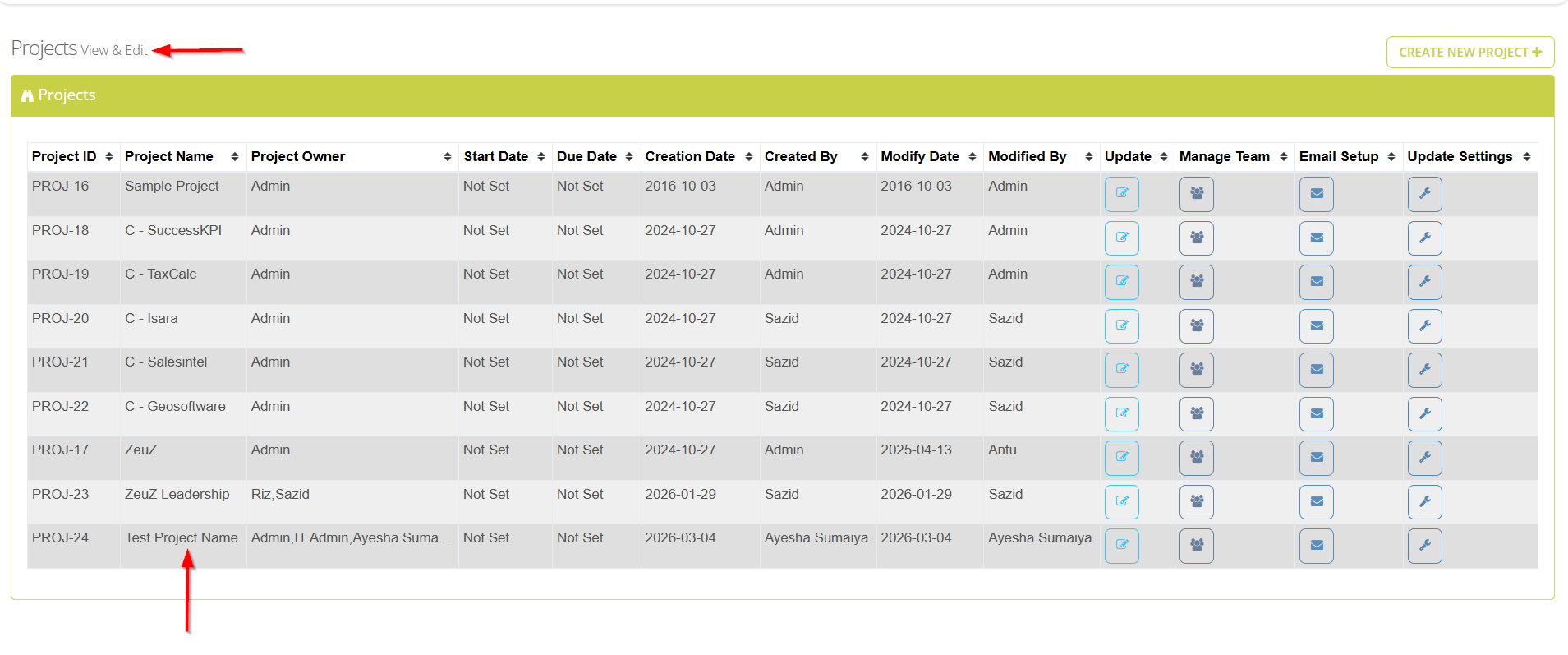
Verify Project Visibility in the Project List
- Navigate to the Projects page by clicking the
Project Listoption available in the menu bar. - After navigating to the Projects page, scroll to check whether the required project has been created.
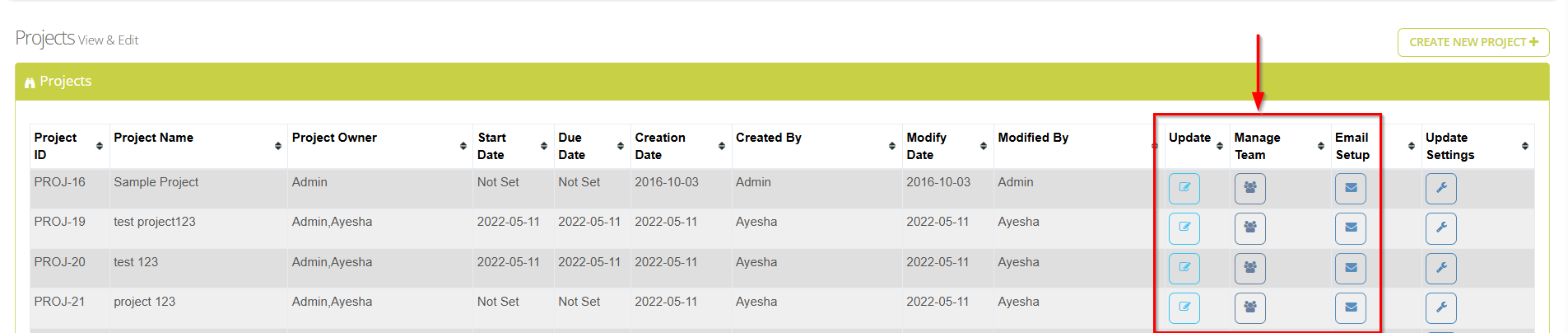
- If necessary, the team can also be updated, managed, and the email setup can be configured from the Projects page.
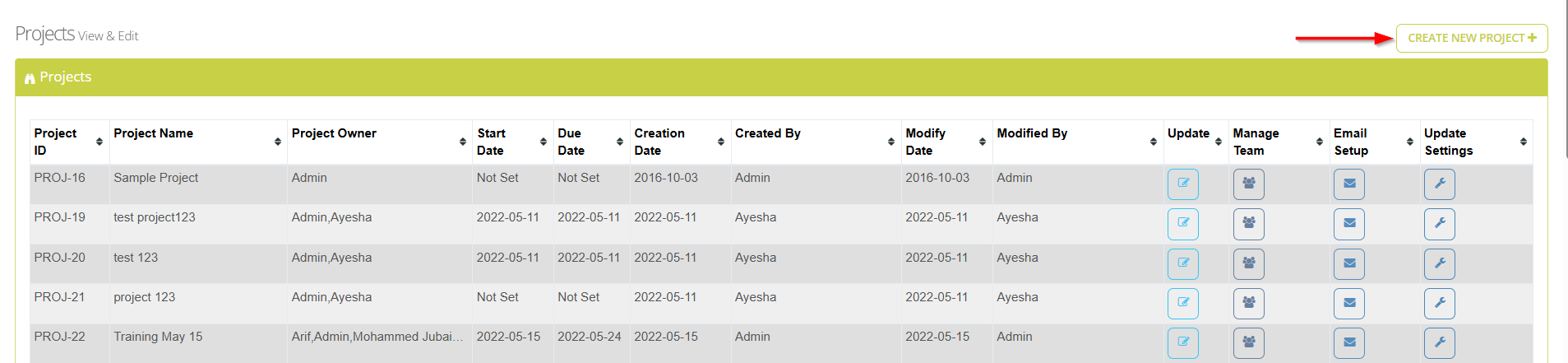
- A new project can also be created from the Projects page in a similar way by clicking the CREATE NEW PROJECT+ button.
FAQs / Troubleshooting
FAQs
Can a project have multiple owners?
Yes, you can assign more than one owner to a project by selecting multiple users in the Project Owner field.
How do I know if my project was successfully created?
After submission, the new project should appear in the Projects list table with its Project ID, Project Name, and Project Owner.
Can I edit project details after creation?
Yes, click the Edit icon under the Update column to modify project information, including the name and owners.
How do I manage team members for a project?
Use the Manage Team icon in the project list to assign or remove team members from the project.
Are there any naming restrictions for projects?
There are no naming restrictions for projects. However, the project name must be unique and may include supported special characters.
Troubleshooting
- Project does not appear after creation: Refresh the Projects page to load the latest entries and ensure that the required fields (Project Name and Owner) are completed.
- Unable to select a project owner: Check that the user exists and is active, and ensure that the user has sufficient permissions to be assigned as a project owner.
- Team members not updating in project: Use the Manage Team icon to update members, and refresh the page to confirm the changes.
- Project shows incorrect owner after creation: Verify the owner selection before clicking Submit, and use the Edit option to correct the owner if required.
Changelog
- Always available