Setting Up Email Notification
Setting up email notification means configuring the system in ZeuZ to automatically send email alerts to users when important event occur, such as test case updates, task assignments, or changes in test execution status.
Why it matters / Use Cases:
- Instant Updates: Notifies team members when test cases are created, updated, or executed.
- Task Awareness: Informs users when tasks or responsibilities are assigned to them.
- Faster Issue Response: Alerts the team about failed test executions or important changes.
- Better Project Tracking: Helps stakeholders monitor progress through automated email updates.
Prerequisites
- Access to ZeuZ Server with permissions for Admin → Team & Projects → Project List.
- At least one team must exist in the project to configure team-wise email settings.
- A correct From Address must be provided to send notification emails.
- The Host/SMTP Address and Port number must be correctly configured.
- The user must have the required access rights in ZeuZ to manage email notification settings.
Quick-Start
- Click on the Email Setup button available on the "Projects" page.
Features
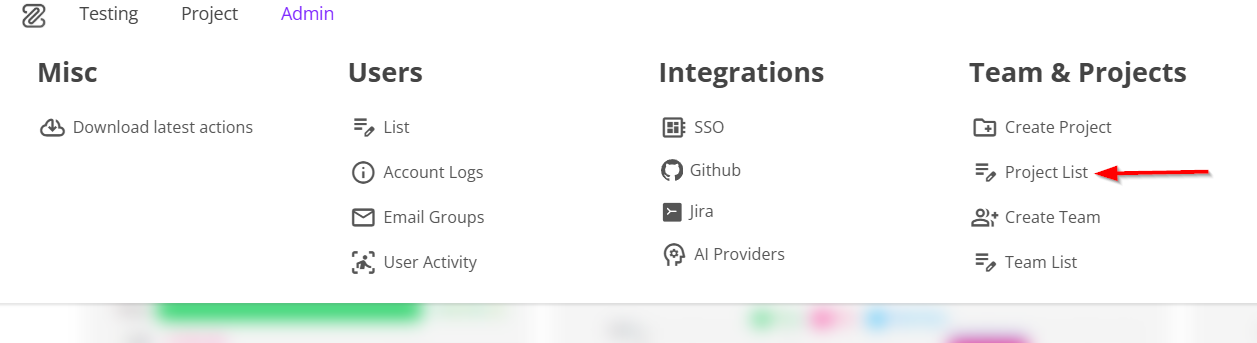
- First, navigate to the Projects page by clicking the "Project List" option from the menu bar.
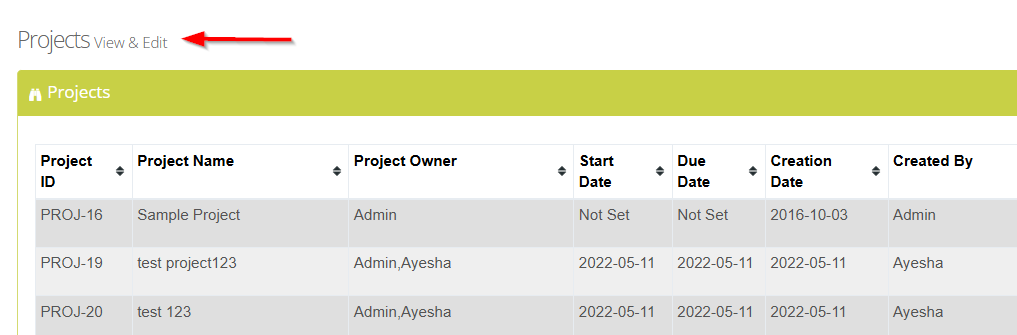
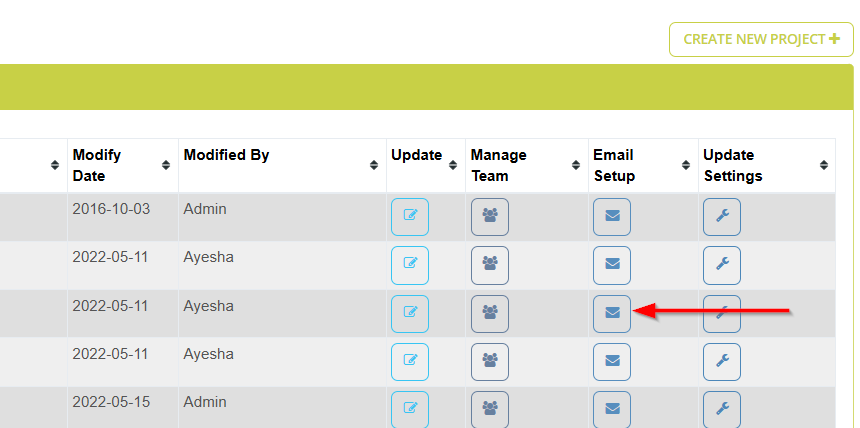
- Click the Email Setup button.
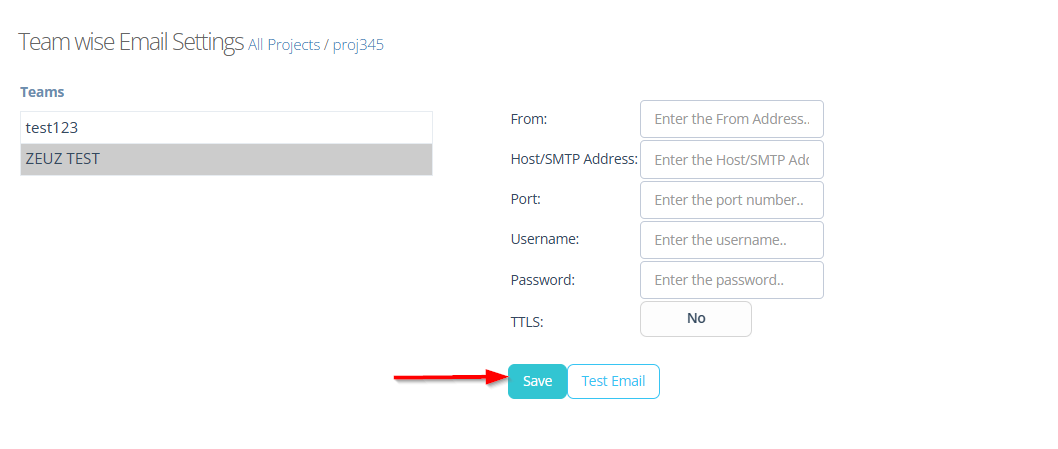
- Navigate to the Team wise Email Settings page.
- Click the required Team.

- Enter the required email details for the selected Team:
- From: Specifies the sender's email address that will in notification emails.
- Host/SMTP Address: Defines the mail server address used to send emails (e.g., SMTP server).
- Port: Indicates the port number required by the email server for communication.
- Username: The login username for authenticating with the SMTP server.
- Password: The corresponding password for the SMTP account.
- TTLS: Determines whether a secure email connection (encryption) is enabled or not.
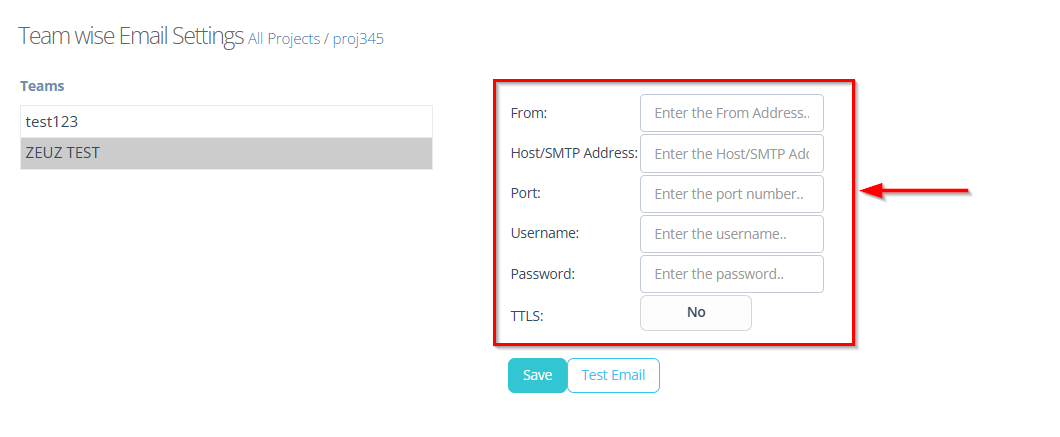
- After entering the required details, click the Save button.
Test Email
- A Test Email is a sample email sent to verify that the email notification setup is correctly configured. It is used to confirm that the provided SMTP details (such as server, port, and credentials) are working properly and that emails can be successfully delivered to the intended recipents.
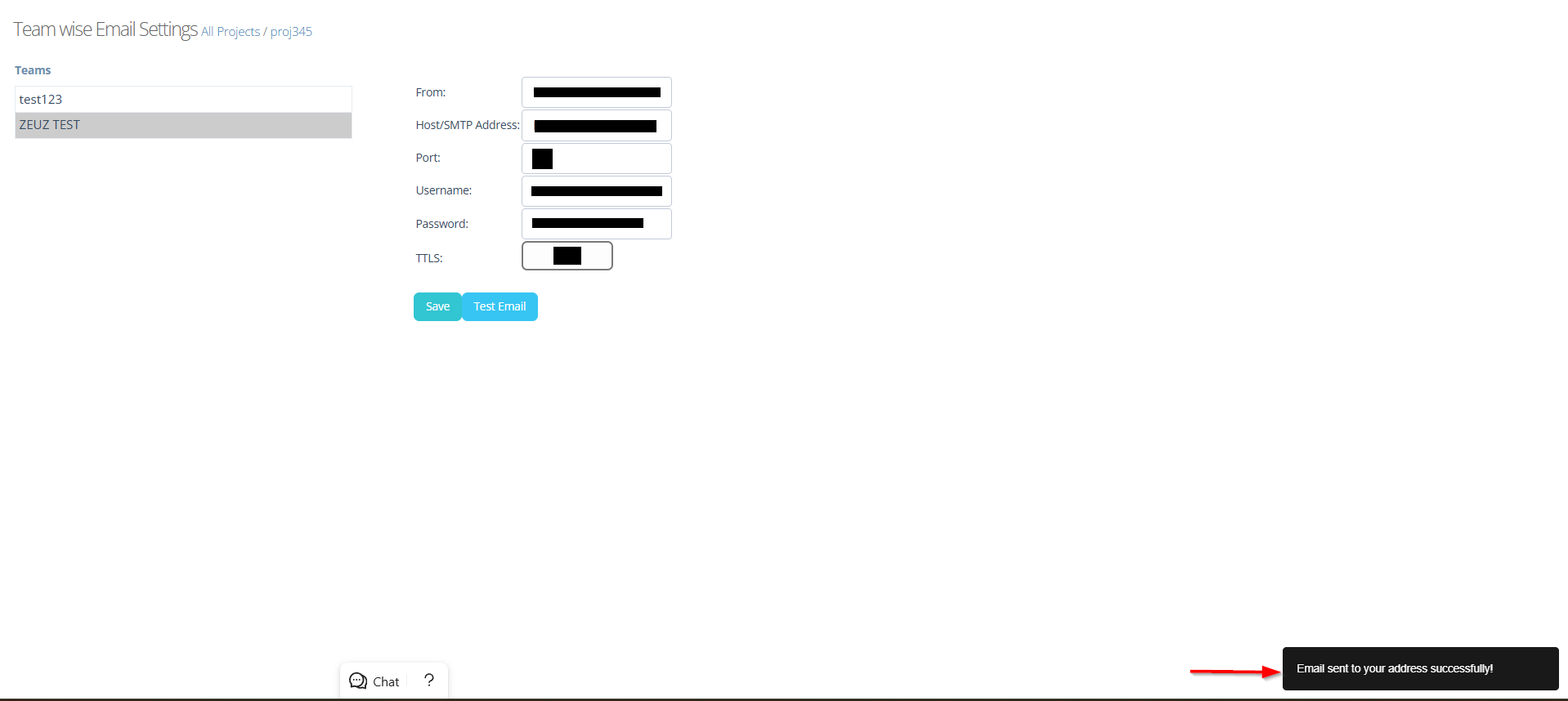
- After entering all the required details, click the Test Email button to test the email.
- After clicking the Test Email button, a notification saying "Email sent to your address successfully" will appear below.
- Finally, check your email to confirm that the test email was successfully delivered.
FAQs / Troubleshooting
Why are email notifications not being received?
Email notifications may not be received due to an incorrect email address, wrong SMTP settings, emails being filtered into spam, or the email service being inactive or blocked.
What does the "Test Email" feature do?
It sends a sample email to verify that the configuration is correct and to confirm that the system can successfully connect to the email server.
Why does the Test Email fail?
The issue may occur due to in incorrect SMTP credentials or server details, network restrictions blocking the connection, or an invalid port or encryption mismatch.
Changelog
- Always available.