Move Test Cases to Folder and Feature
Moving test cases to a folder or feature means organizing existing test cases by placing them into an appropriate folder or linking them to a specific feature. This helps group related test cases based on application functionality, making test management clearer, more structured, and easier to maintain within the platform.
Why it matters / Use Cases:
- Improved Organization: Test cases are grouped logically based on functionality or modules, making them
easier to locate and manage. - Better Traceability: Linking test cases to features helps ensure that all application functionalities are properly tested and covered.
- Efficient Test Execution: Testers can quickly select and run relevant test cases for a specific feature or release.
- Simplified Maintenance: Updates or changes can be applied to related test cases together, reducing errors and redundancy.
Prerequisites
- Access to ZeuZ Server with permissions for Testing → Test Case → Search.
- The test cases must already exist within the project repository.
- The target folder or feature must be created.
Quick-Start
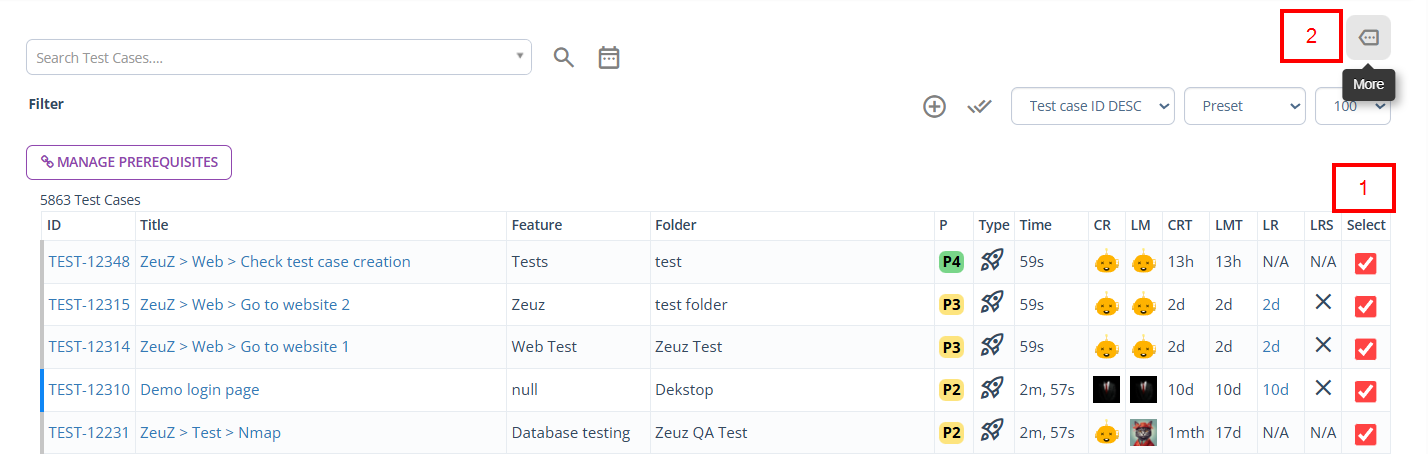
- First, select the test cases to be moved to a folder or feature.
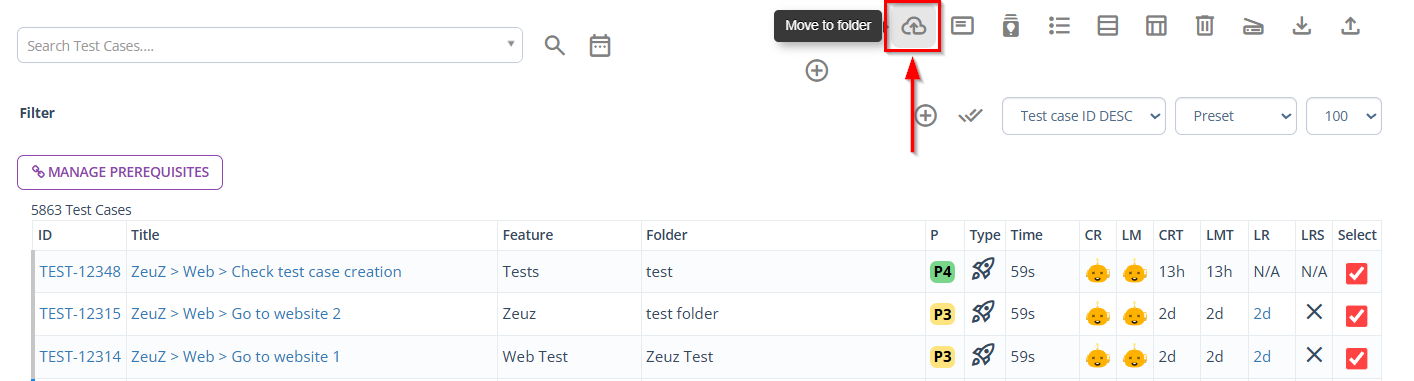
- To move test cases to a folder, first click the More option, then select the Move to folder button.
- Similarly, to move test cases to a feature, first click the More option, then select the Move to feature button.
Features
Move test cases to a folder
- Click to select the test cases.
- Next, click on the More option.
- To move test cases to a folder, click the Move to folder button.
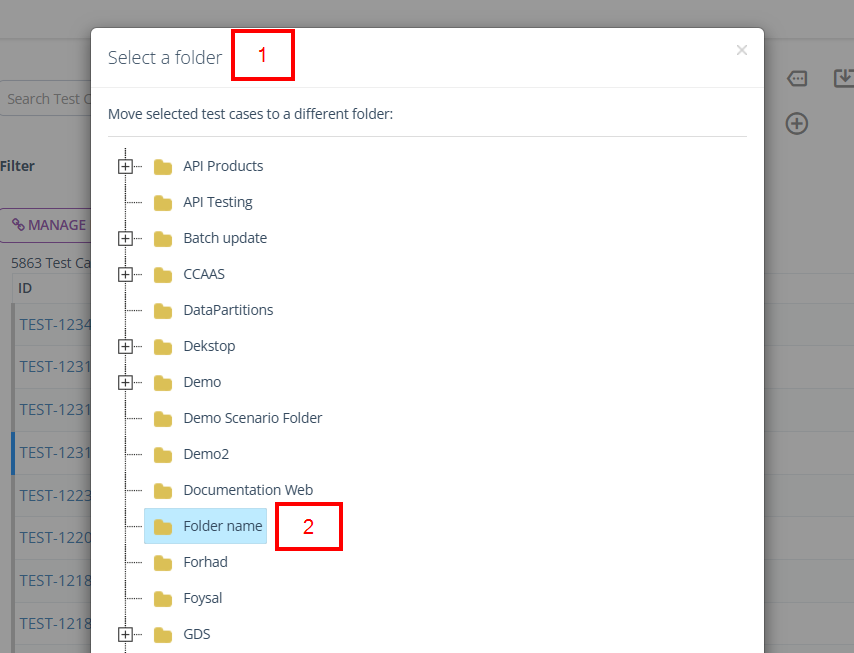
- Then, Select a folder window will open. Click to choose a folder.
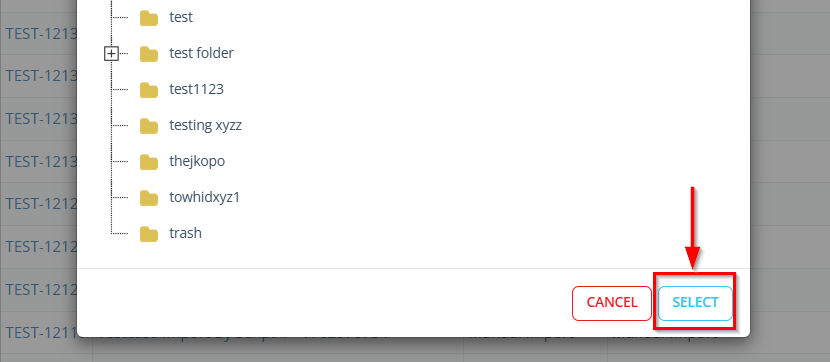
- Click the SELECT button.
Verify the selected test cases in the required folder
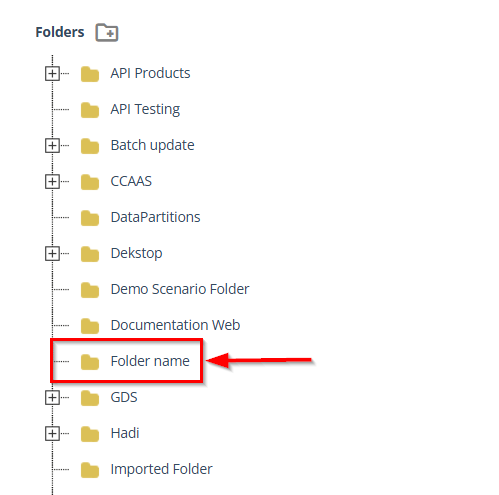
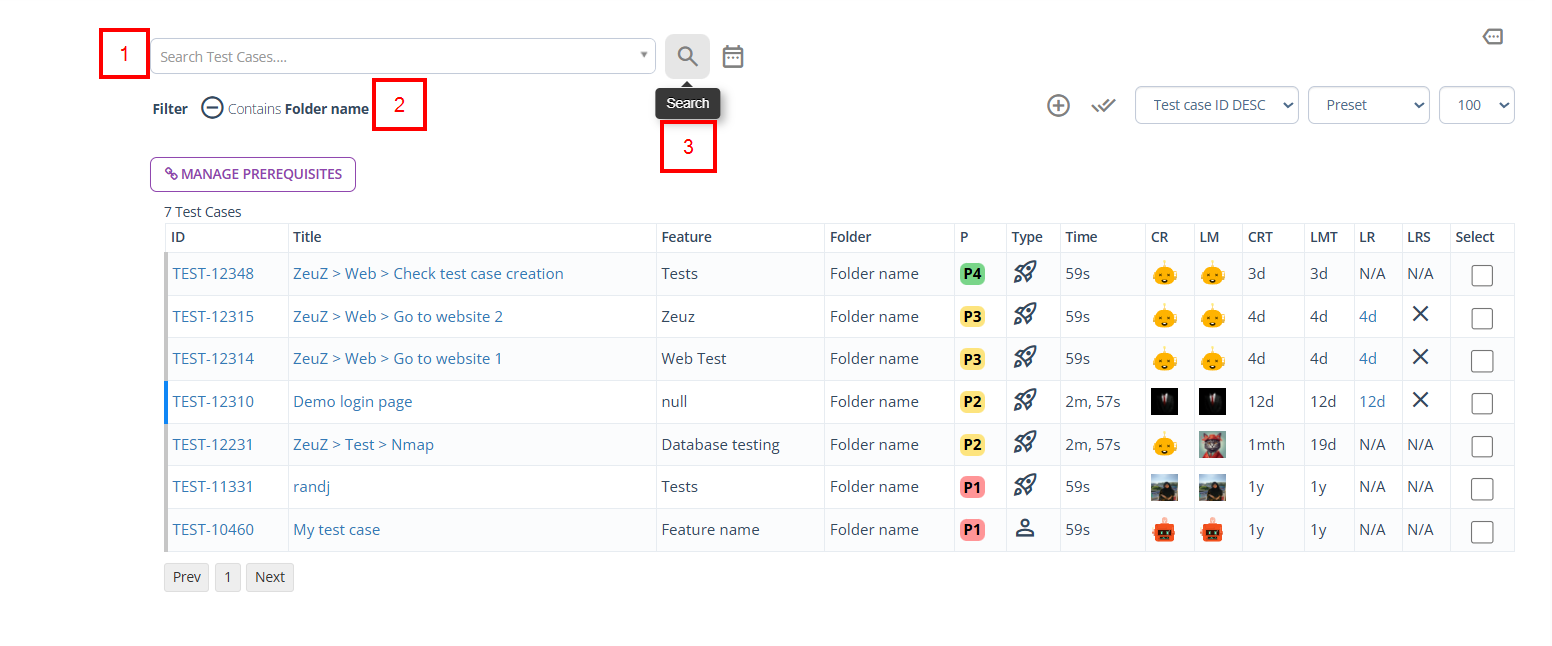
- To verify whether the test cases have been moved successfully, click on required folder where the selected test cases were moved..
- The folder can also be specified through the search bar.
- Click the Search button.
Move test cases to a feature
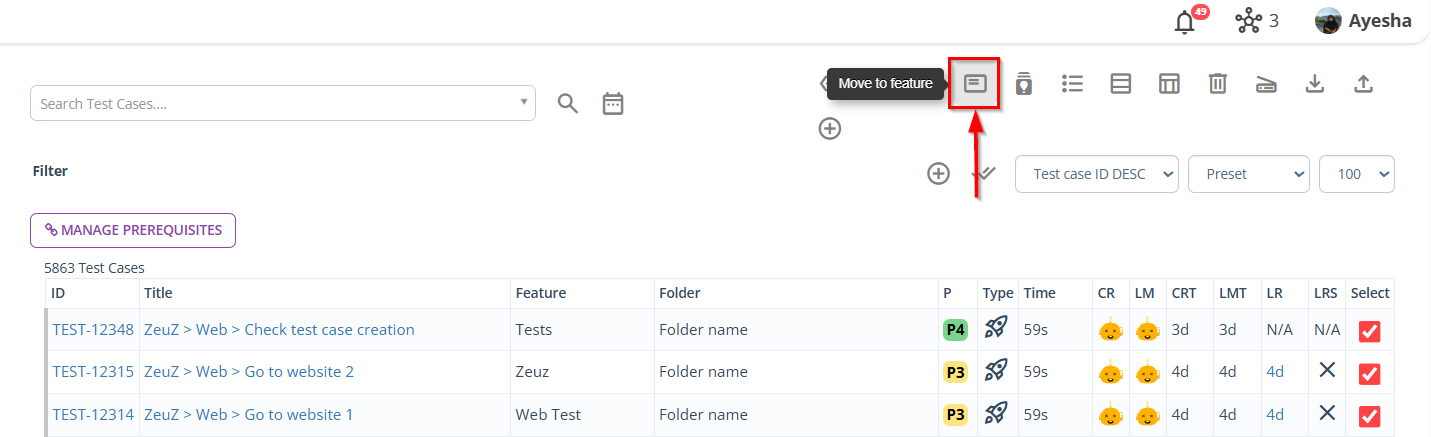
- Click to select the test cases
- Next, click on the More option.
- To move test cases to a feature, click the Move to feature button.
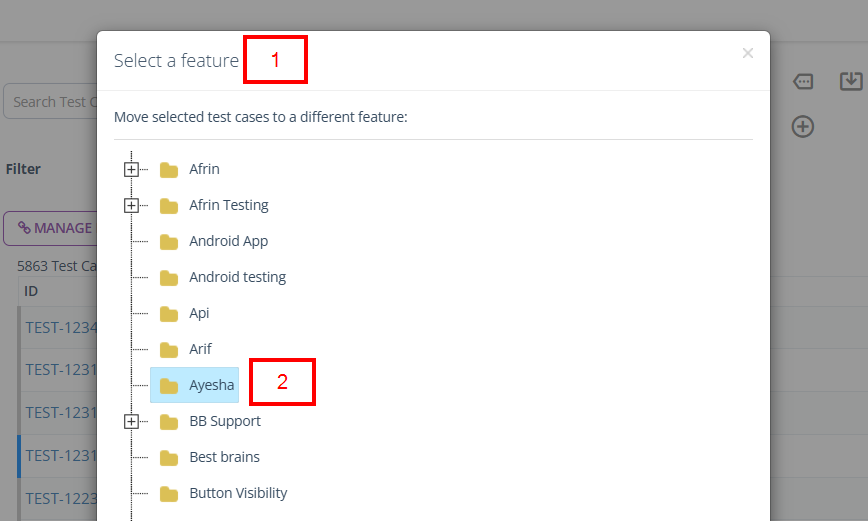
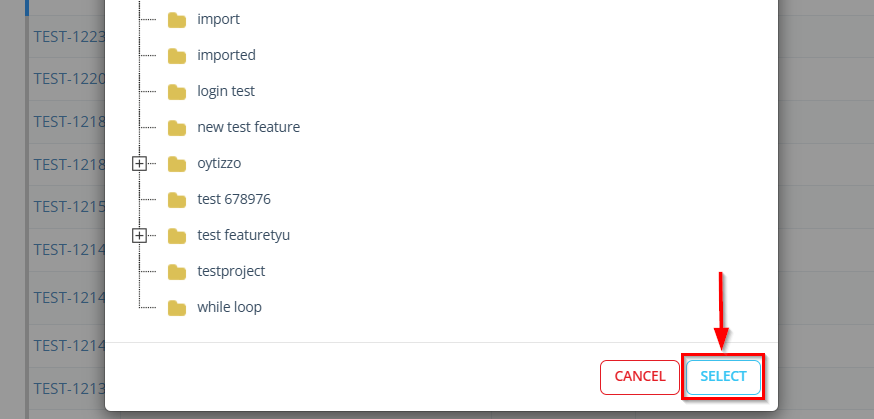
- Then, Select a feature window will open. Click to choose a feature.
- Click the SELECT button.
Verify the selected test cases in the required feature
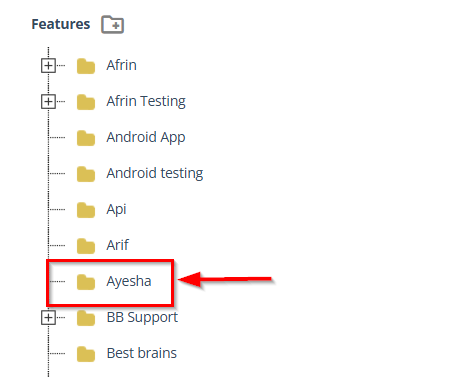
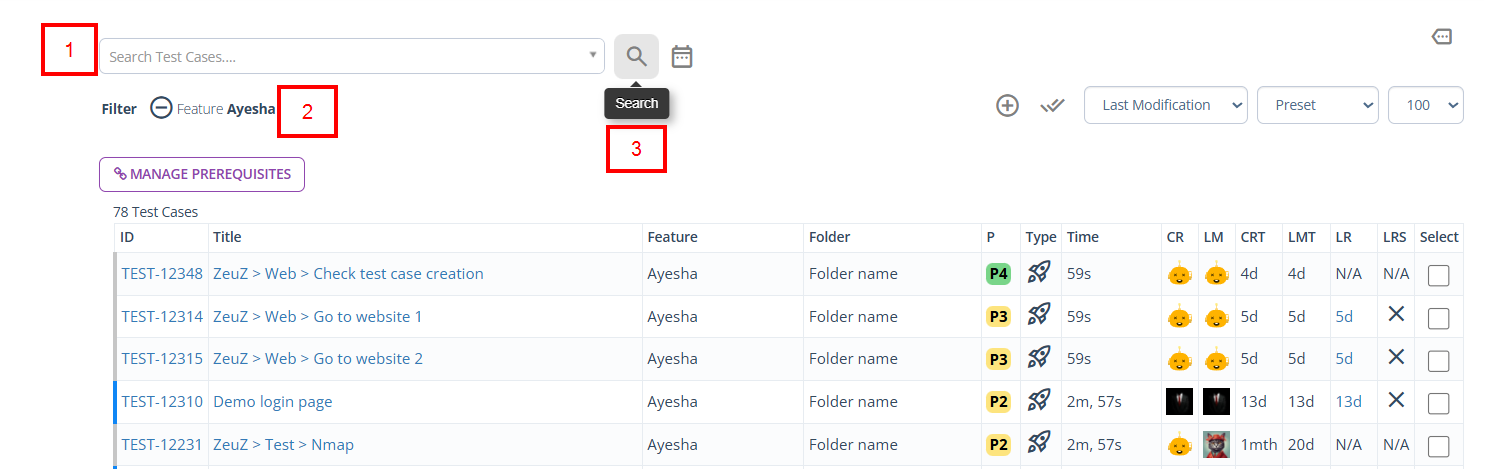
- To verify whether the test cases have been moved successfully, click on the required feature where the selected test cases were moved.
- The feature can also be specified through the search bar.
- Click the Search button.
FAQs / Troubleshooting
Why are the test cases not visible after moving them?
This usually occurs when a different folder or feature filter is applied. Cleaning or updating the search filters helps display the moved test cases.
Can test cases be moved to multiple folders or features at the same time?
No. A test case can belong to only one folder or one feature at a time to maintain a clear and structured organization.
What happens if the wrong folder or feature is selected?
The test cases will be moved to the selected location. They can be moved again to the correct folder or feature if needed.
Why is the Move option disabled?
This commonly happens when no test cases are selected. At least one test case must be selected to enable the move action.
Do moved test cases lose their execution history or links?
No. Moving test cases only changes their organizational location. Execution history, links, and related data remain unchanged.
Changelog
- New UI has been introduced [20250712]