Deploy and Execute manual test cases
Manual test cases are predefined sets of test steps executed by a tester without using automation tools. Each test case includes a specific objective, input data, expected outcome, and execution procedure.
Deploy and execute manual test cases refers to the process of preparing and running manual tests to verify system functionality.
- Deploy: This step ensures that the required environment, configurations, and resources are set up properly for the test cases to run.
- Execute: Once deployed, testers can manually perform the test steps, record results, and update the test status.
In ZeuZ, this process ensures that manual test cases are executed in a controlled and well-prepared environment, helping identify defects and validate that the software meets its requirements.
Why it matters / Use Cases:
- Ensures environment readiness: Deploying test cases prepares the correct setup, preventing configuration errors during execution.
- Validates real-world functionality: Manual execution helps verify how the system behaves under real user actions and scenarios.
- Supports exploratory testing: Testers can identify unexpected issues that automated scripts may overlook.
- Improves accuracy of test results: Running tests in a properly deployed environment ensures consistent and reliable outcomes.
- Facilitates regression and usability testing: Manual execution is effective for verifying visual elements, user experience, and workflows after updates.
- Ensures controlled testing process: Deploying and executing manually allows testers to monitor each step closely and record precise observations.
Prerequisites
- Access to ZeuZ Server with permissions for Testing → Deployments → Run Tests.
- All manual test cases should be properly documented with clear steps, inputs, and expected outcomes.
- Relevant data inputs must be prepared to ensure accurate testing.
- Any linked components, integrations, or external services should be active and functioning.
- The correct software version or build must be deployed for consistent and valid results.
Quick-Start
- Search Test Cases: Allows users to search and select the desired test cases for deployment.
- Estimated Duration: Displays the total estimated execution time for the selected test cases (e.g., 2min57s).
- Test Set Information: Shows the name of the selected test set (e.g., set - Demo Google maps).
- Preset Selection: Provides an option to choose an existing preset configuration before running the test.
- Run Button: Starts the deployment and execution of the selected test cases.
- Basic and Advanced Tabs: Allow users to switch between simple and detailed configuration options before execution.
Features
Basic tab details
-
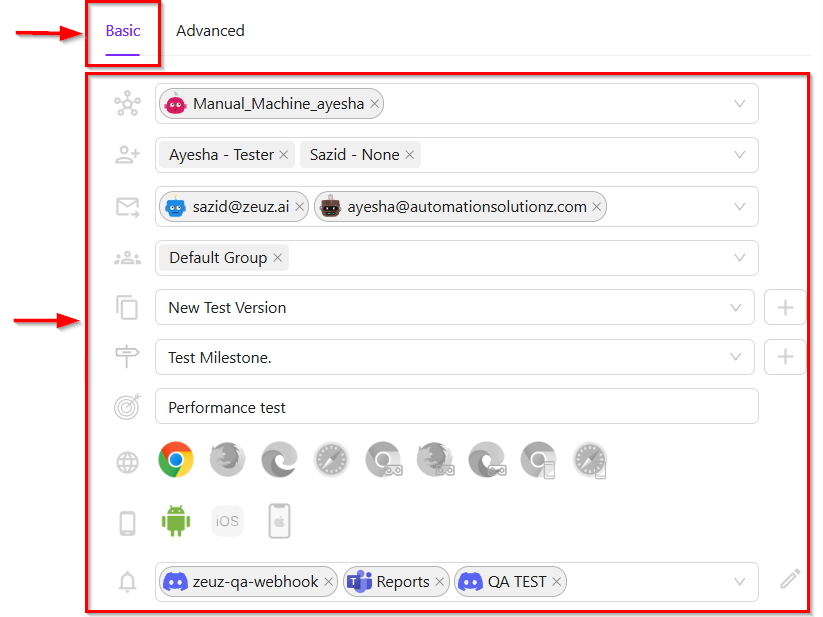
It is the tab where key execution settings for a test run are configured.
-
The elements displayed include:
- Node: The selected machine or environment where the manual test cases will be executed (e.g., Manual_Machine_ayesha).
- Testers: The assigned testers responsible for executing the manual test cases (e.g., Ayesha - Tester).
noteMultiple testers can also be assigned.
- Emails: The email address that will receive updates for the manual test case execution (e.g., ayesha@automationsolutionz.com).
noteMultiple email addresses can also be selected.
- Groups: The group used to categorize the manual test case execution (e.g., Default Group).
- Version: The selected version or build for the manual test case execution (e.g., New Test Version), with an option to add a new version.
- Milestone: The selected milestone for the manual test case execution (e.g., Test Milestone), with an option to add a new milestone.
- Objective: The objective of a manual test case can be chosen from a predefined list or defined as a custom objective (e.g., Performance test).
- Browser: A set of browser icons is provided to select the browser for manual test case execution, with Chrome currently active.
- Mobile: Options are available to select Android, iOS, or iOS Simulator for manual test case execution on devices.
- External Service: Displays the selected external service or webhook configured for notifications or integrations (e.g., zeuz-qa-webhook).
noteMultiple external services can also be selected for execution.
-
To remove any Testers, Emails, or External Services, click the Cross(X) icon.
Advanced tab details
-
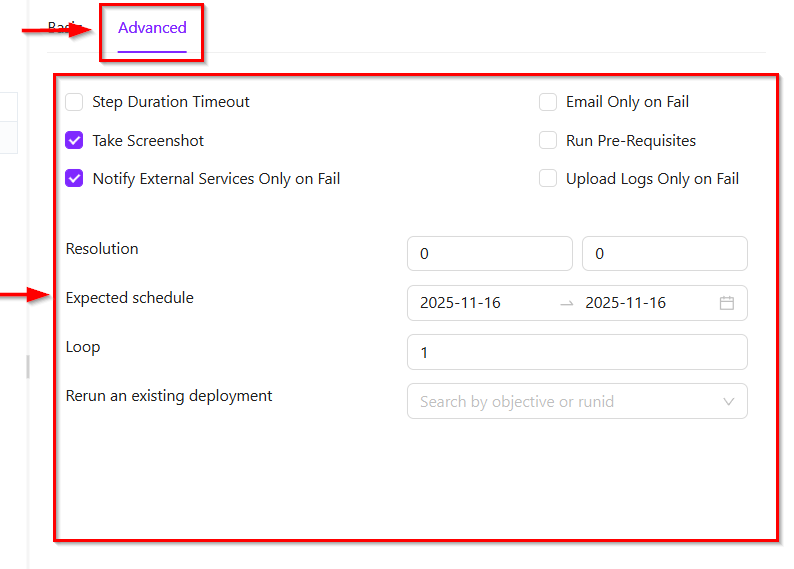
The Advanced tab in a test execution configuration provides options that allow the tester to adjust how the manual or automated execution will behave.
-
The elements are as follows:
- Step Duration Timeout: An optional setting that allows a timeout to be applied for each test step.
- Take Screenshot: When enabled, a screenshot will be captured during the manual test case execution.
- Notify External Services Only on Fail: External services will be notified only if the manual test case execution fails.
- Email Only on Fail: Sends email notifications only when the manual test case execution fails.
- Run Pre-Requisites: Allows any defined pre-requisite steps to run before the manual test case execution.
- Upload Logs Only on Fail: Uploads execution logs only if the manual test case execution fails.
- Resolution: Two fields for defining a custom screen resolution (width x height). Both values are set to 0, indicating no custom resolution is applied.
- Expected schedule: Allows selecting the planned start and end date for the manual test case execution. The date shown is 2025-11-16 for both the start and end.
- Loop: Defines how many times the manual test case execution should repeat. This value is set to 1, meaning a single run.
- Rerun an existing deployment: A search field that allows selecting a previous deployment by objective or run ID to rerun.
Execute and deploy manual test cases
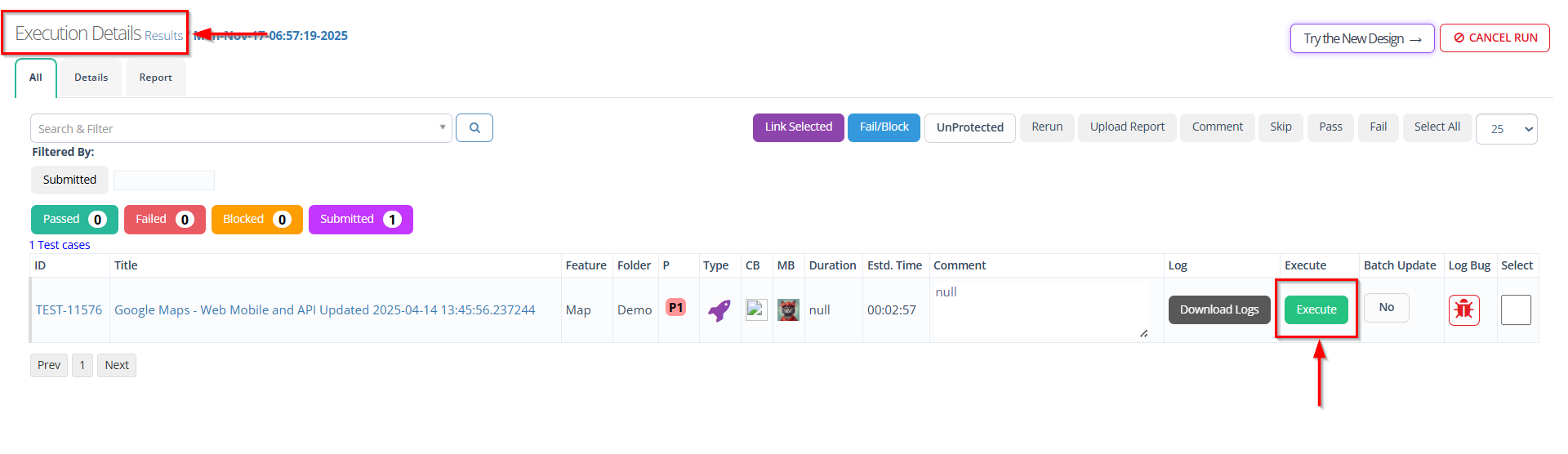
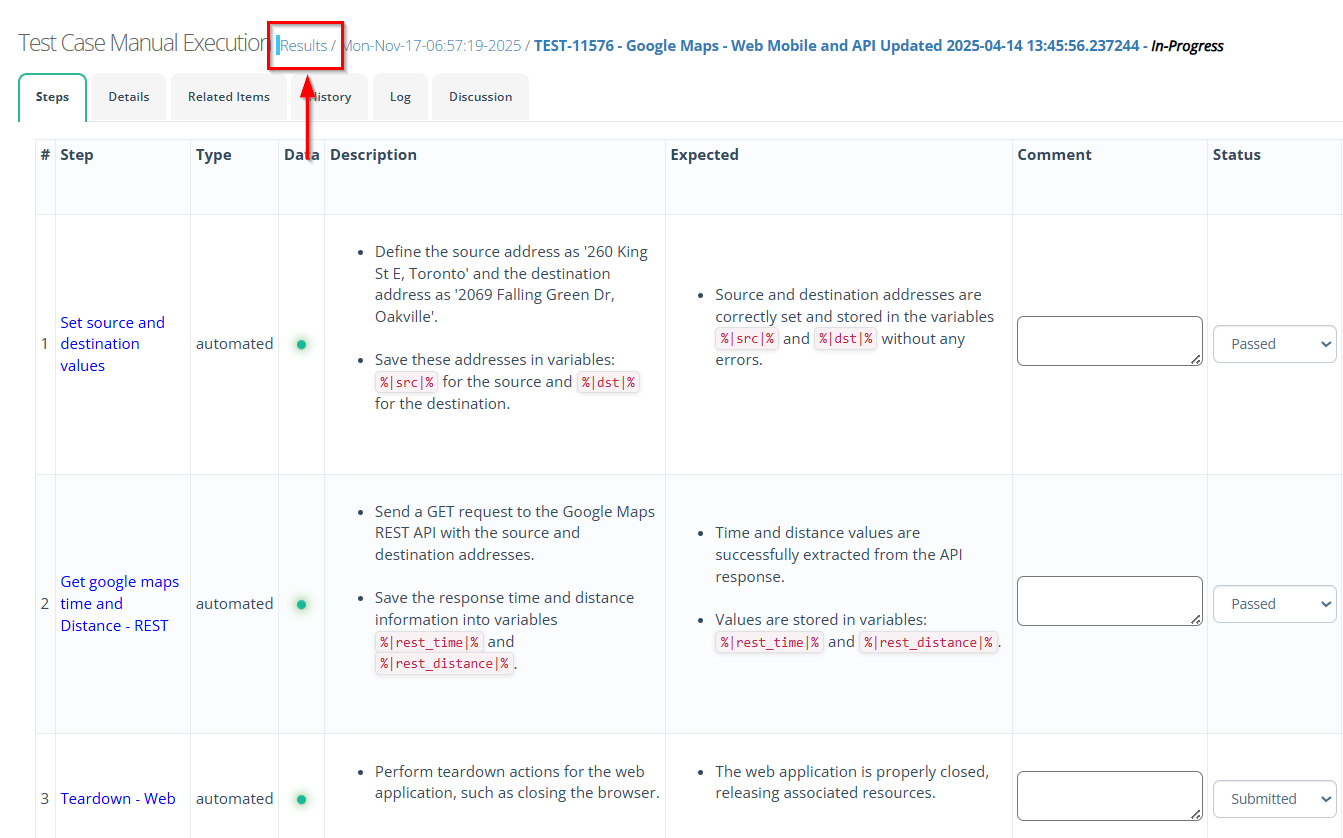
- Click the Run button.
- It will redirect to the Execution Details page.
- Click the Execute button.
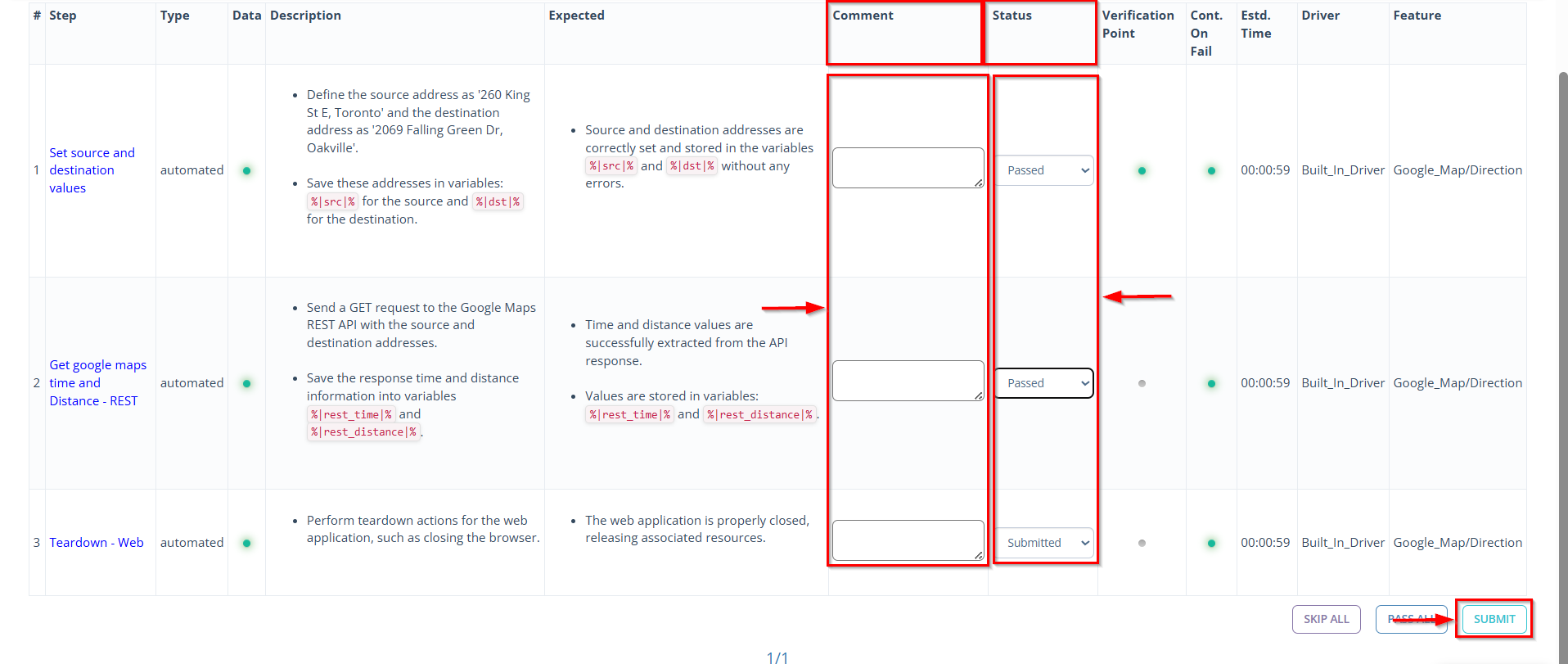
- Write Comments for each step, if required.
- Click to change the Status.
- Click the Submit button.
- Click Results and verify whether the test case has been deployed.
FAQs / Troubleshooting
FAQs
What does deploying a manual test case mean?
Deploying a manual test case means making the test case ready for execution in a specific version, build, or environment. It links the test case to the selected version or environment so it can be executed systematically.
Can I execute a test case without deploying it first?
No, deployment is required to ensure the test case is available in the selected version and environment.
How do I select the environment for execution?
You can select the environment for execution by choosing the desired node listed under the Node section. The selected node specifies the machine on which the test case will run.
Can a test case be executed multiple times?
Yes, a test case can be executed multiple times. This is controlled by the Loop field, which specifies the number of repetitions for the test case.
What happens if the test case fails during execution?
The failure is logged, and you can add comments or attach evidence for further review.
Troubleshooting
- Test case is not visible in the execution list: Ensure that the test case is deployed to the correct version and environment, and verify permissions if applicable.
- Execution button is disabled: Verify that the test case has been deployed and a valid environment is selected.
- Execution updates are not received: Confirm that the correct notification settings or tester assignments are configured.
- Comments or results cannot be submitted: Ensure that the user has proper permissions and the test case is correctly deployed.
Changelog
- New UI has been introduced [20250518]