POD
A POD is a small, organized team of members within a project that works on specific tasks or areas, and its purpose in project management is to efficiently group resources, track capacity and workload, improve accountability, and support structured planning and execution in platforms like ZeuZ.
Prerequisites
- Access to ZeuZ Server with permissions for Project → View → POD.
Quick-Start
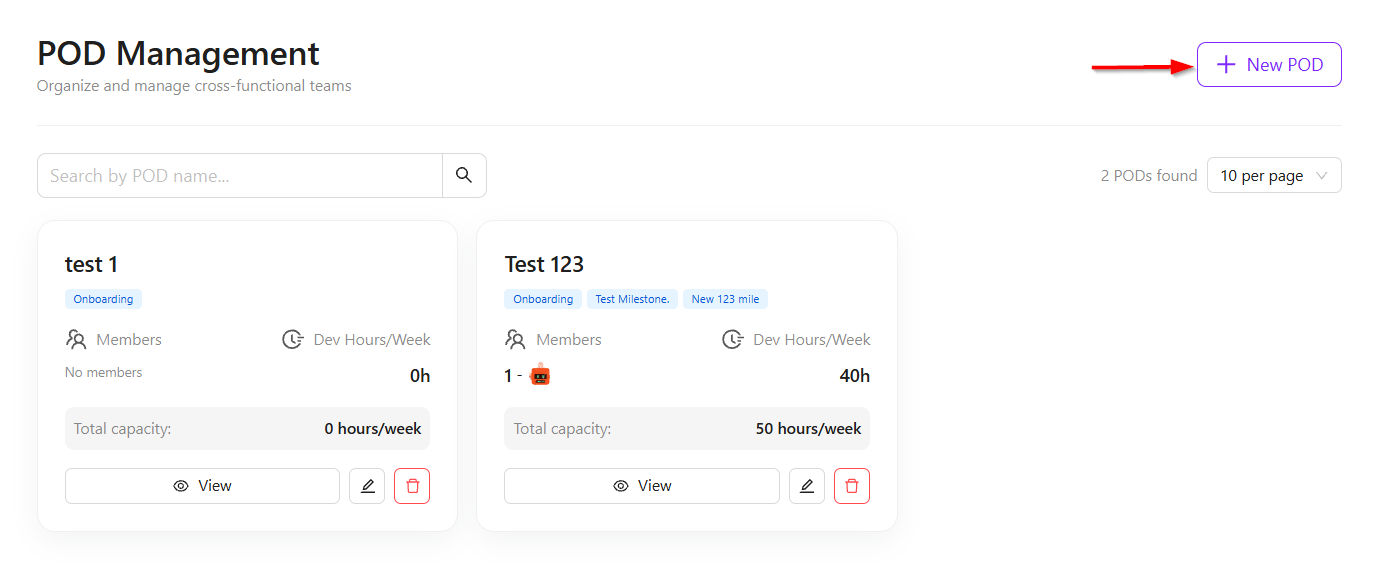
- From the "Project" option, click on POD, and it will redirect to the POD Management page.
Features
Create a new POD
- Click the + New POD button to create a new POD.
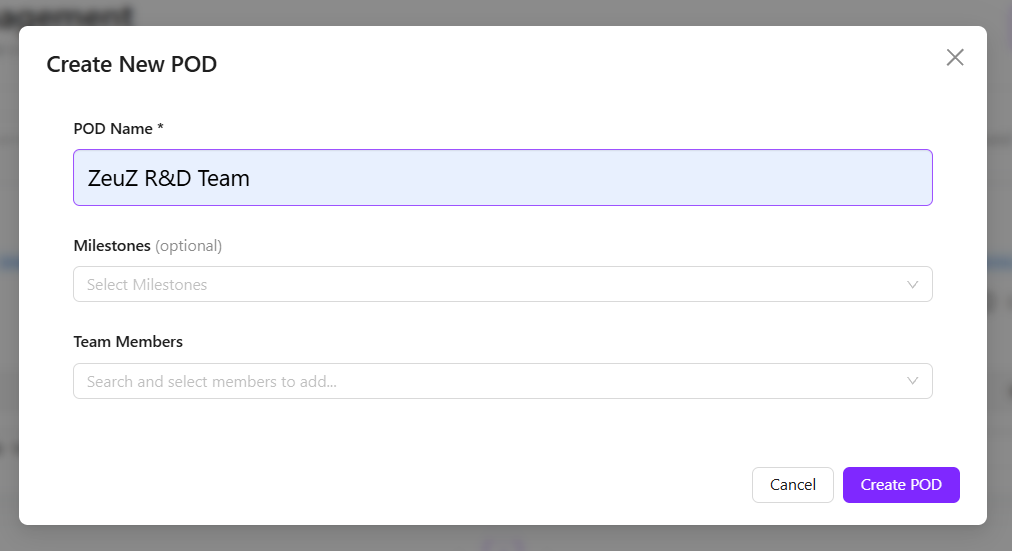
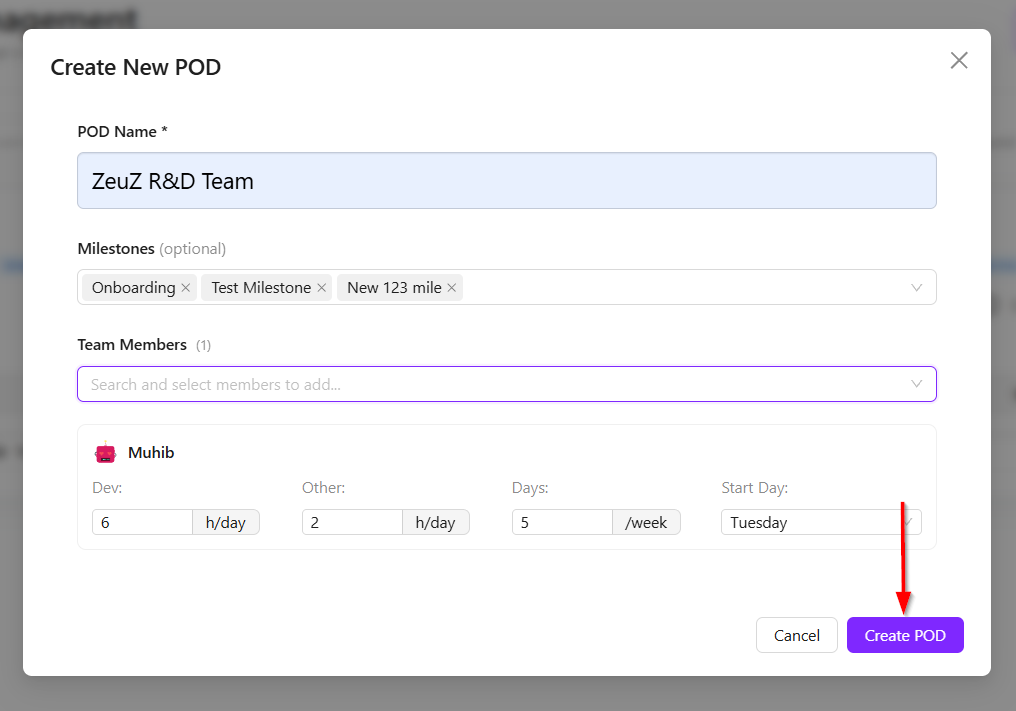
- When creating a new POD, a name can be assigned to it, for example, ZeuZ R&D Team. An optional parameter allows the addition of milestones to define which milestone the POD will work on. Any available milestone can be selected if required.
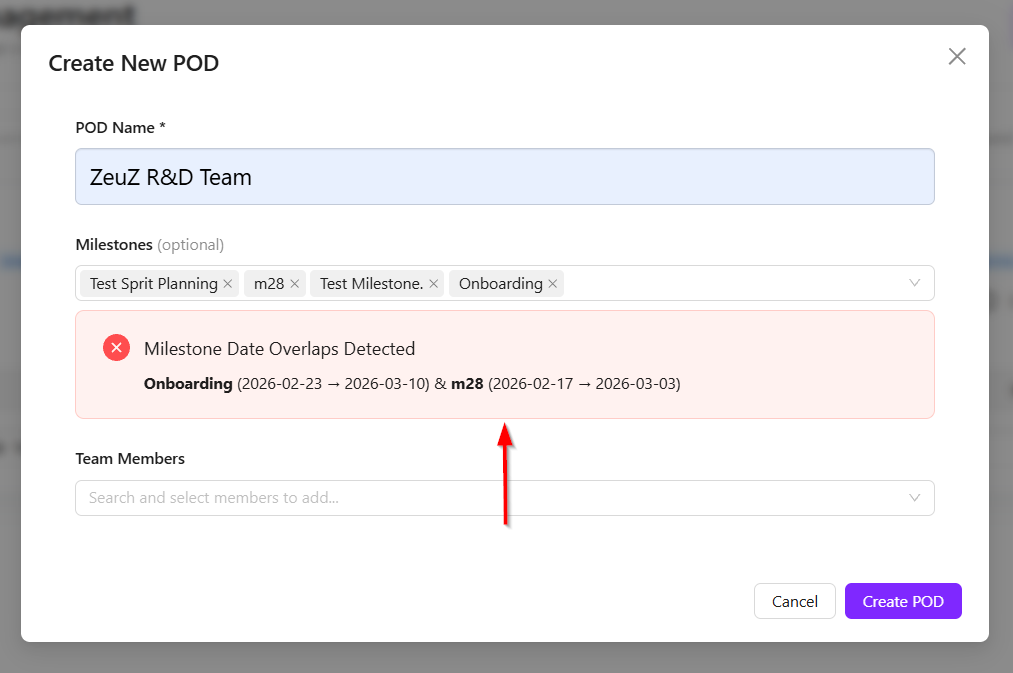
- There are certain validations in place for milestones. For example, overlapping milestones cannot be added together. If Onboarding overlaps with m28, only one of them can be selected. In that case, either Onboarding or m28 must be chosen.
- After selecting milestones, members can be added to the POD based on who will be part of the team. For example, Muhib can be added as a member. His development time may be set to 6 hours, and this value can be adjusted as needed. The remaining 2 hours may be allocated for meetings or other tasks.
- The POD configuration mainly defines how many hours each user will work, how many working days are available, and when the work will start. For example, it can show that a member will work 8 hours per day including development and other tasks, work 5 days a week, or work fewer days due to leave or sickness. It also allows defining whether the member will start work from Monday, Tuesday, or another selected day.
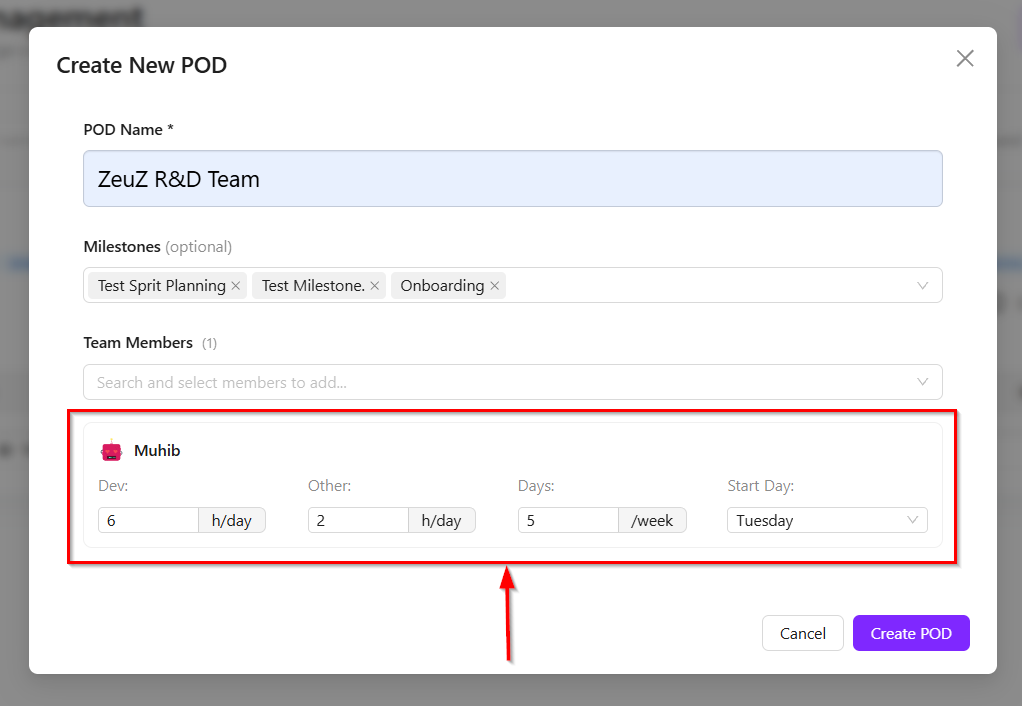
- In this system, multiple users can be added, and for each user, individual fields can be defined or configured as required. After providing all the necessary information, the pod can be created.
- A validation rule is also applied where a user already belonging to a pod team cannot be added to another pod. In other words, for a given project and team ID, a user can be a member of only one pod. For example, if five pods are created, a user (e.g., Muntasib Muhib Chowdhury) can belong to only one of those pods within the same project and team context.
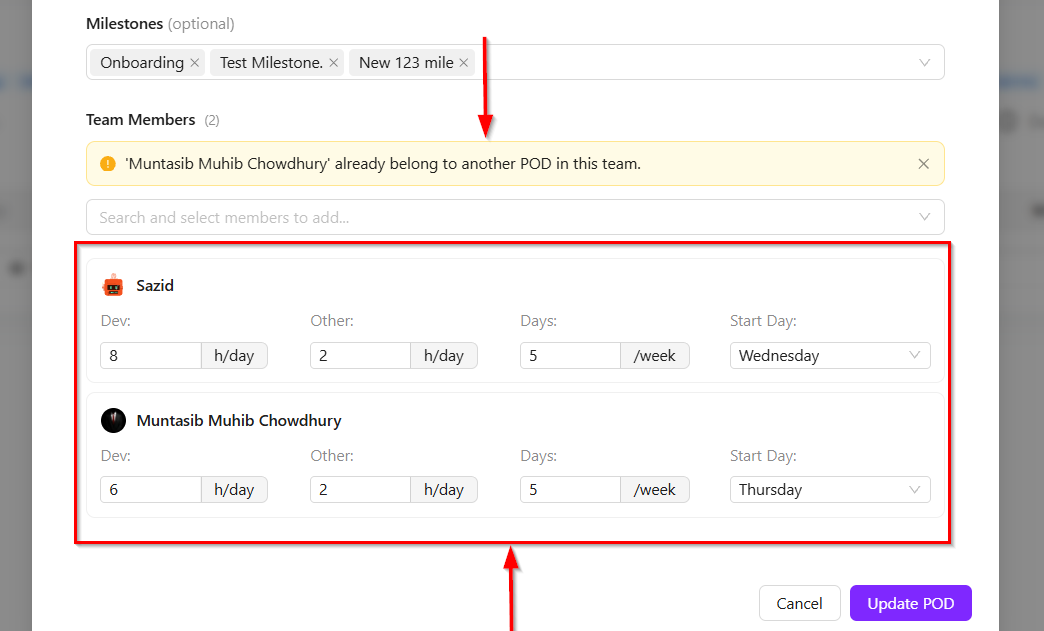
- Milestones can be selected and assigned to any pod. However, the validation rule for milestones ensures that overlapping milestones are not allowed.
- Once all the required information is properly filled and validated, the POD creation process is completed successfully by clicking the Create POD button.
Additional features
Edit a POD
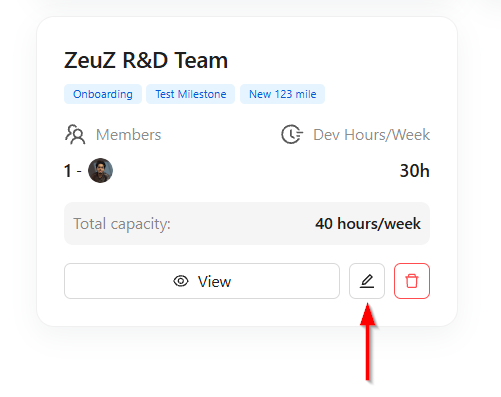
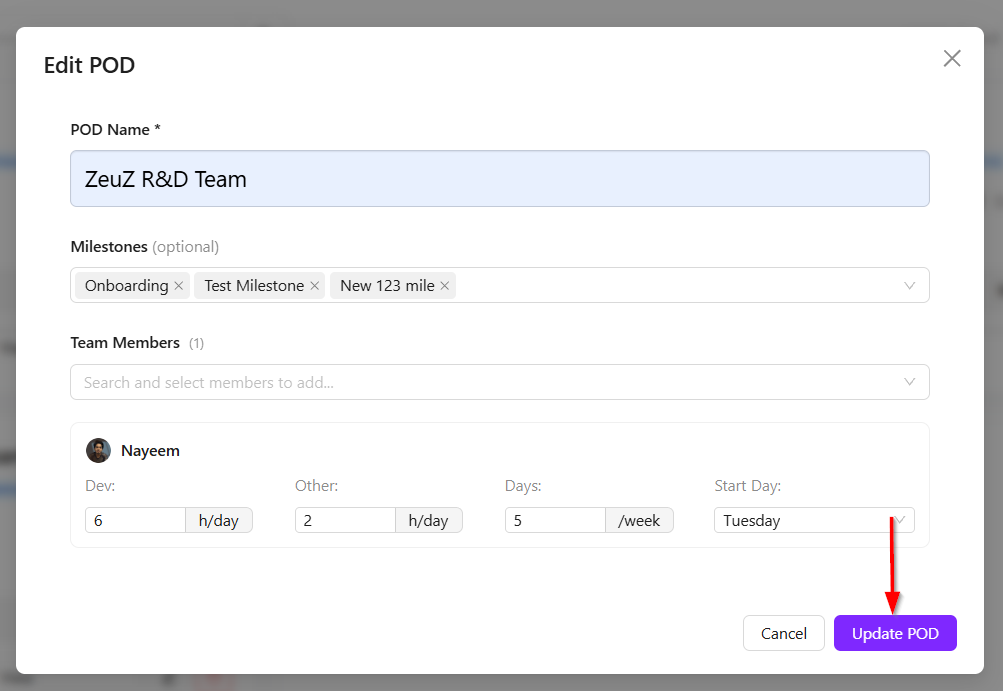
- If we need to edit an existing POD, then click the Edit button of that existing POD.
- After editing the required details, click the Update POD button.
Details of a POD
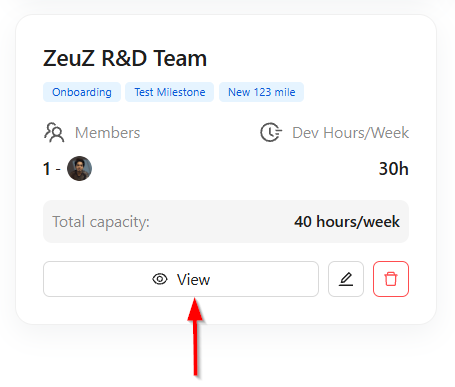
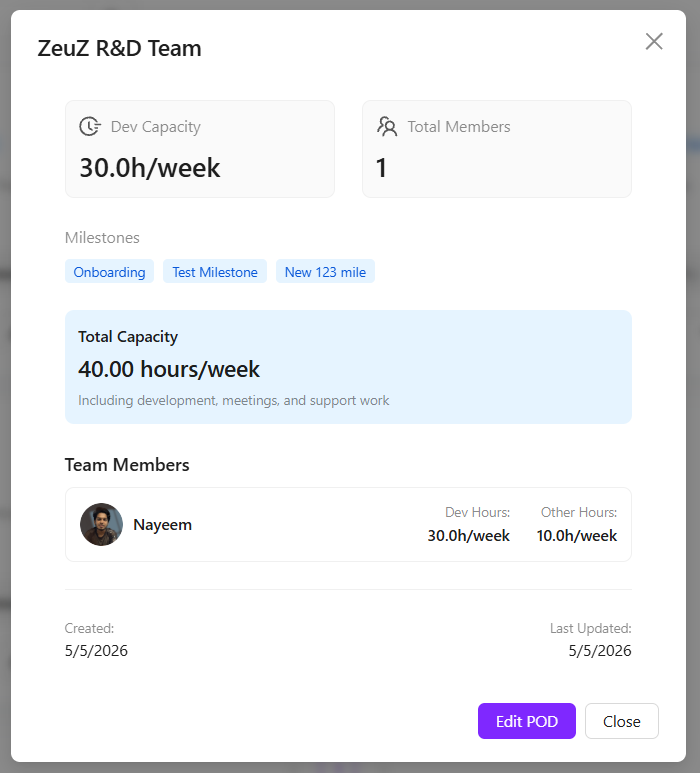
- To view the complete information of a POD, click the View button to display its details.
- After clicking the View button, the complete details of the selected POD will be displayed.
Delete a POD
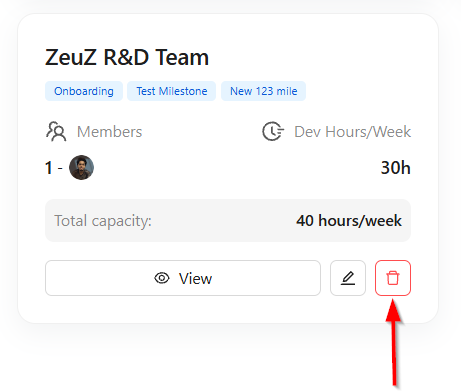
- If a POD needs to be deleted, click the Delete button.
Search a POD
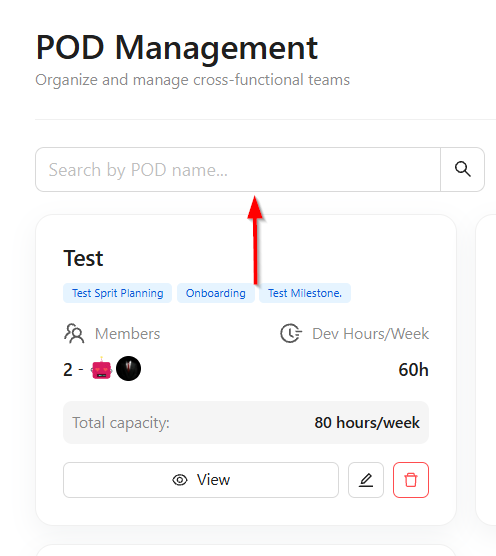
- To search for a POD, click the Search bar at the top and enter the POD name.
- After searching for a POD by name, the matching POD will appear.
Changelog
- Introduced Product Oriented Delivery (POD) Management System for cross-functional team organization. [202603]
Related Topics
- Milestones
- [Project management]